Reservation
Reservation Stage
This section describes the reservation process from the sales agent's perspective, detailing how to make a request and reserve a unit for the customer.
Issuing Reservation
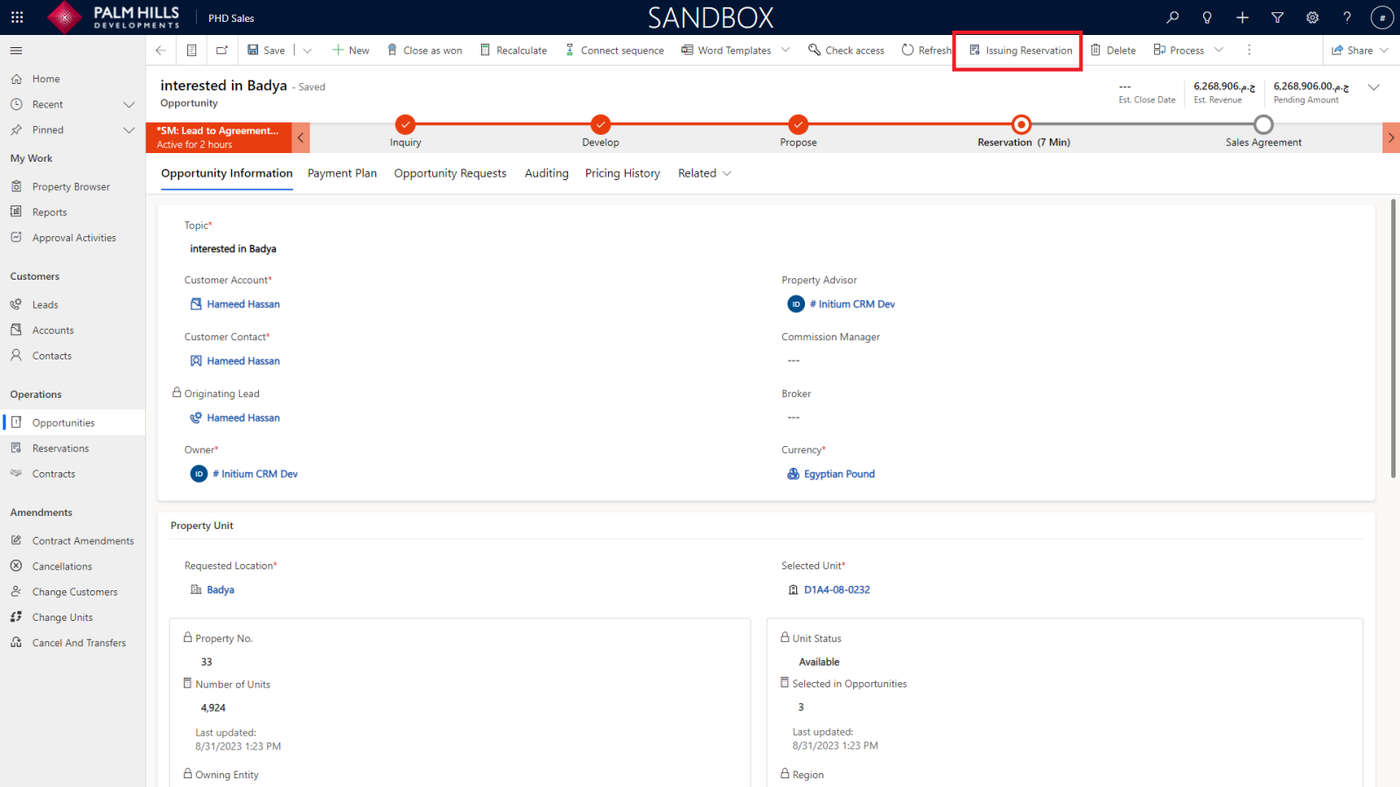
To make a reservation request, click on the 'Issuing Reservation' button as shown below.
Opportunity Requests
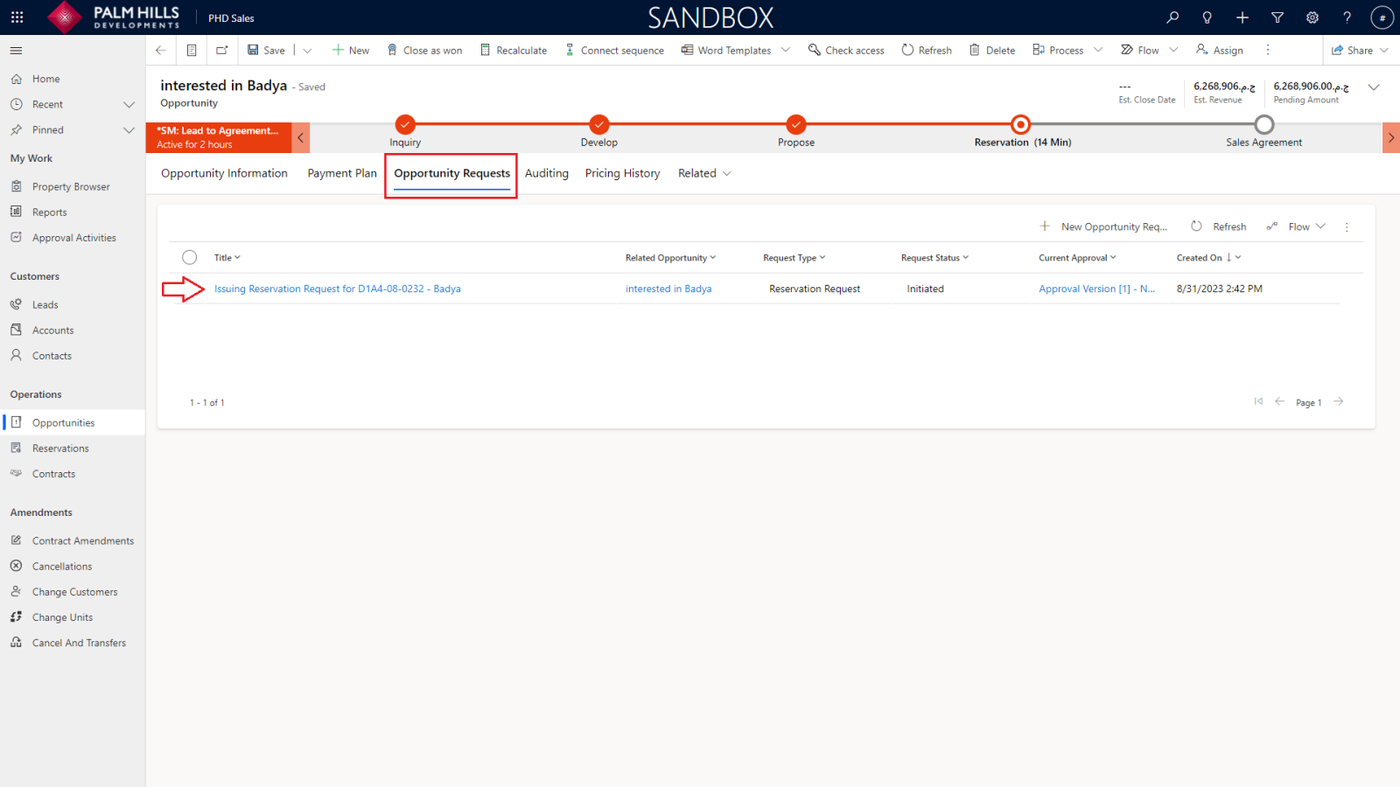
Once you click on 'Issuing Reservation', a new reservation request will be generated and sent for approval. To check the reservation request, navigate to the 'Opportunity Requests' tab.
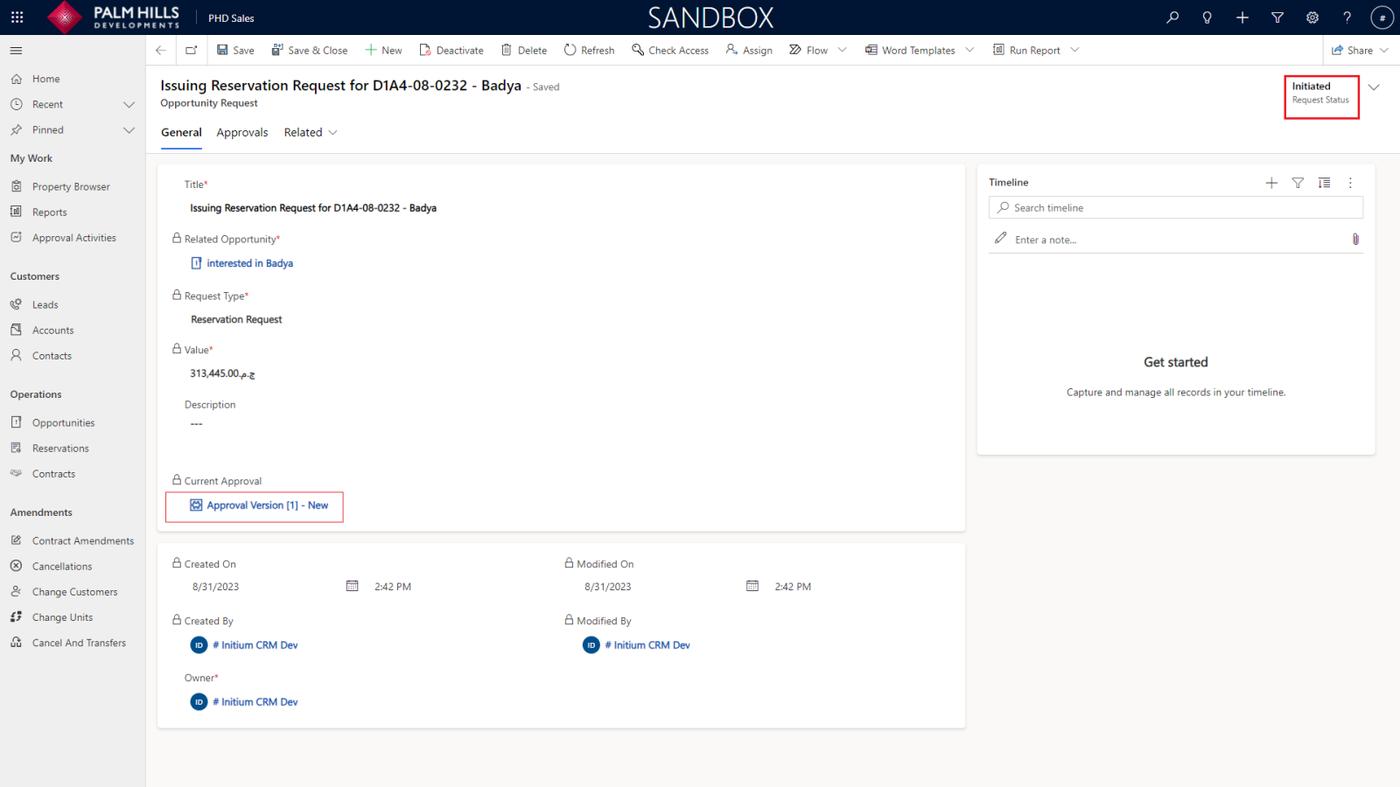
Click on the reservation request to view its details. and click on the 'Current Approval' for more information about the approval activities.
On 'Required Approvers' grid. you can find the approvers and the status of each one.
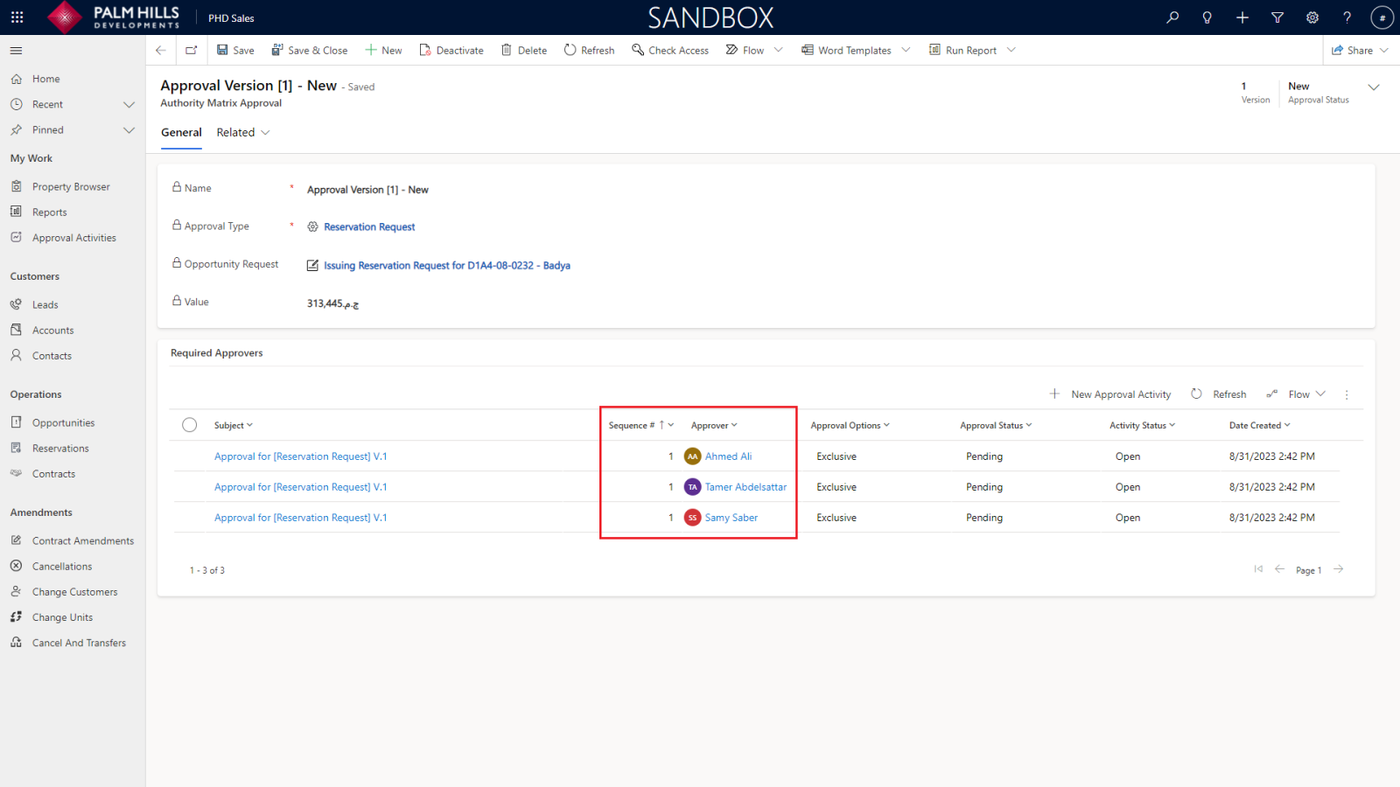
Sales Info Team
Sales Info Team is responsible for approving the reservation requests.
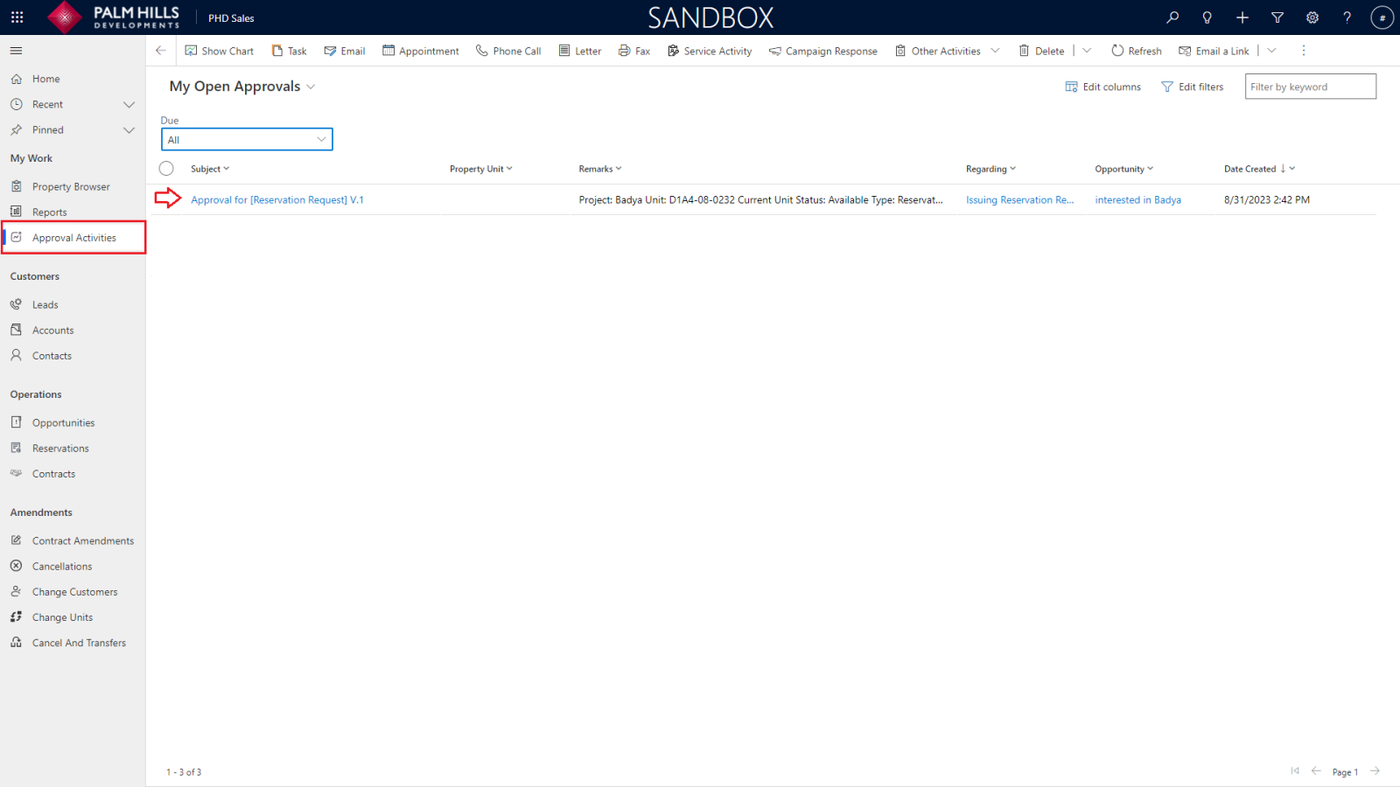
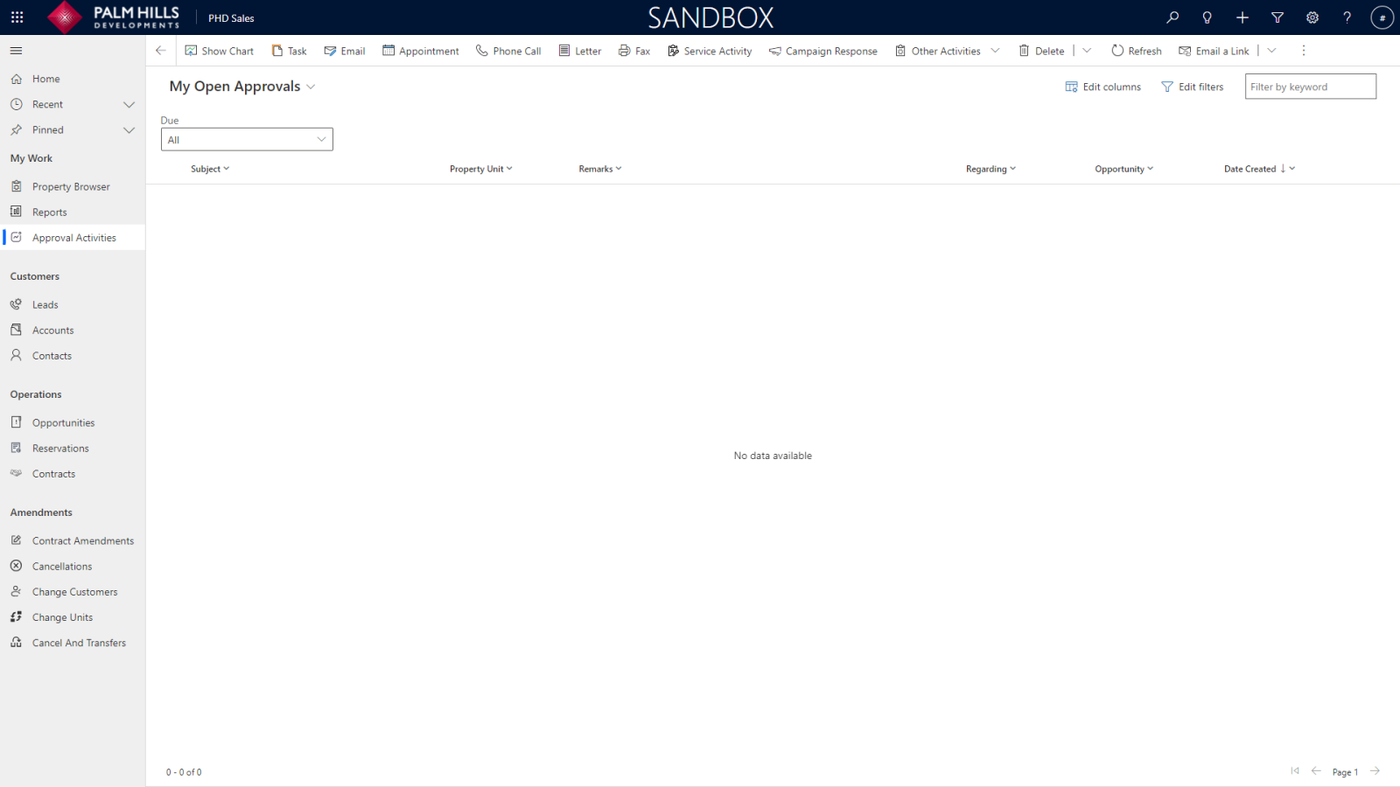
To review pending approval requests Click on 'Approval Activities' and it will display all pending reservation requests.
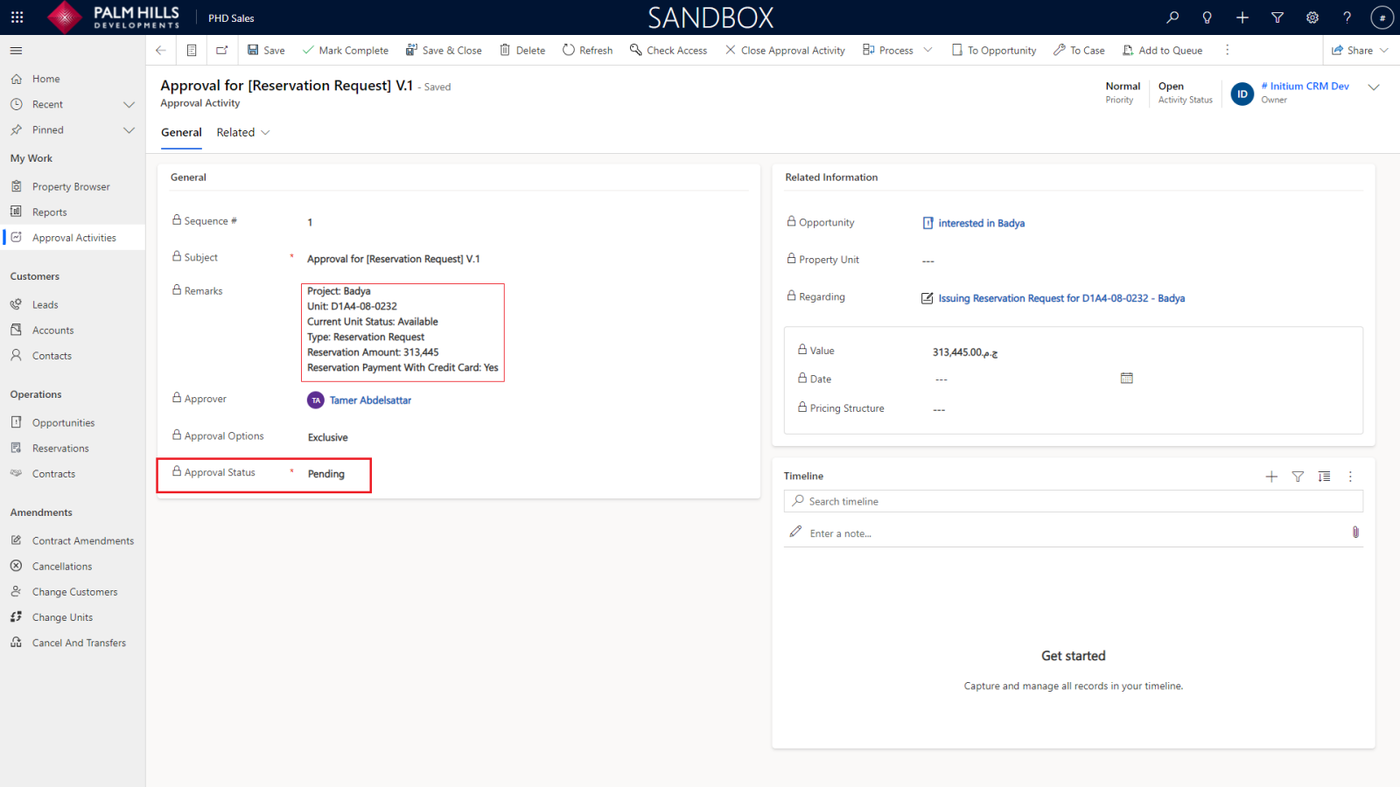
When you click on a reservation request, you will find a summary about the reservation request. you should decide whether to approve or reject the request as shown below.
Note: Approving a reservation request automatically rejects any pending reservation request for the same unit.
Click on 'Save' and then click on 'Mark Complete.'
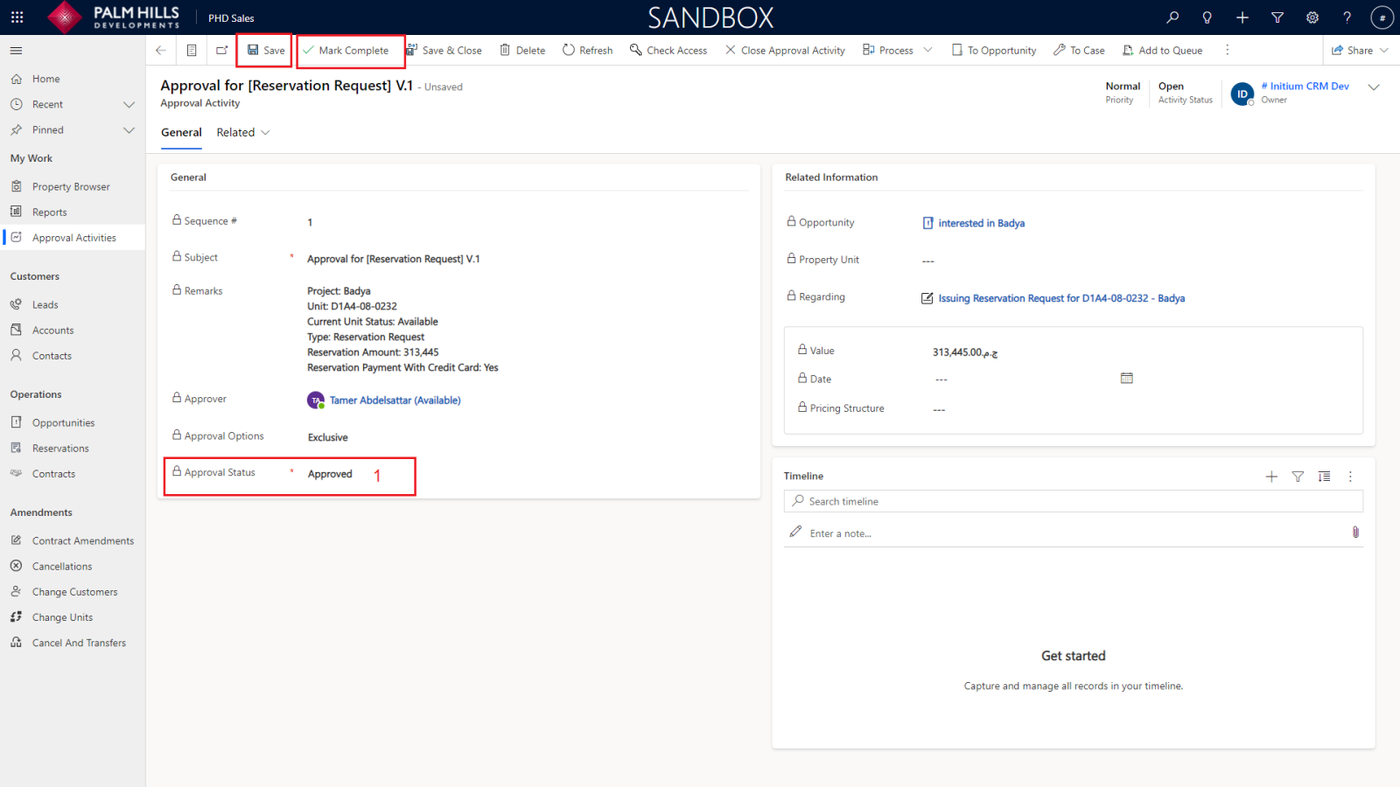
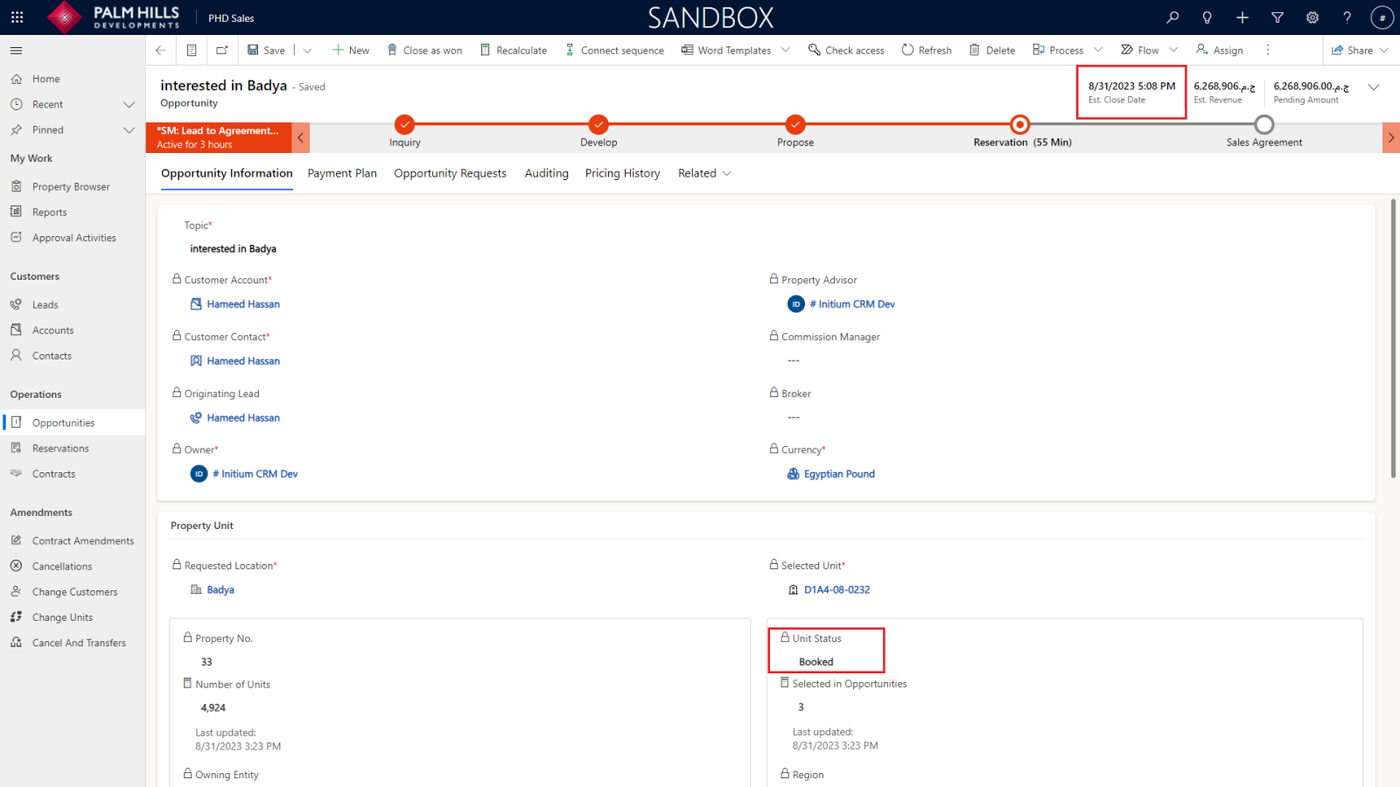
Upon approving a reservation request, the unit status will be updated to 'Booked'.
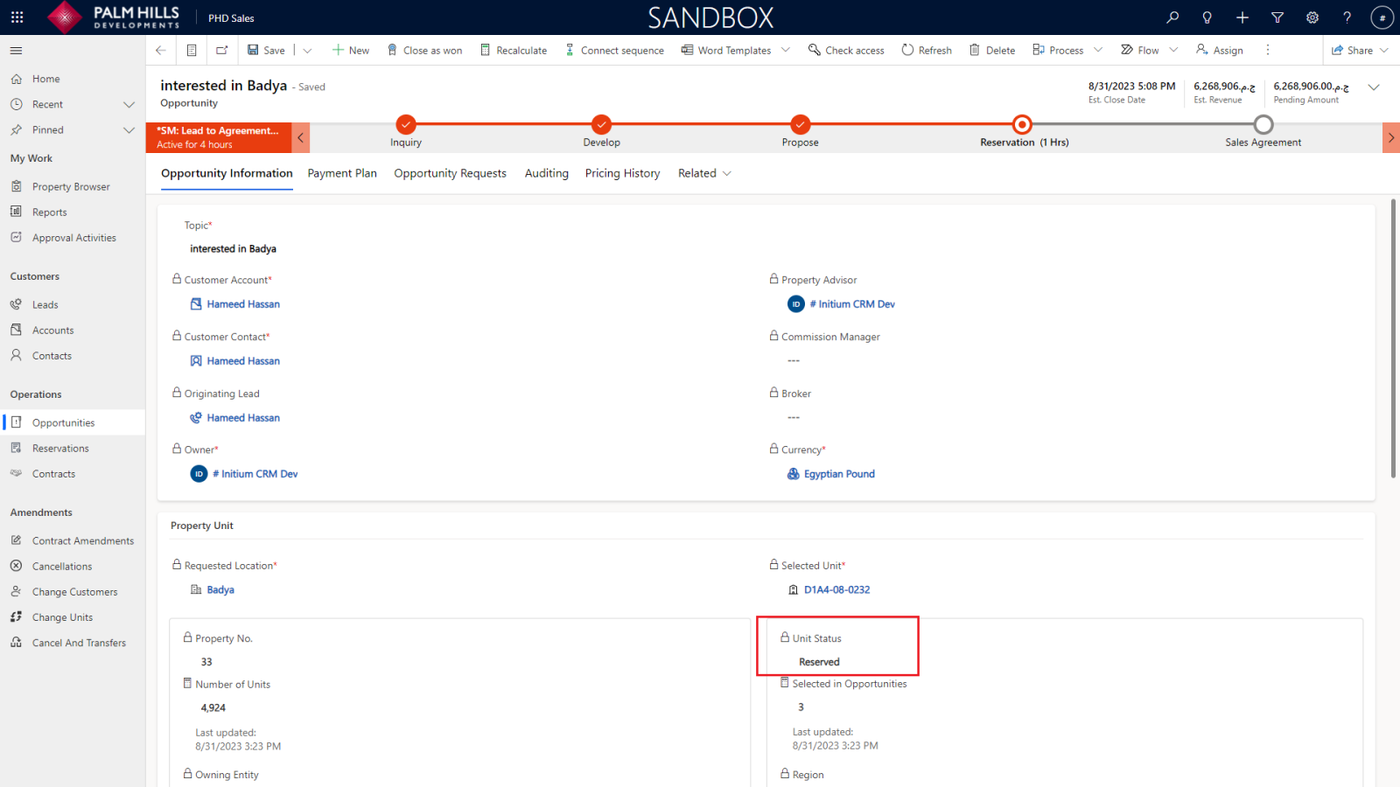
If the ERP Team marks the reservation payment, the unit status will be further changed to 'Reserved'. However, if the reservation payment is not marked, the unit status will automatically change to 'Available' once the estimated closing date is reached.
It's important to note that the estimated closing date is configured for each property by the portfolio team.
Going back to the opportunity, you can check the 'Estimated Close Date' and 'Unit Status'.
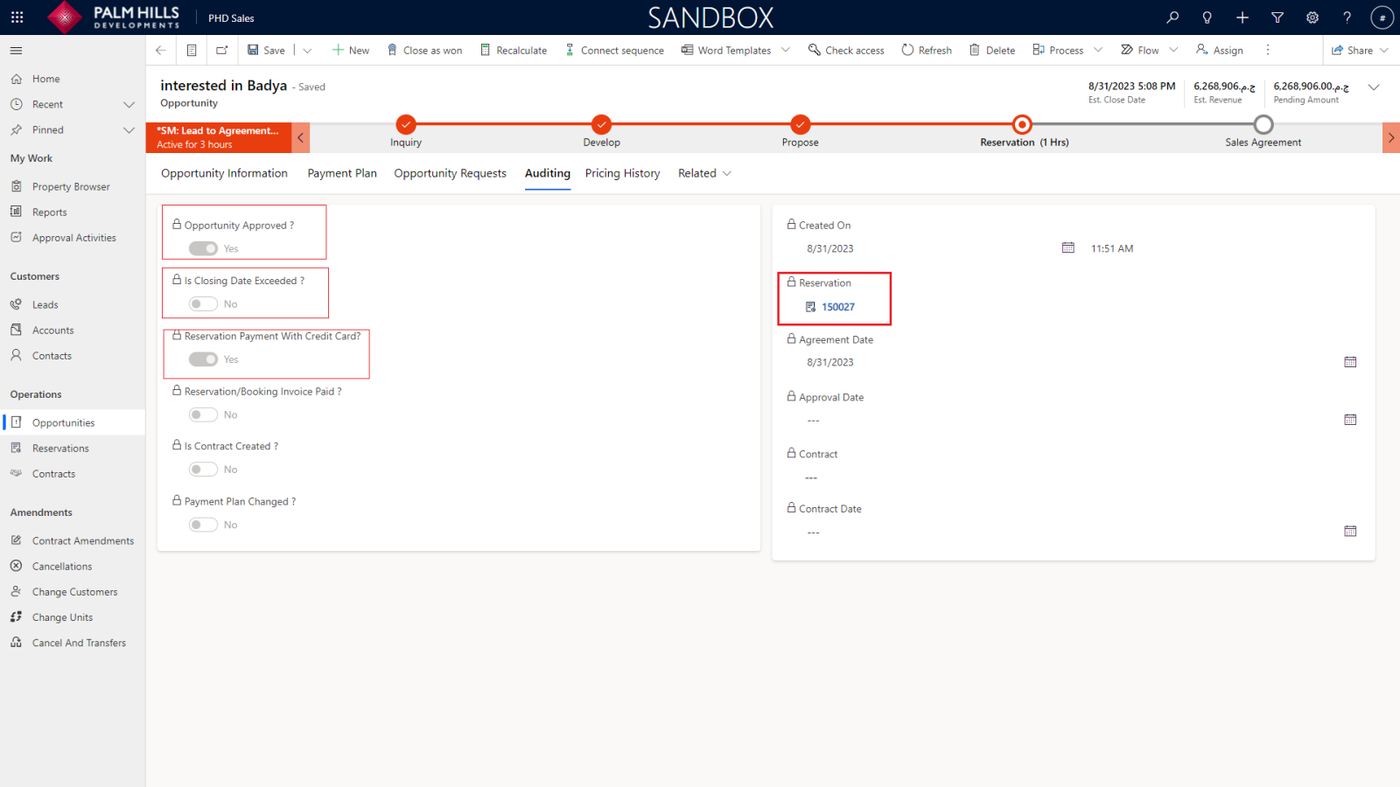
Auditing
When you go to Auditing, you will find metadata about the opportunity status, such as whether the opportunity is approved, if the closing date is exceeded, and if the payment was made with a credit card. Additionally, you can find the reservation record as shown below.
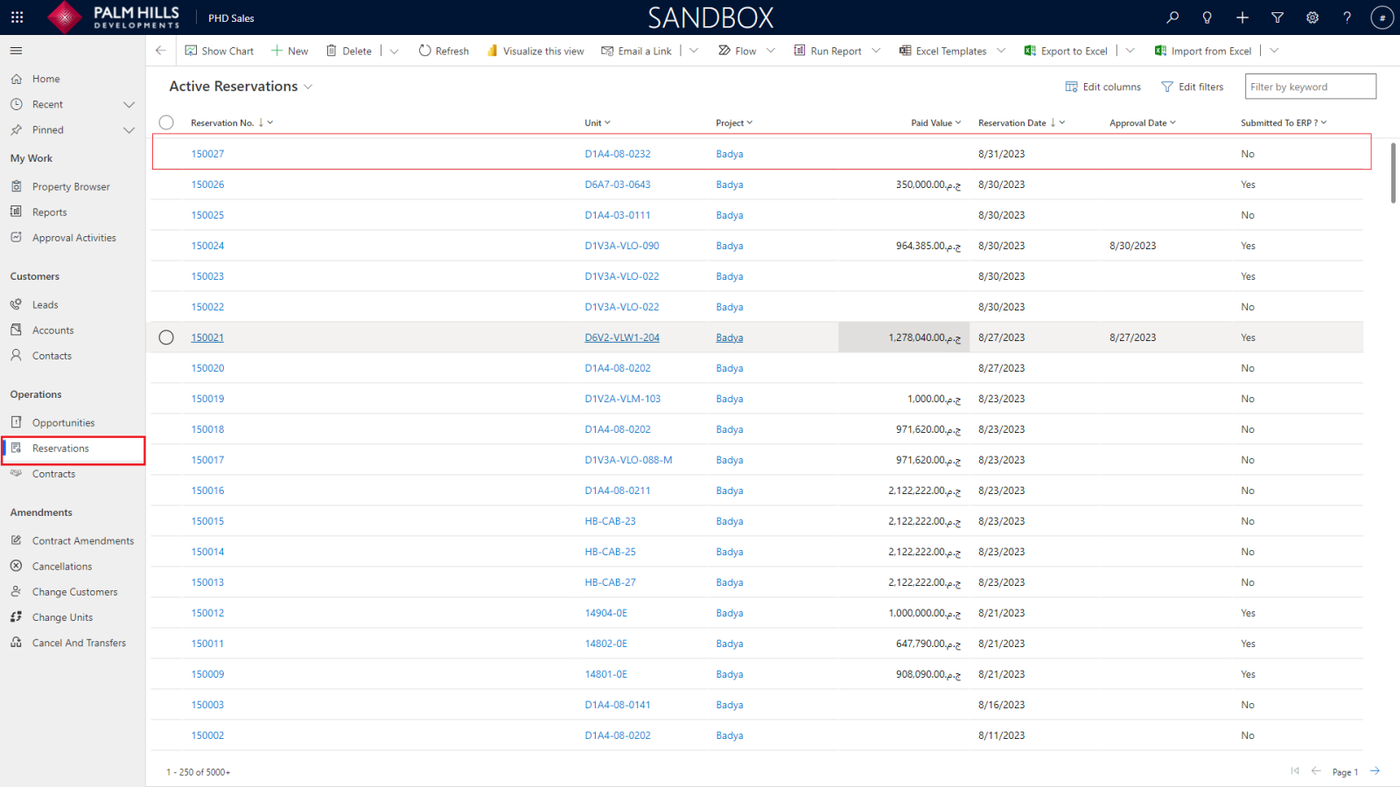
Reservation Details
You can navigate to the reservation by clicking on the reservation number in the 'Auditing' section or by going to 'Reservations' and choosing it.
Submit To ERP
Now, We need to submit the reservation to ERP to get it approved and to determine whether the reservation amount is paid or not.
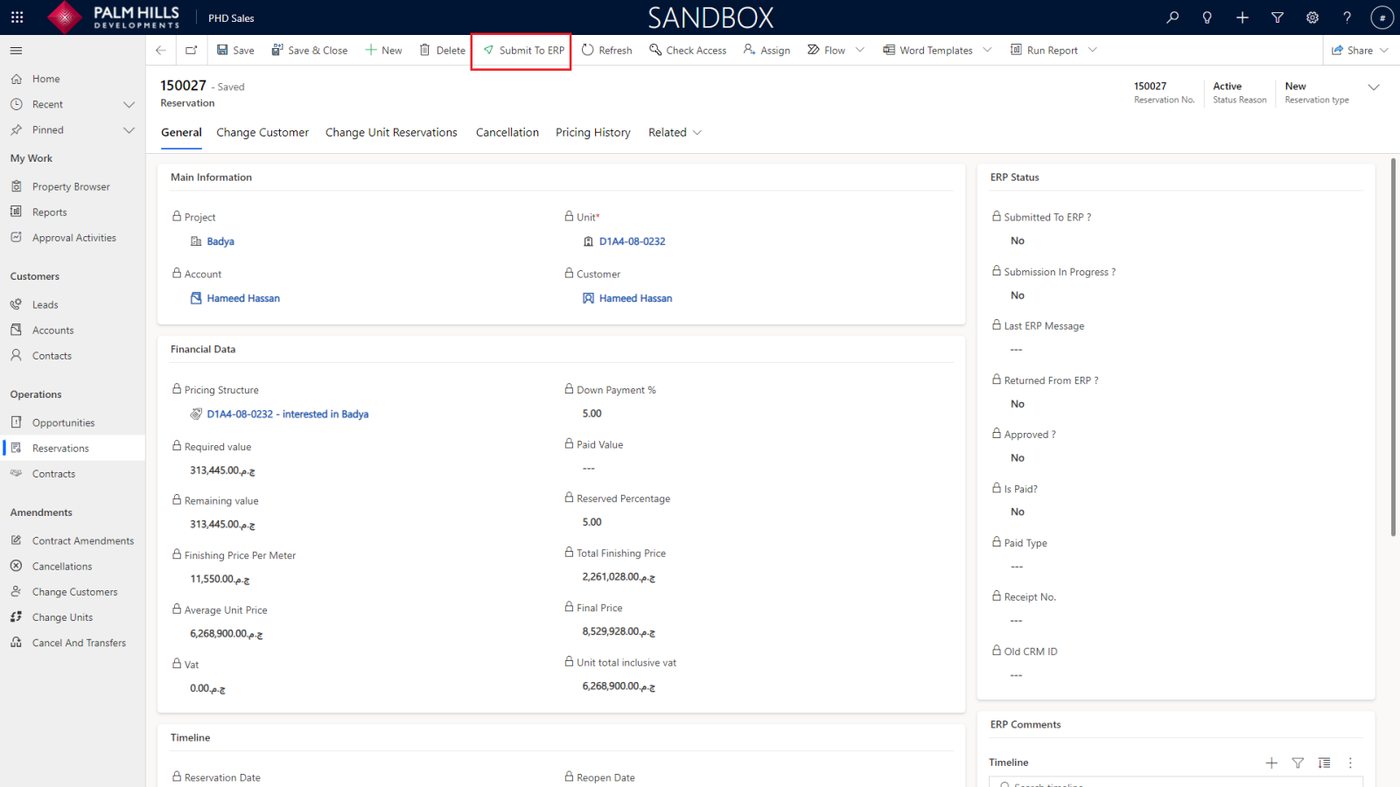
After clicking Submit To ERP, Check 'ERP Status' section. this section contains a summary about the status of the reservation on ERP.
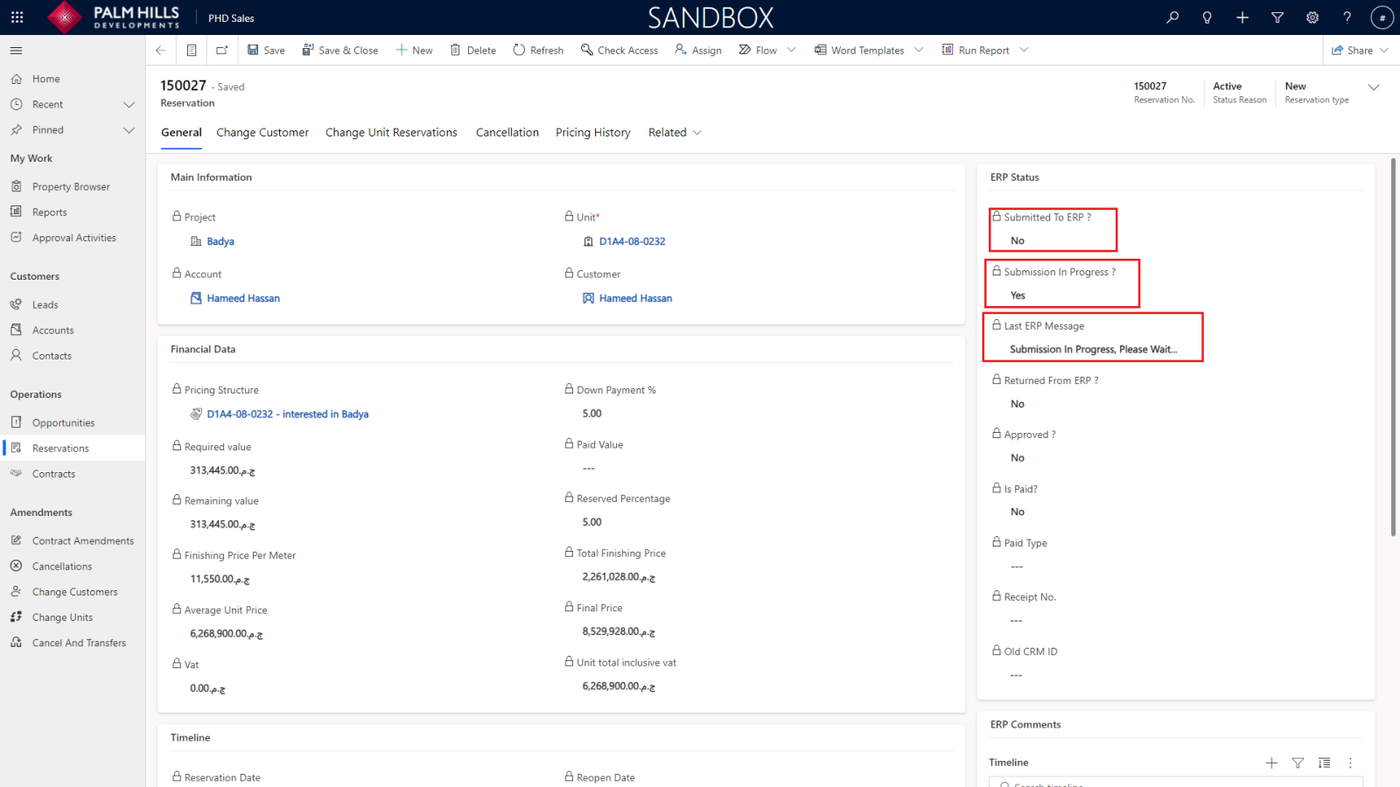
Once the submission is completed the indicated messages will be changed to 'Submitted Successfully'. The below fields will be set by the ERP team to keep the reservation updated.
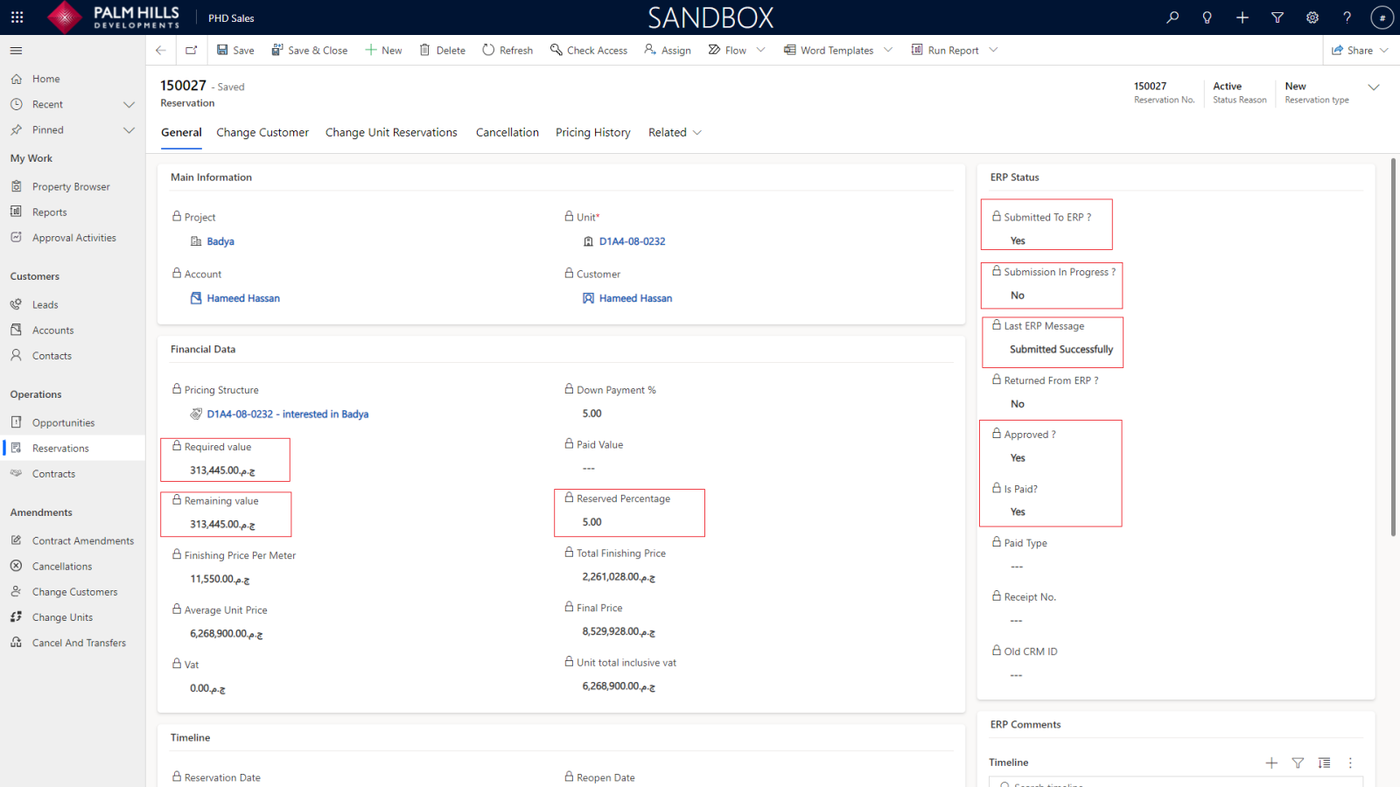
Once the reservation amount is paid. unit status will be changed to 'Reserved'.
Extend Reservation Request
In this section, we will describe a scenario in which a sales agent needs to request an extension for a reservation booking time. This request must be made before the estimated close time is reached.
New Opportunity Request
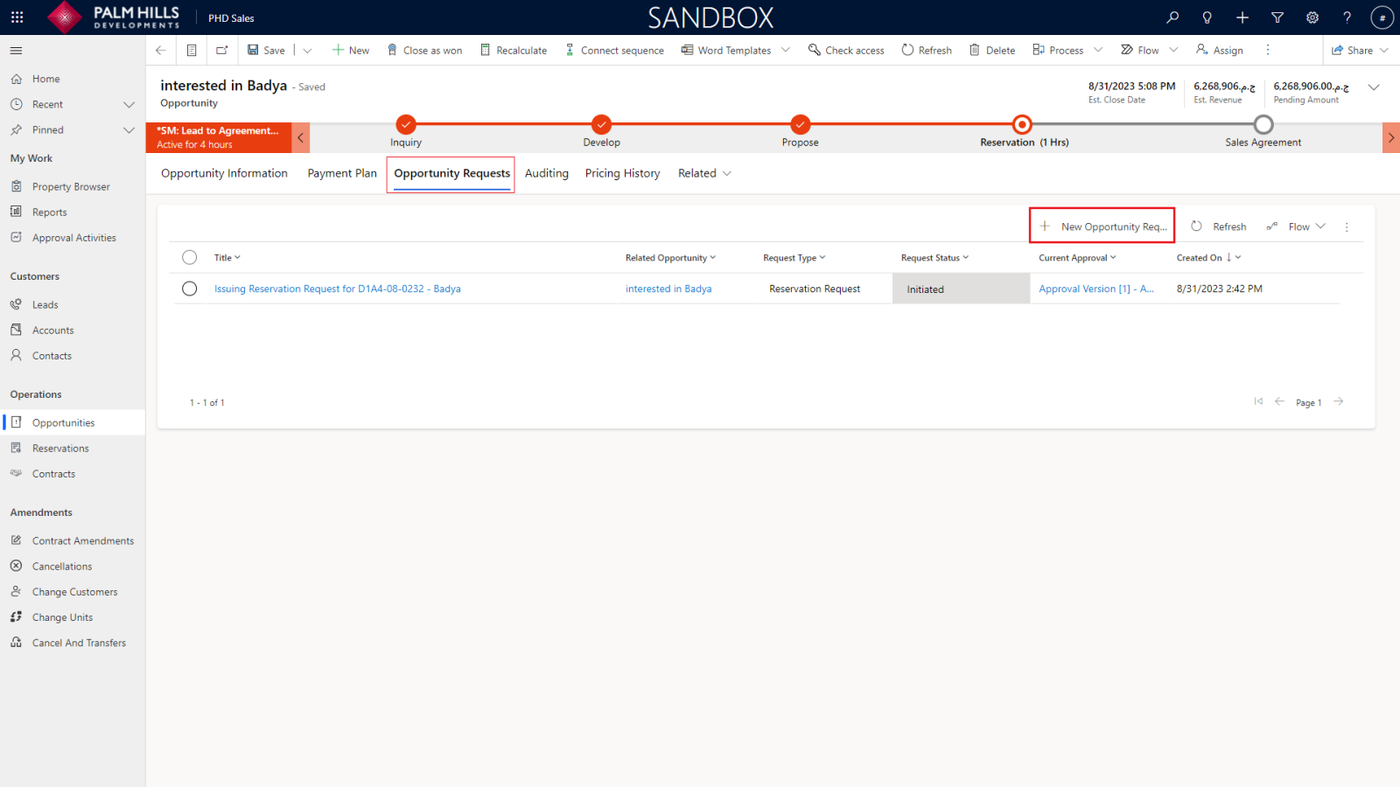
In the 'Reservation' step, navigate to the 'Opportunity Requests' section and click on the 'New Opportunity Request' button.
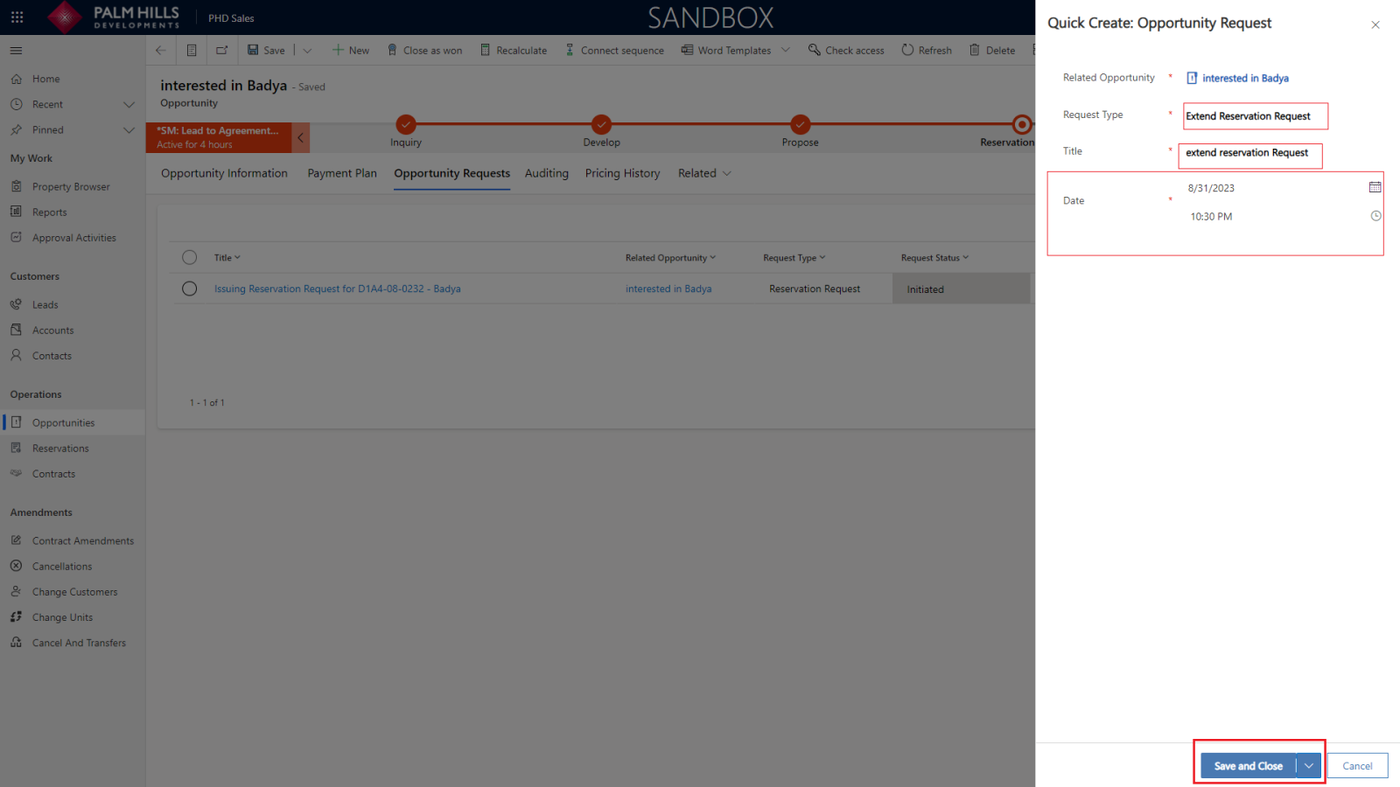
In this form, you need to fill in information about the opportunity request, such as request type, title, and the new estimated date and time. Then, click on the 'Save and Close' button.
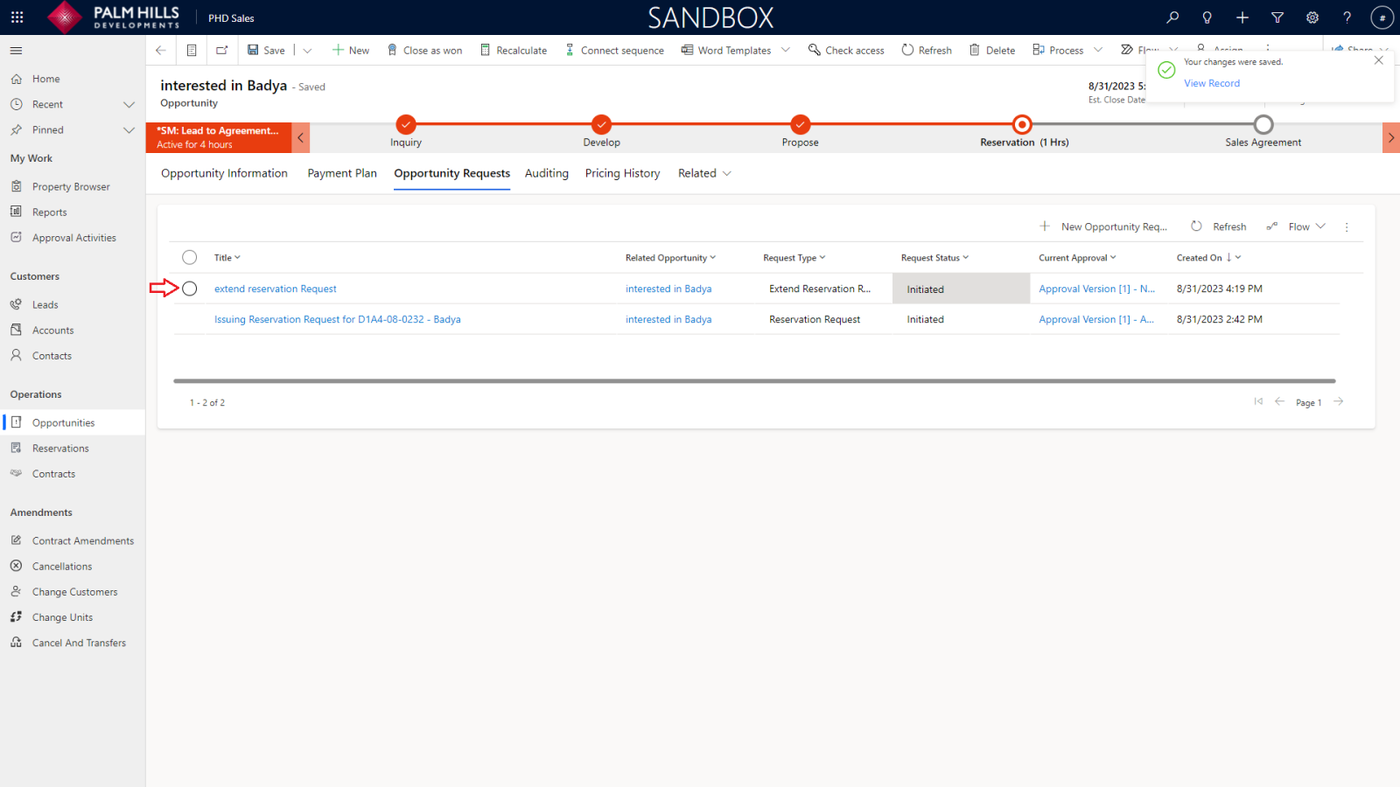
Once completed, the request is created, and you can click on it to view its details.
Sales Info Team : Approve Extend Reservation Request
To approve the extend reservation request, navigate to 'Approval Activities' and click on the request.
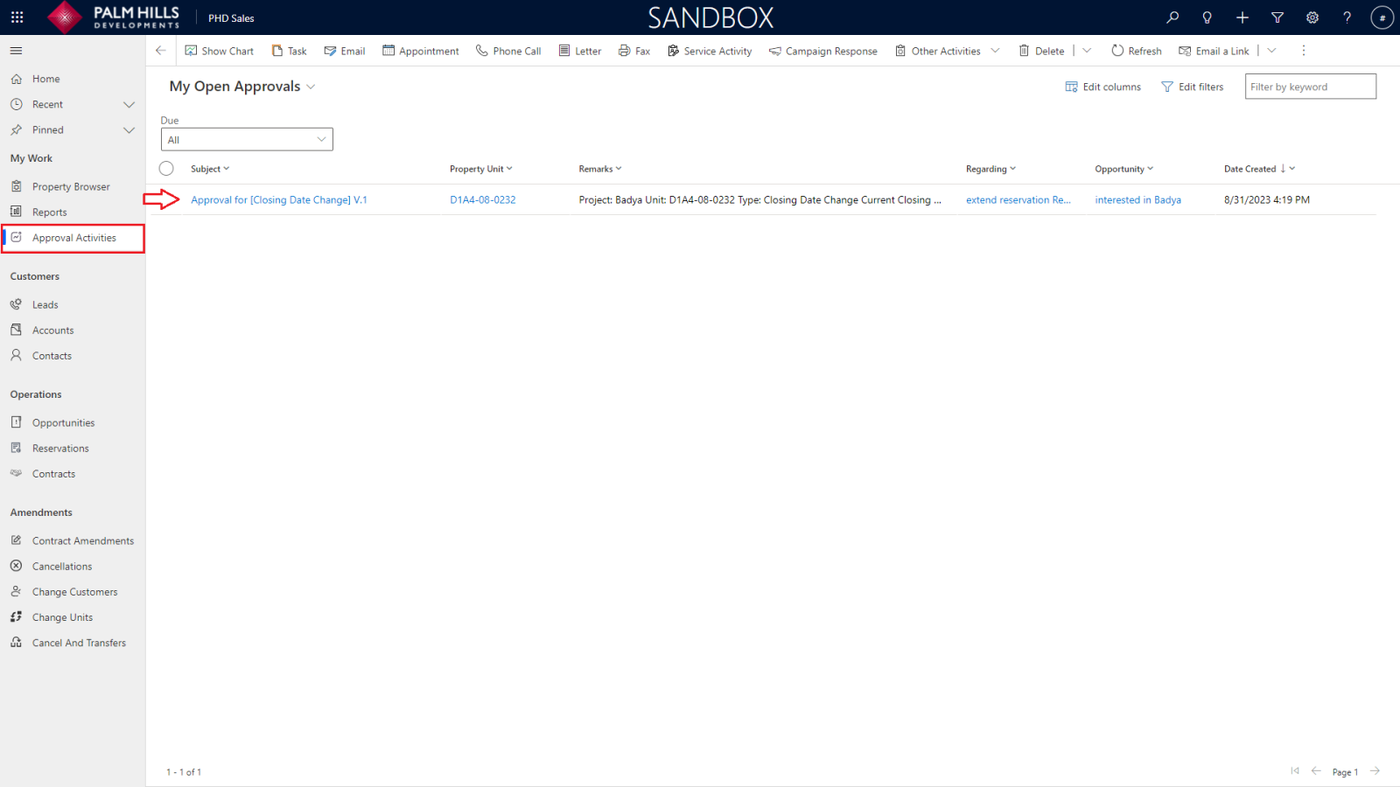
You will find information about the request, such as its type and the extended closing date. Then you can approve the request.
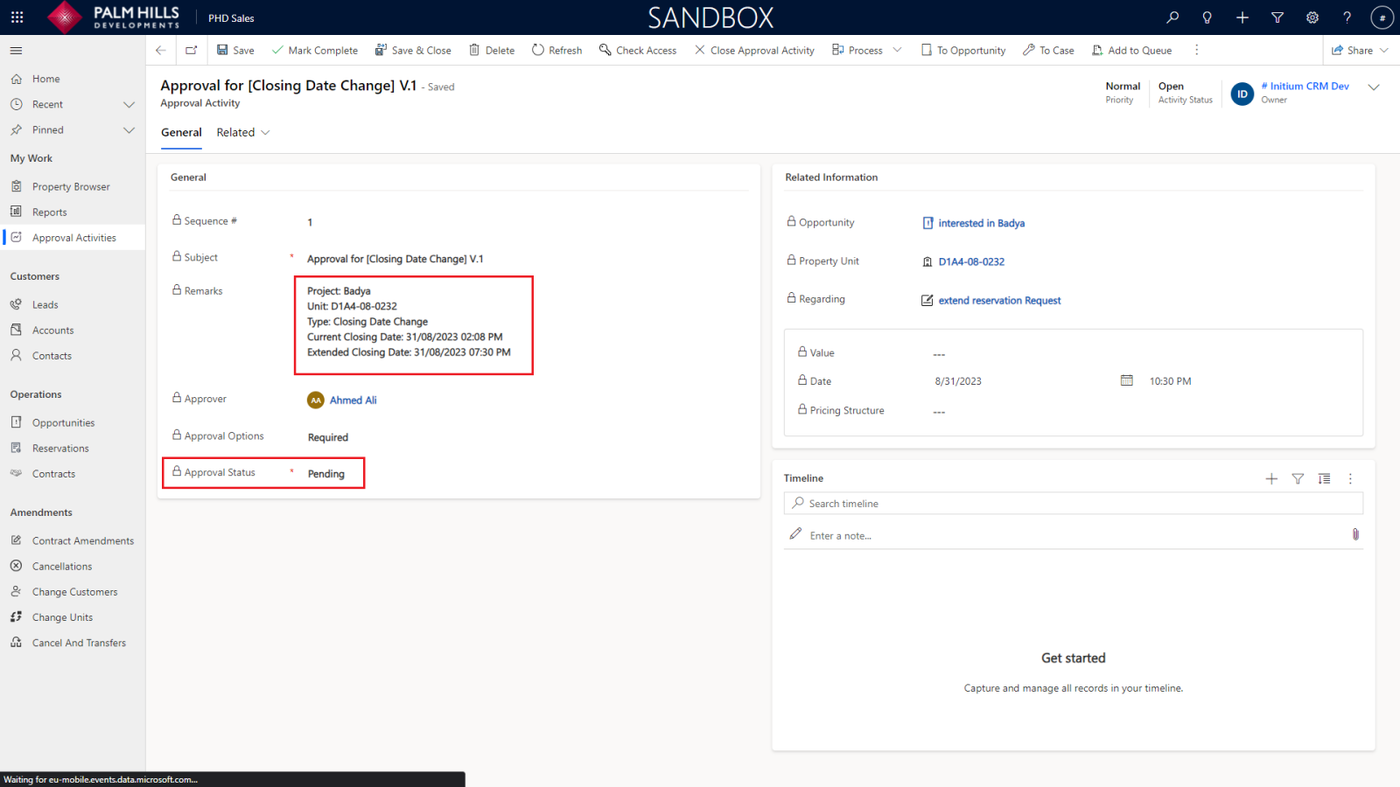
After approving the request, the estimated close date and time will change.
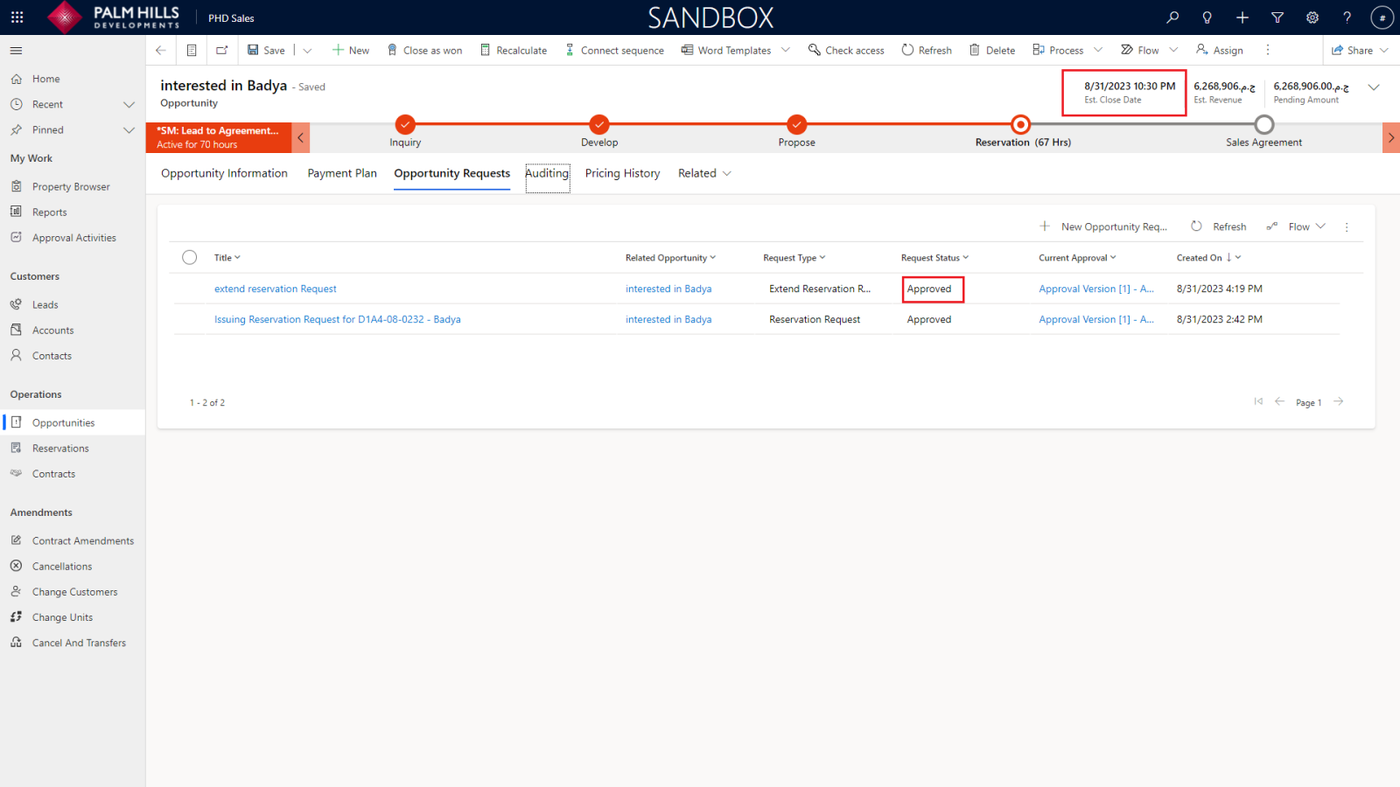
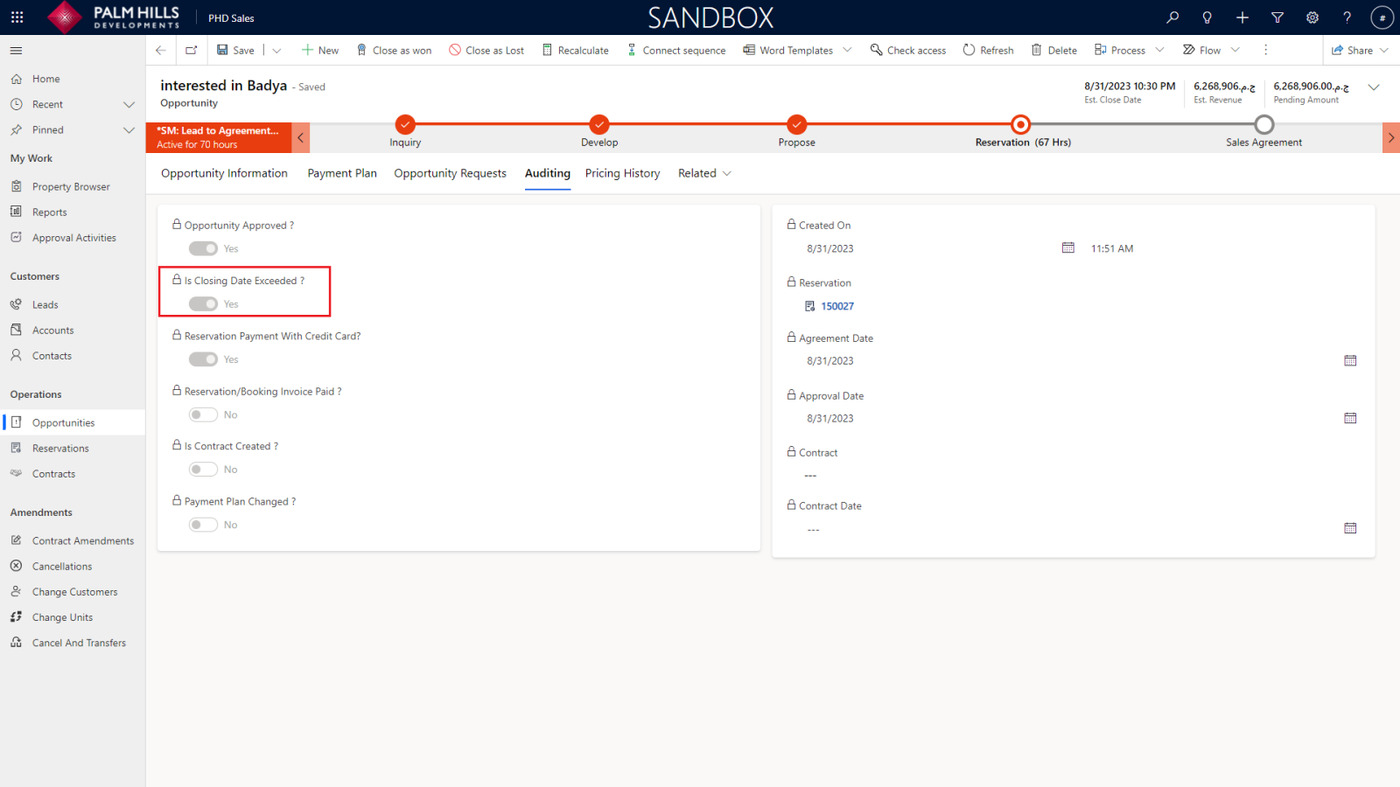
Estimated Close Date Exceeded
Navigate to the 'Auditing' section, and you will find that ' Is Closing Date Exceeded ' field set to 'Yes'.
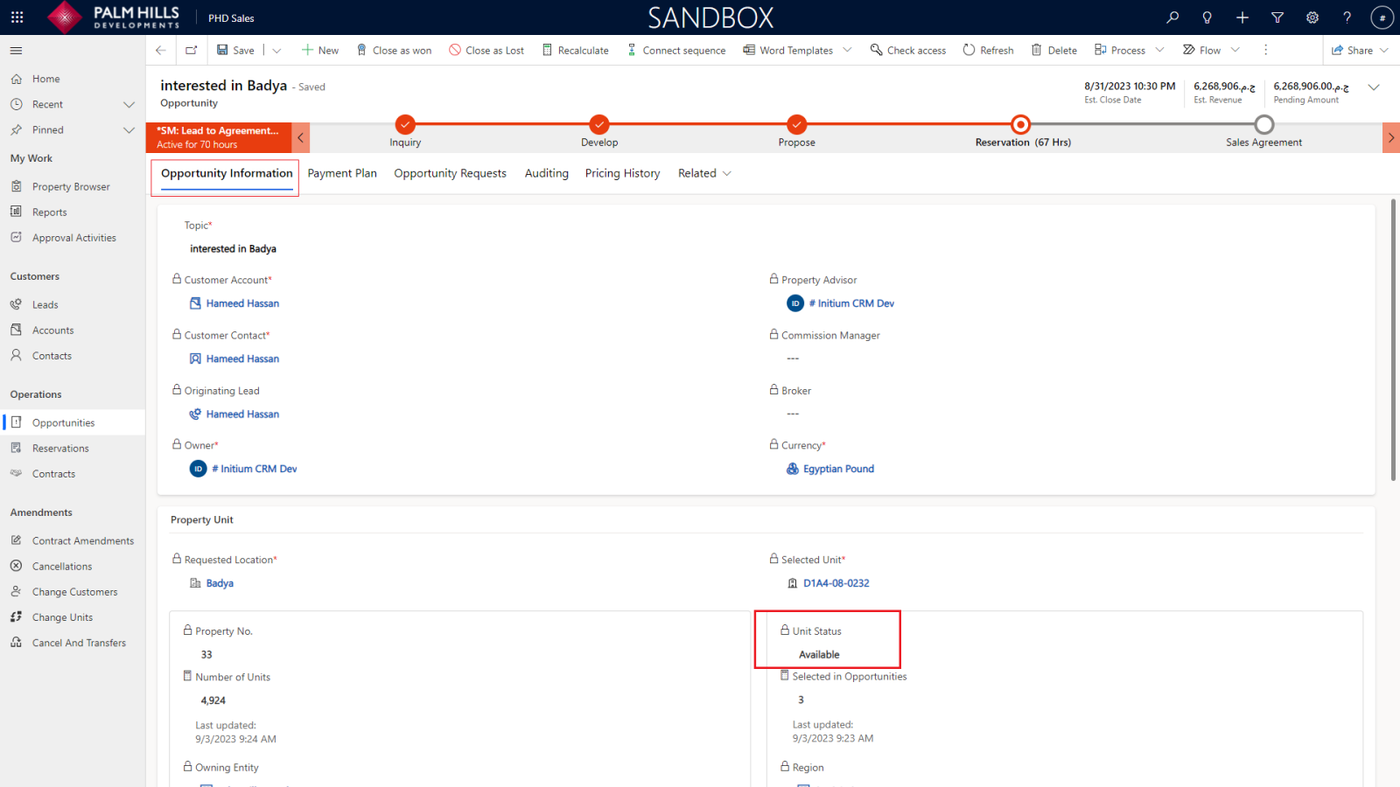
In the 'Opportunity Information' section, the 'Unit Status' will revert to 'Available'.
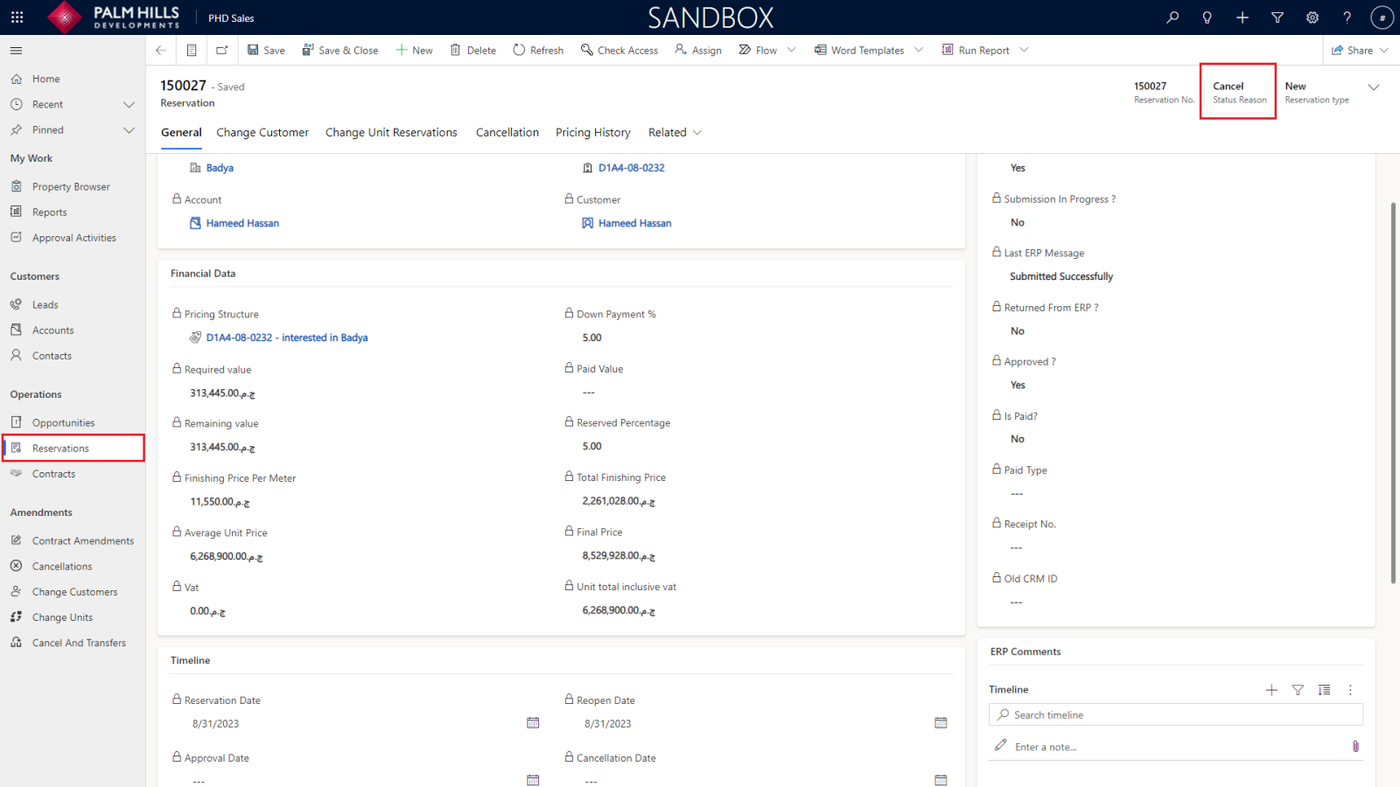
The reservation will be canceled. Go to the 'Reservation' section, navigate to your reservation number, and you will find 'Status Reason: Cancel'.
ERP Rejects the Reservation
In this section, describe a scenario in which the ERP system rejects the reservation.
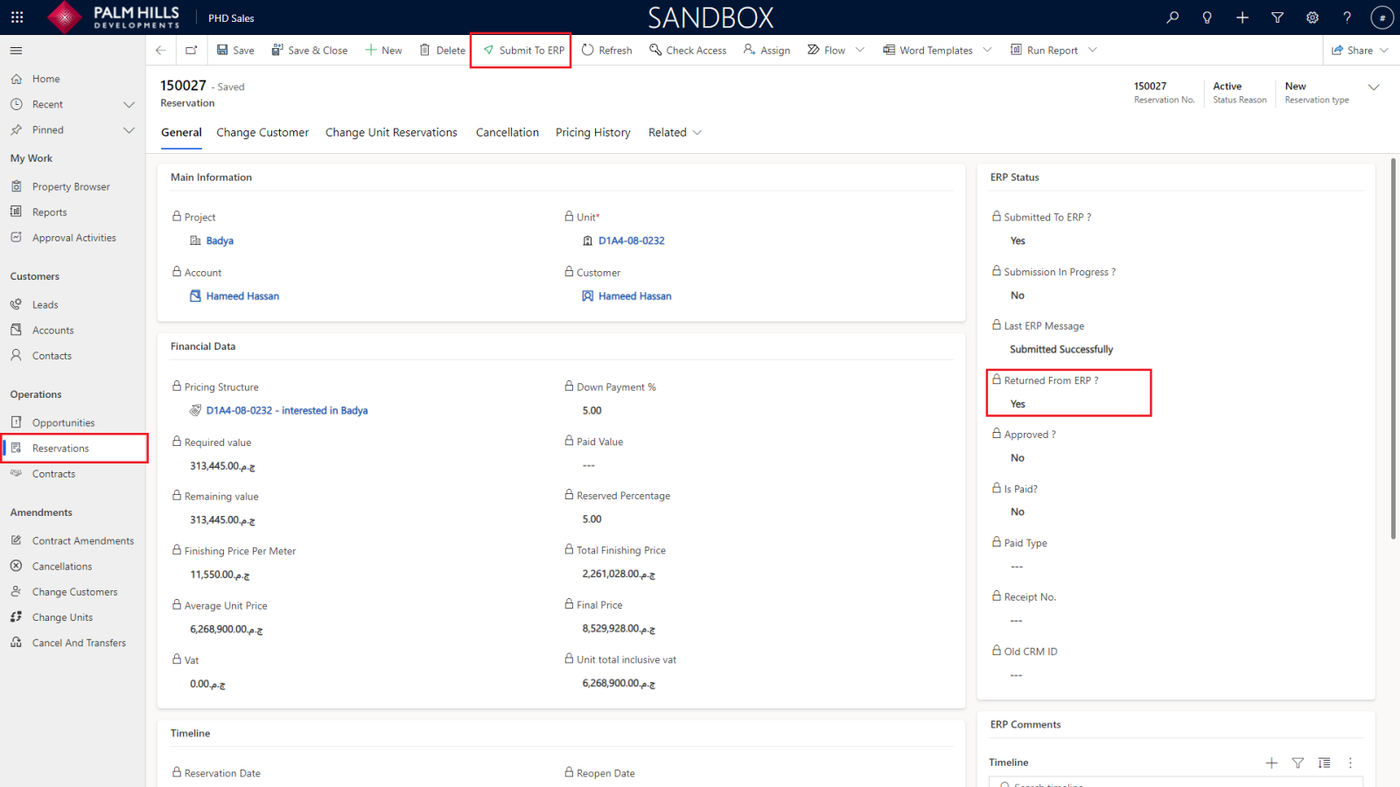
As shown in the figure, 'Returned From ERP' will change to 'Yes,' and the 'Submit To ERP' button will reappear. If you scroll to the bottom, you will find 'ERP Comments,' and then you can resubmit the request to ERP again.