Printout
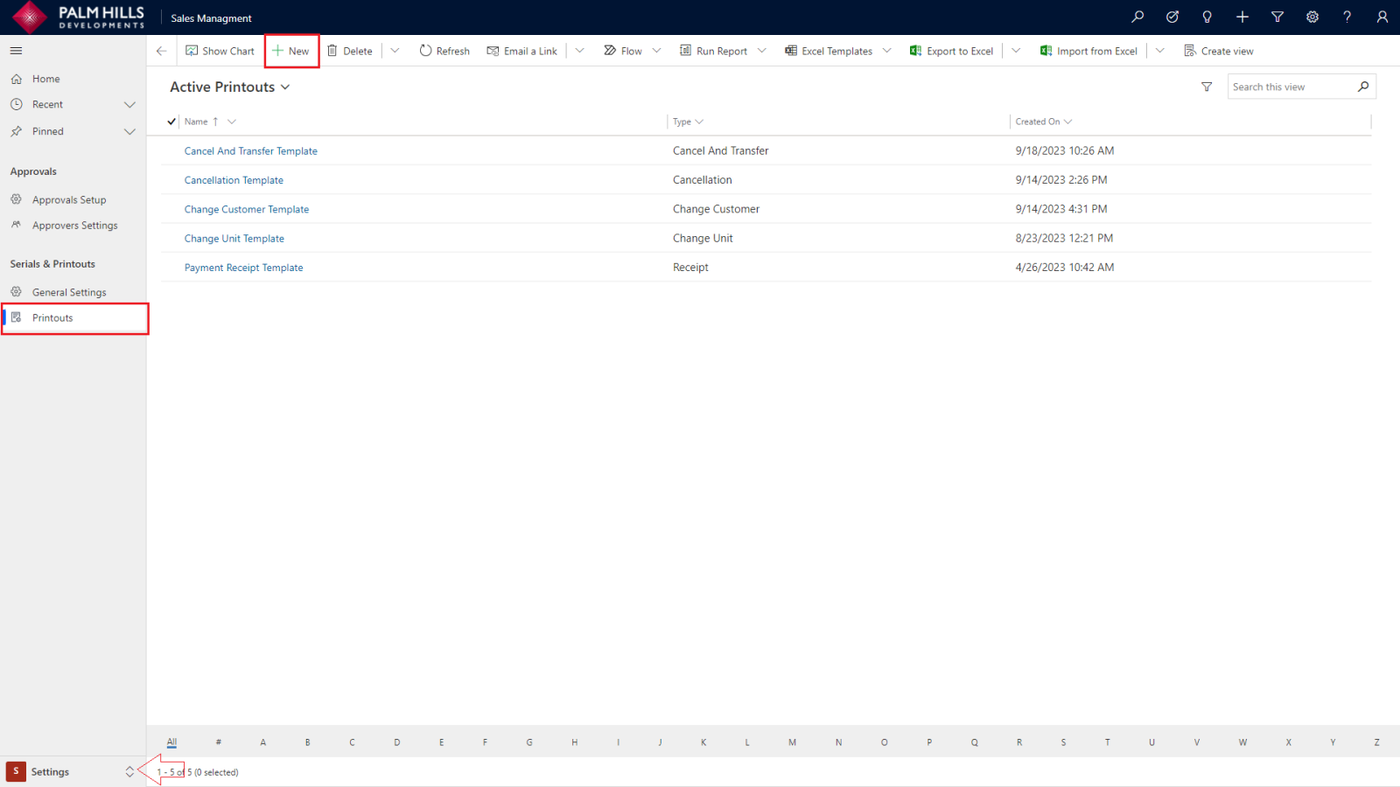
In this section, we describe how to configure or setup the printout . In this entity, you can create a new printout and upload templates by clicking on the 'New' button.
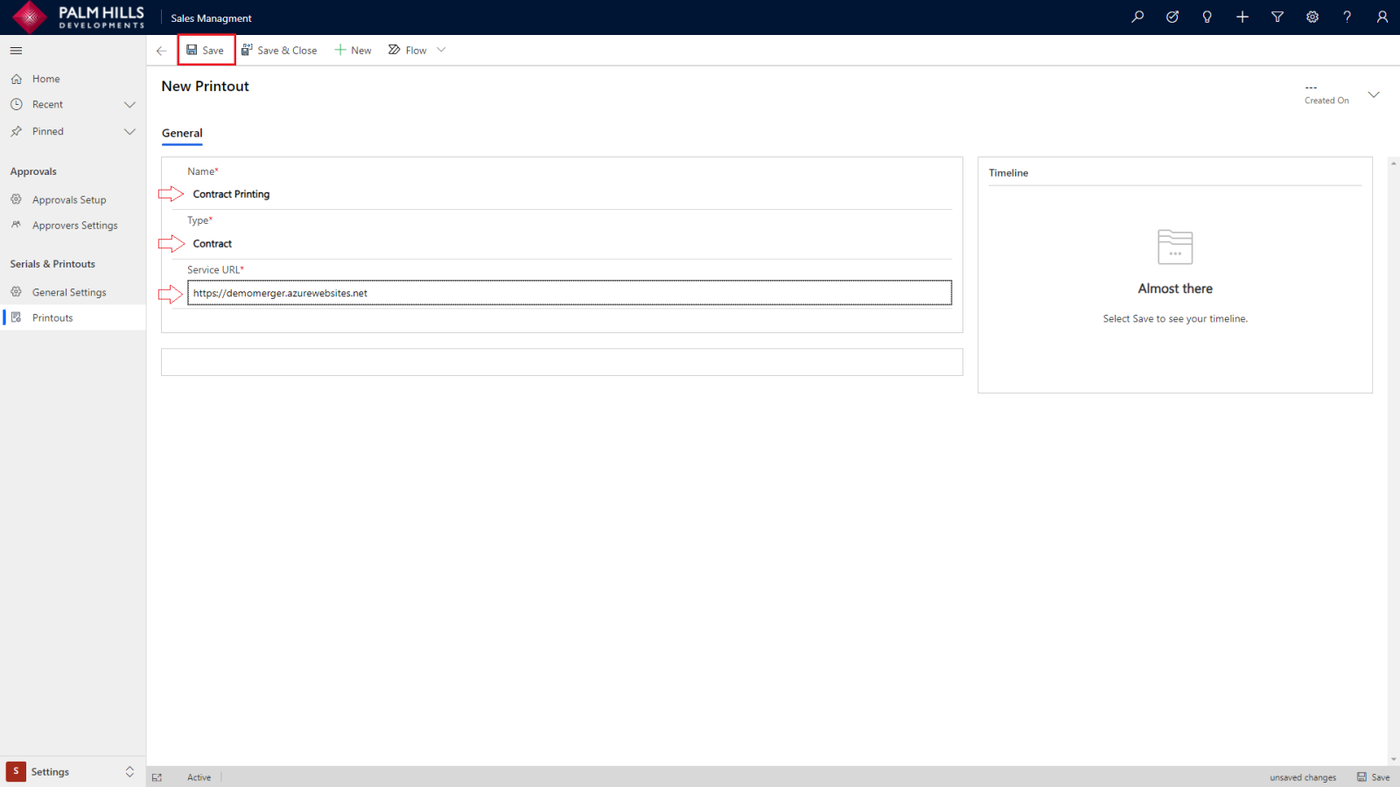
After clicking on the 'New' button, you'll need to enter the details about the printout, such as Name, the type (e.g., Contract Type) and Service URL as shown below. Once done, click the 'Save' button.
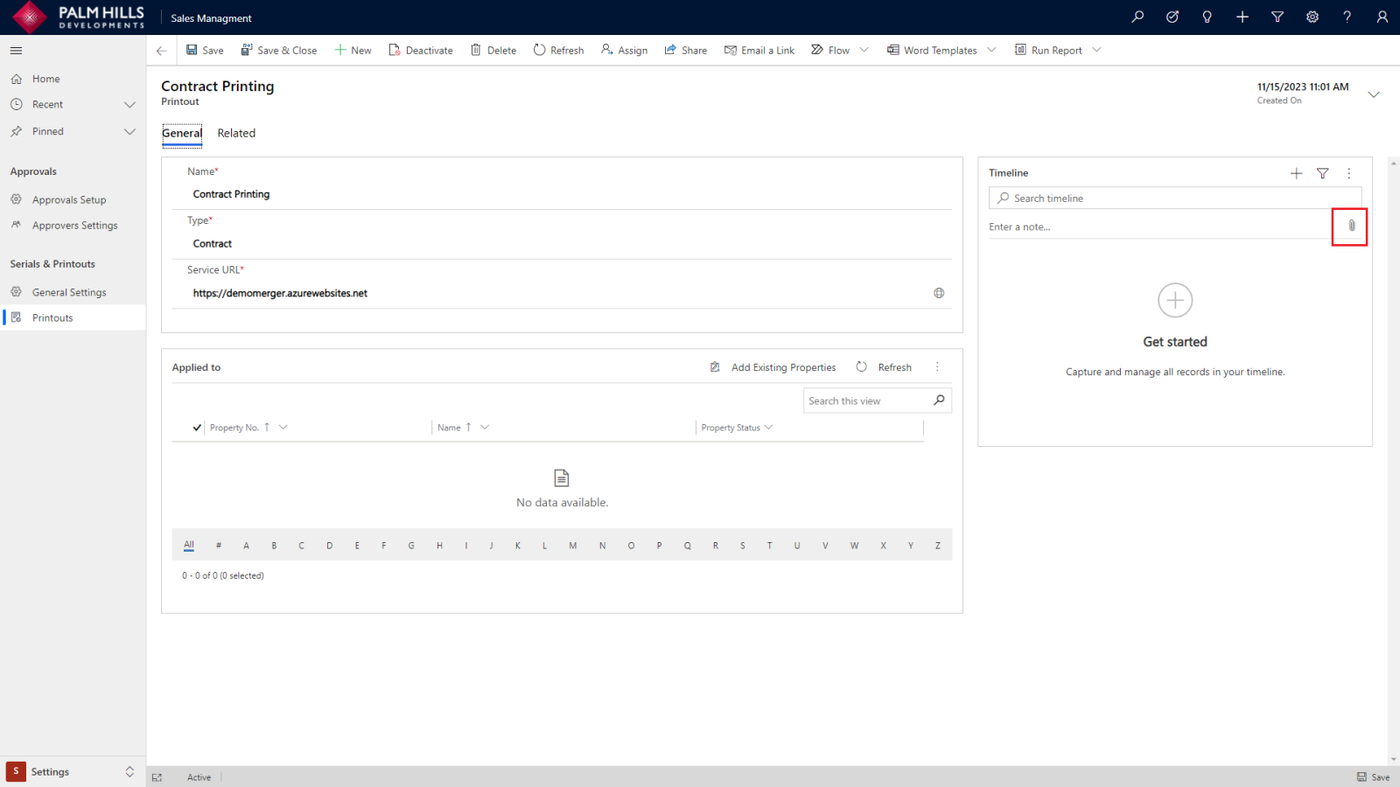
After saving, click on the attach icon to upload the template of the contract document.
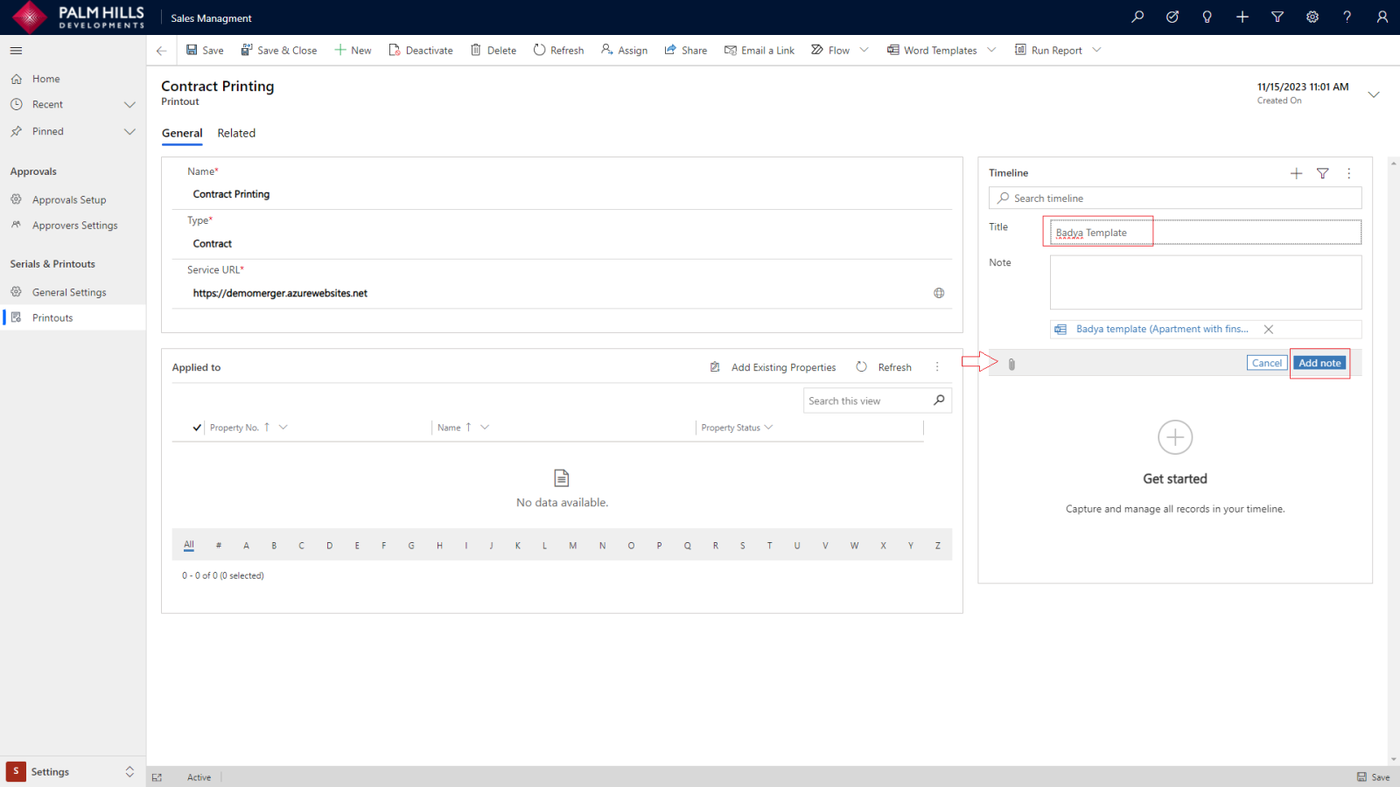
You can enter a title for the document and then click the 'Add Note' button.
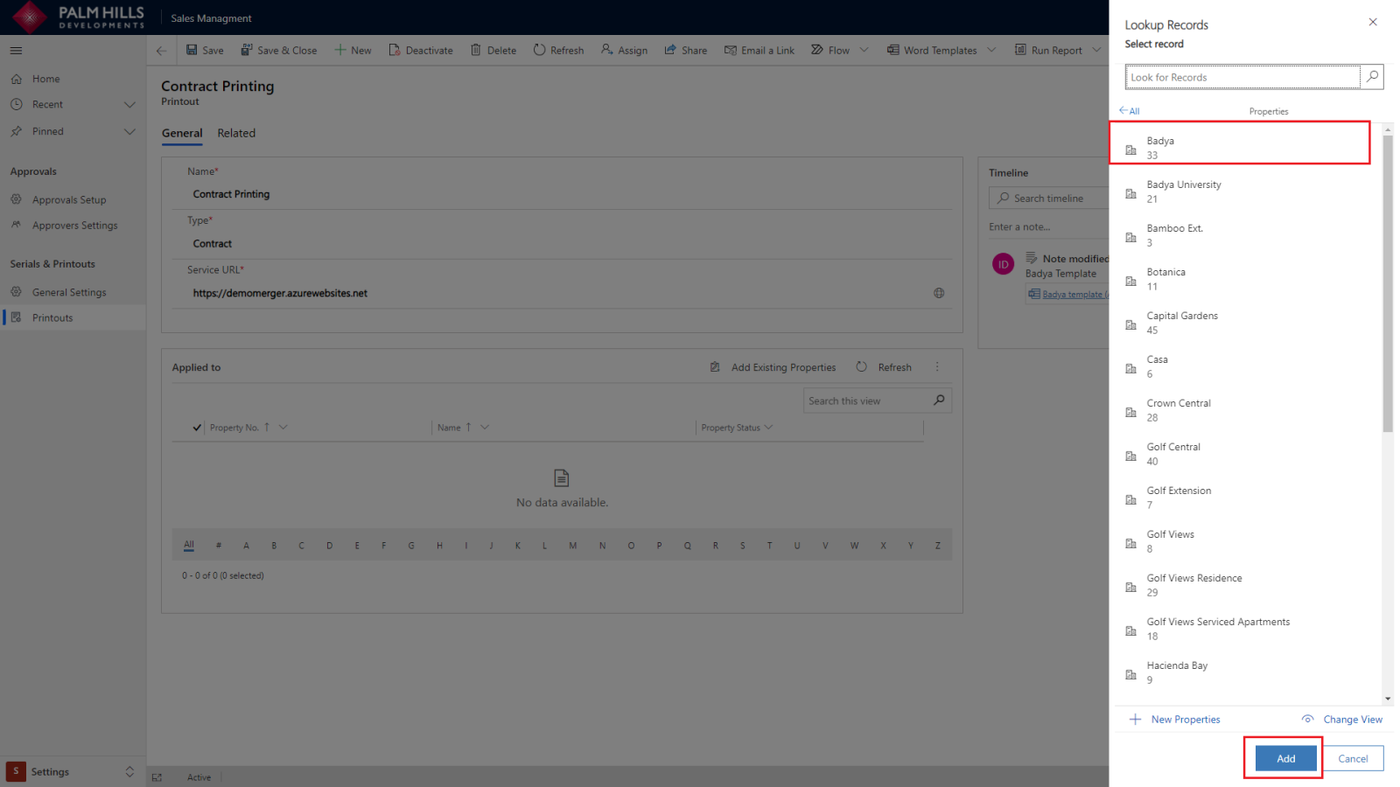
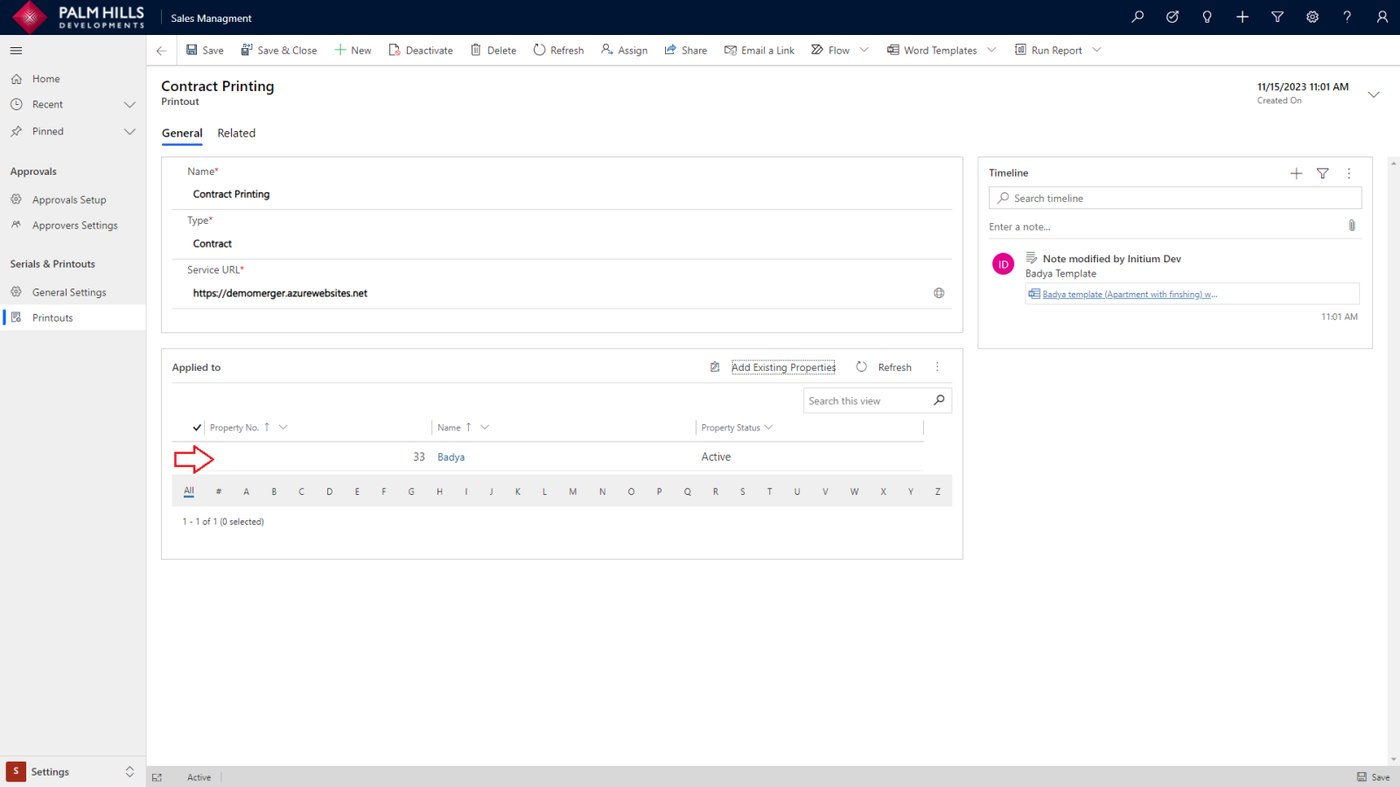
In the "Applied to" section, you need to add a reference to the property that can utilize this contract.
For instance, if this contract is designated for the "Badya" property, when printing a contract related to a unit within the "Badya" property, this document will be used.
Moreover, if this template document is applicable to various properties, you can add it so that any contract related to these properties will utilize this template when printed.
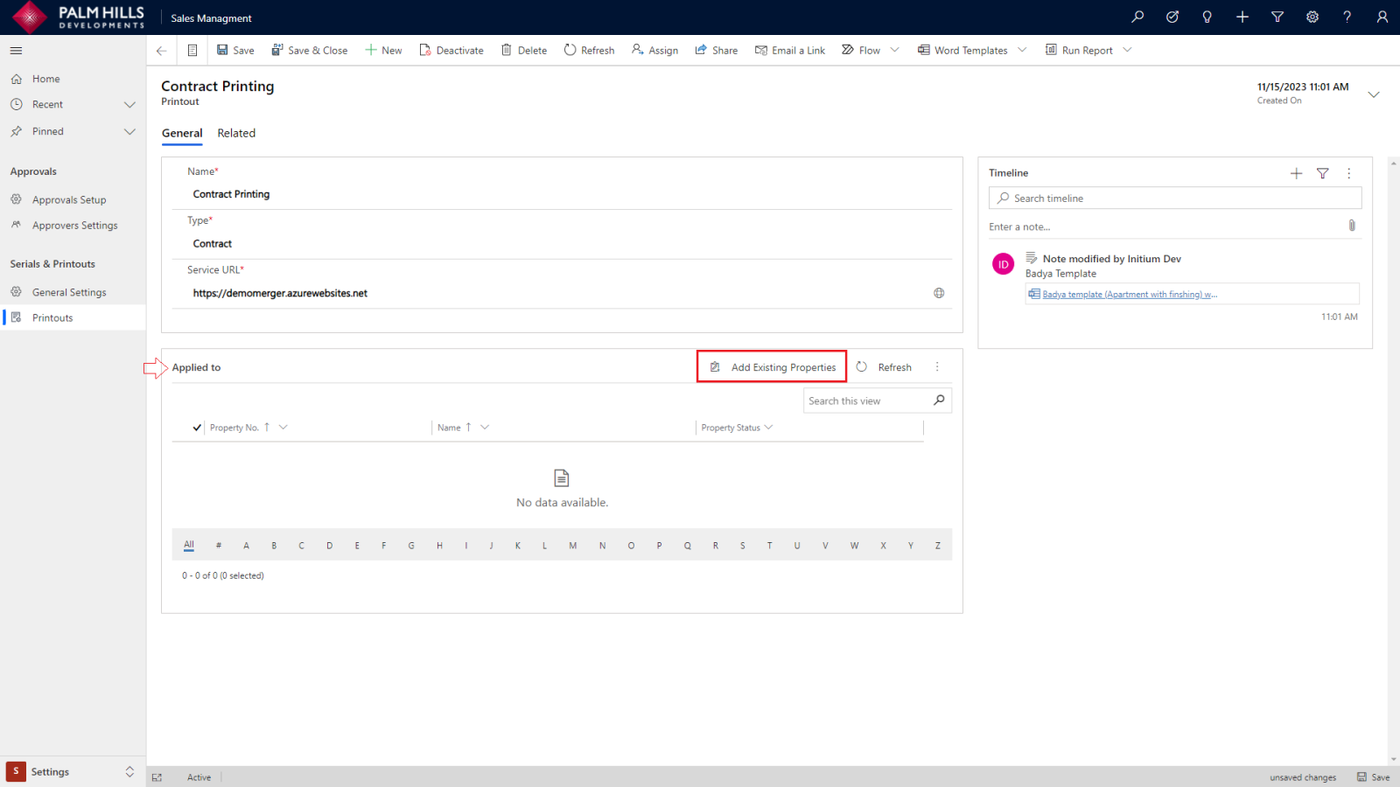
After clicking on the 'Add Existing' button, select the property (e.g., Badya), and then click the 'Add' button.