Contract Template
In this section, we will describe how to create a contract template with dynamic data from the CRM.
CRM Data Placeholder
Open the contract file. Insert placeholders where dynamic text from the backend will be placed.
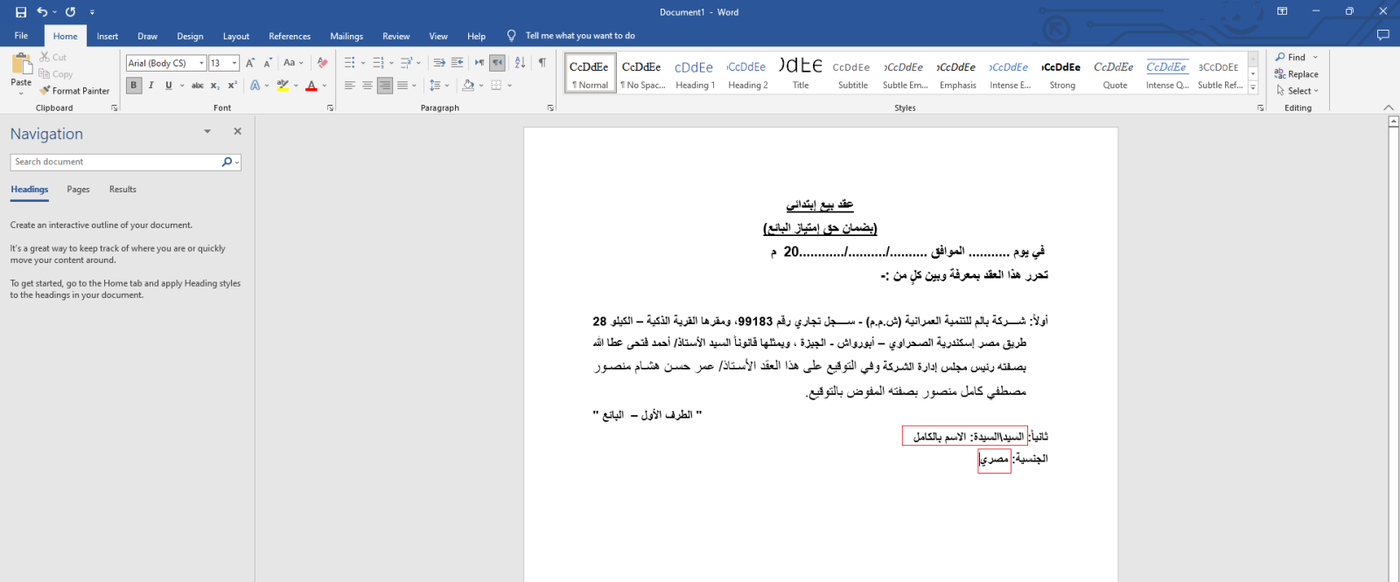
This is an example of a section in the contract where the salutation, full name, and nationality need to be dynamic. You'll need to add placeholders for these details.
If you need to add a placeholder for a salutation (for example):
- Select the text that needs to be replaced.
- Click on 'Insert' in the top bar.
- Choose 'Quick Parts.'
- Select 'Field.'
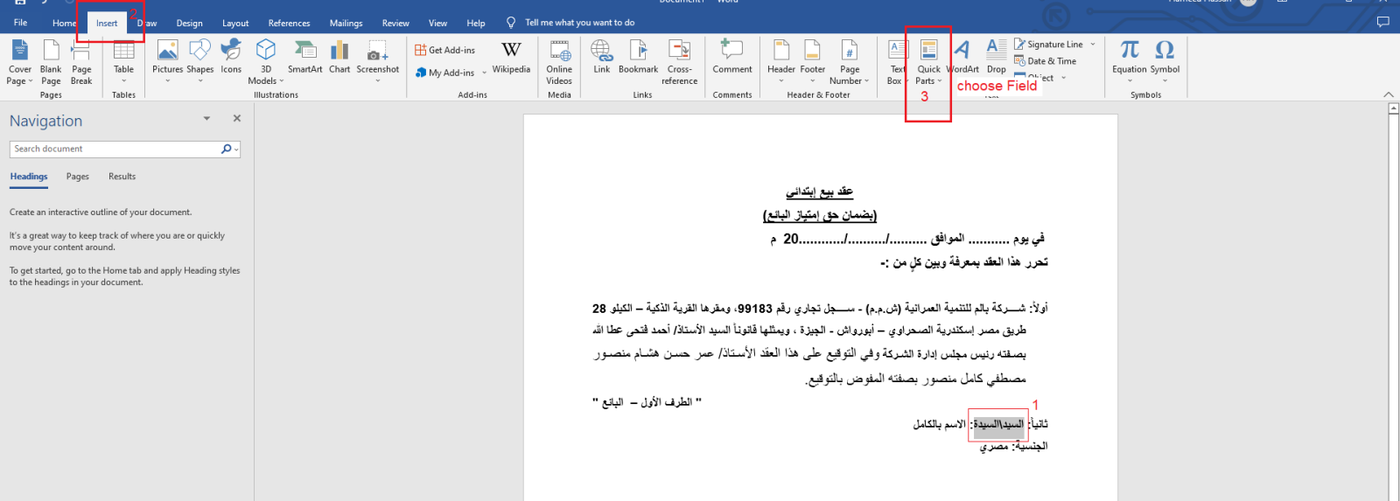
After selecting Field :
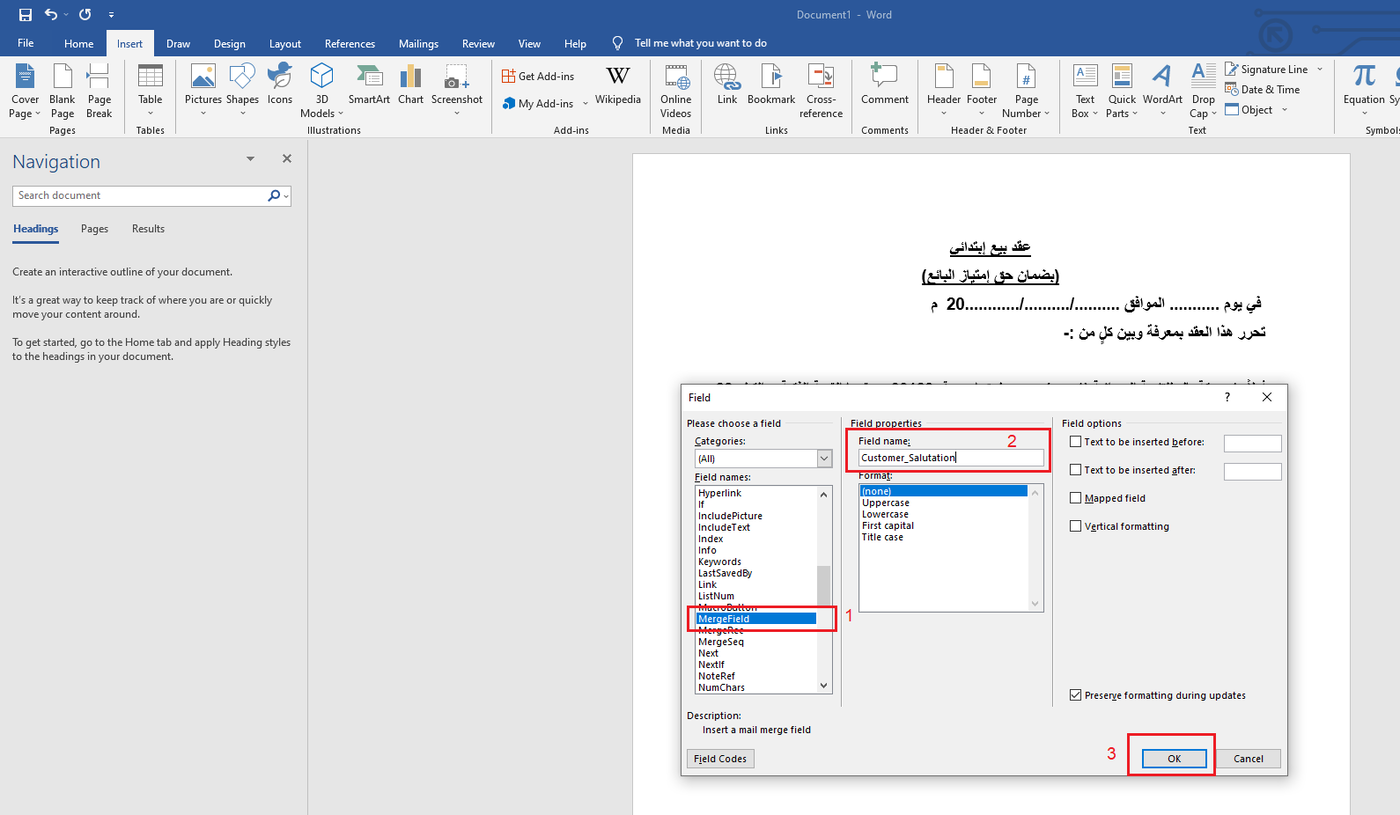
- Select the Field name 'Merge Field.'
- Type the name of the placeholder (standard placeholders will be defined later).
- Click 'OK.'
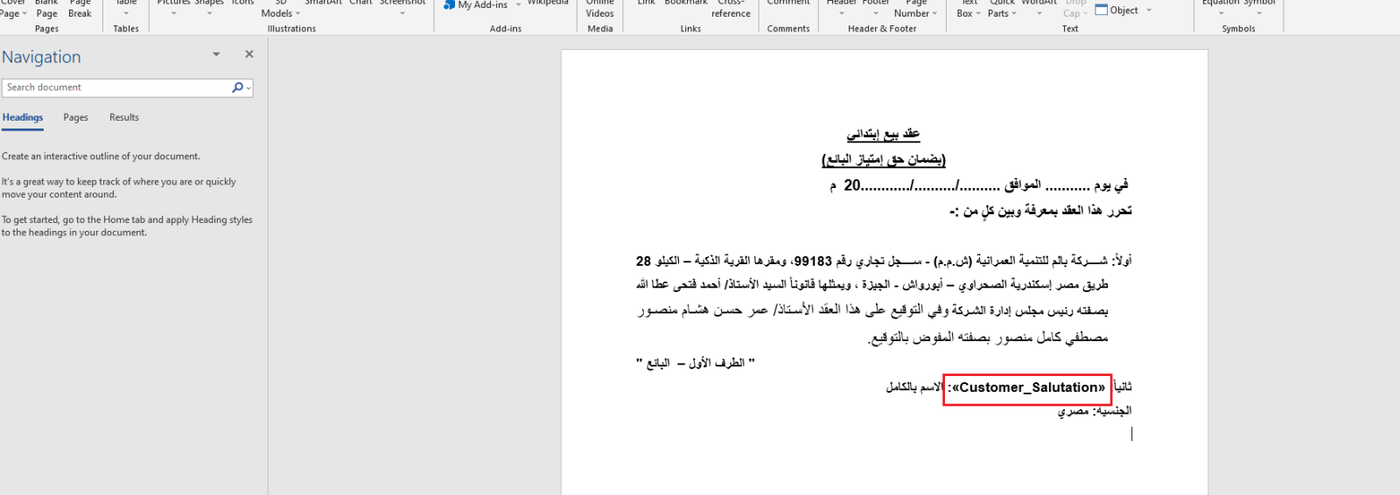
Perform the same steps for any text placeholder that will receive dynamic from the CRM. These steps include selecting the field name 'Merge Field,' entering the placeholder name (as per the defined standards), and clicking 'OK'.
Image Placeholder
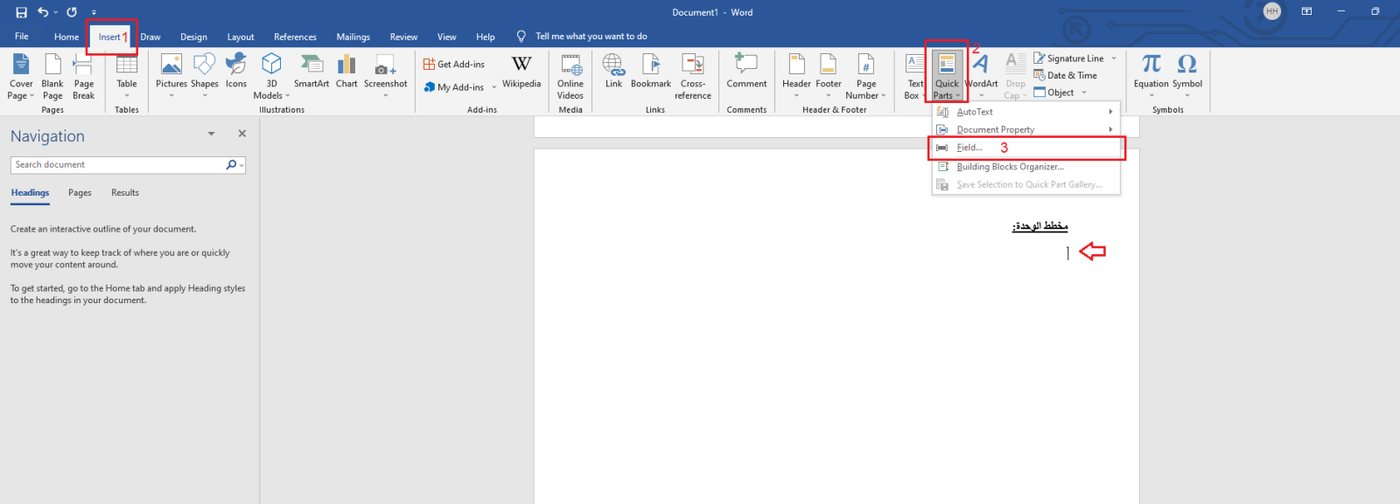
To include an image placeholder in the template, like the 'Unit Design' image URL:
- Identify the location in the template where the image should appear.
- Click on 'Insert' in the top bar.
- Choose 'Quick Parts.'
- Select 'Field'.
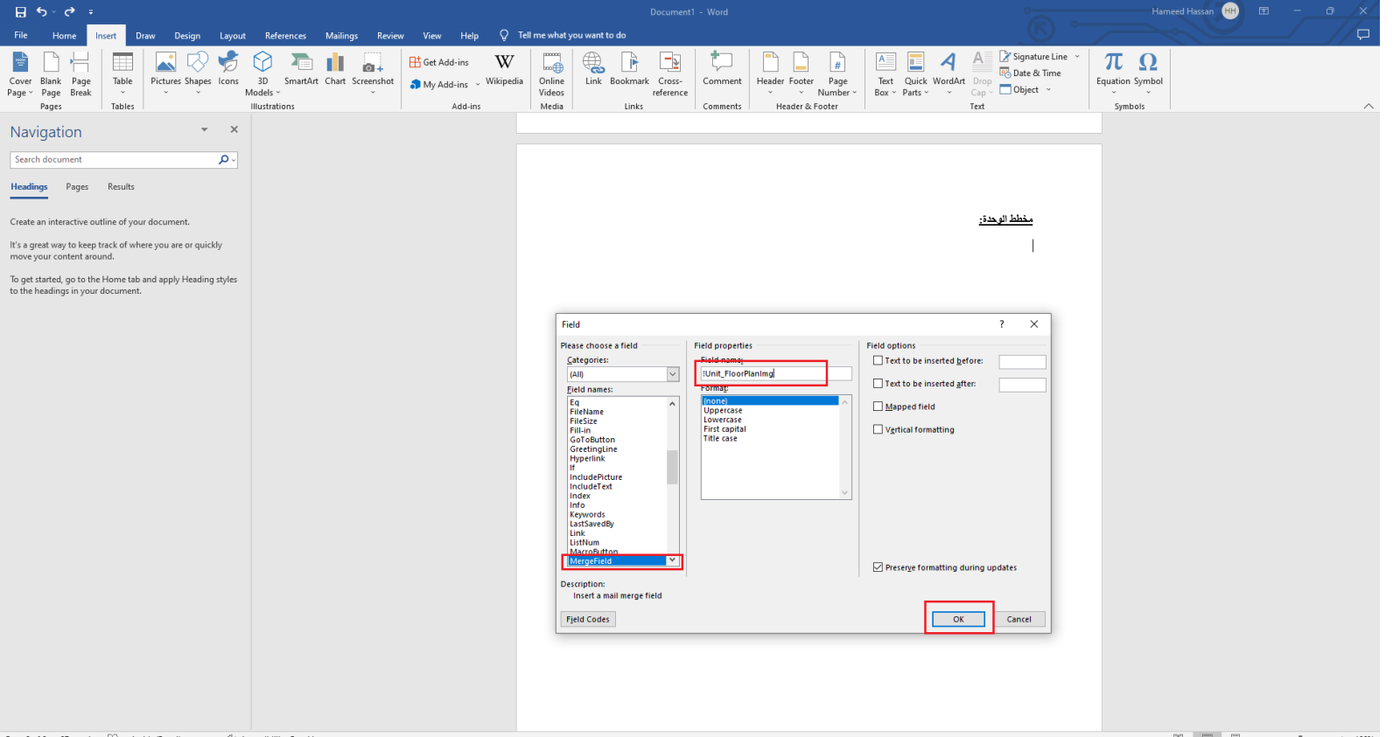
After selecting Field :
- Select the Field name 'Merge Field.'
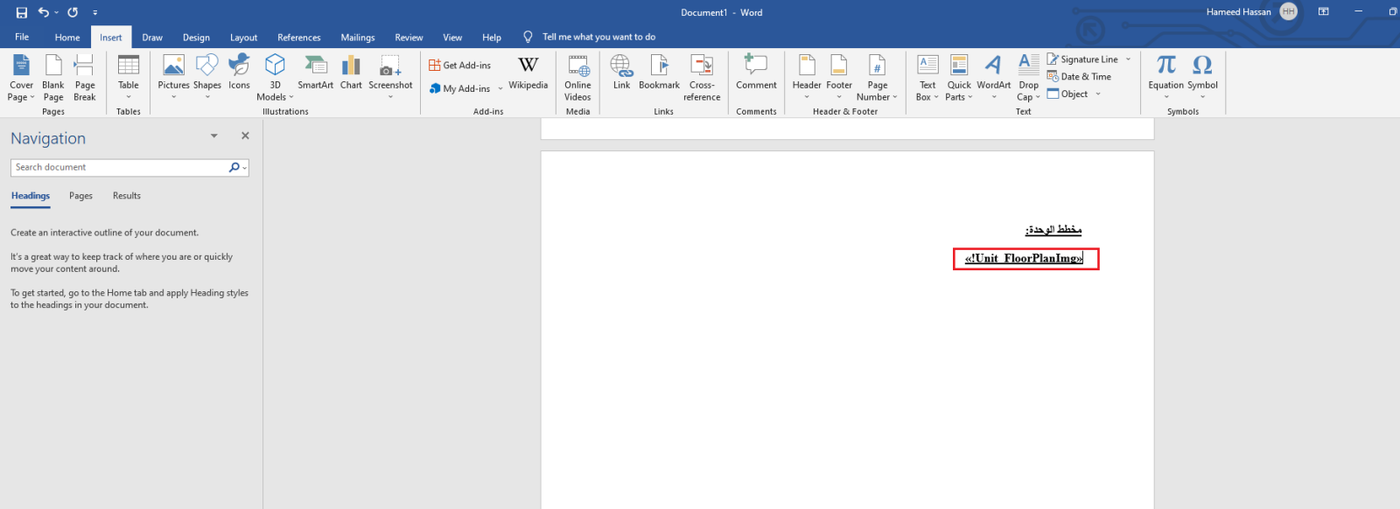
- Enter the name of the placeholder and add an mark '!' before it as an indicator for an image.
- Click 'OK.'
Rich Text Placeholder
To include rich text placeholder like content in Finishing Specs.
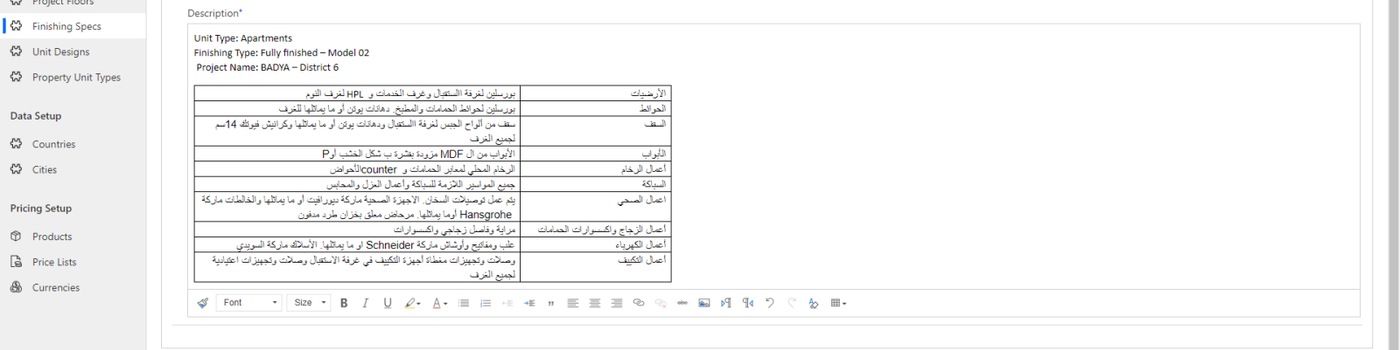
To include rich text placeholder in the template, like the 'Finishing Specs' image URL:
- Identify the location in the template where the image should appear.
- Click on 'Insert' in the top bar.
- Choose 'Quick Parts.'
- Select 'Field'.
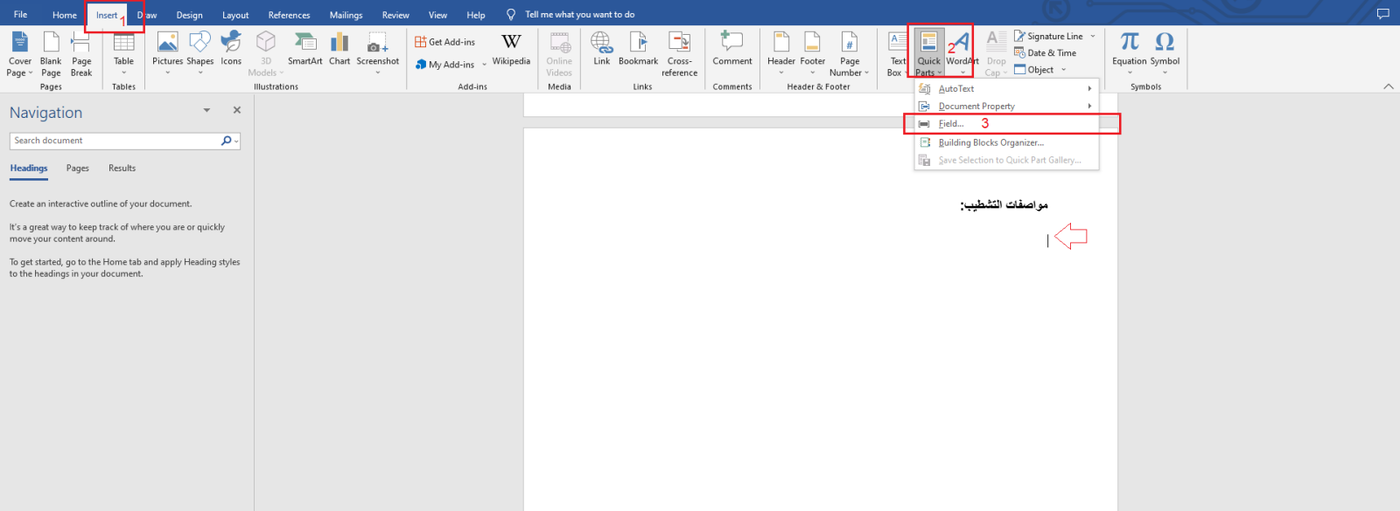
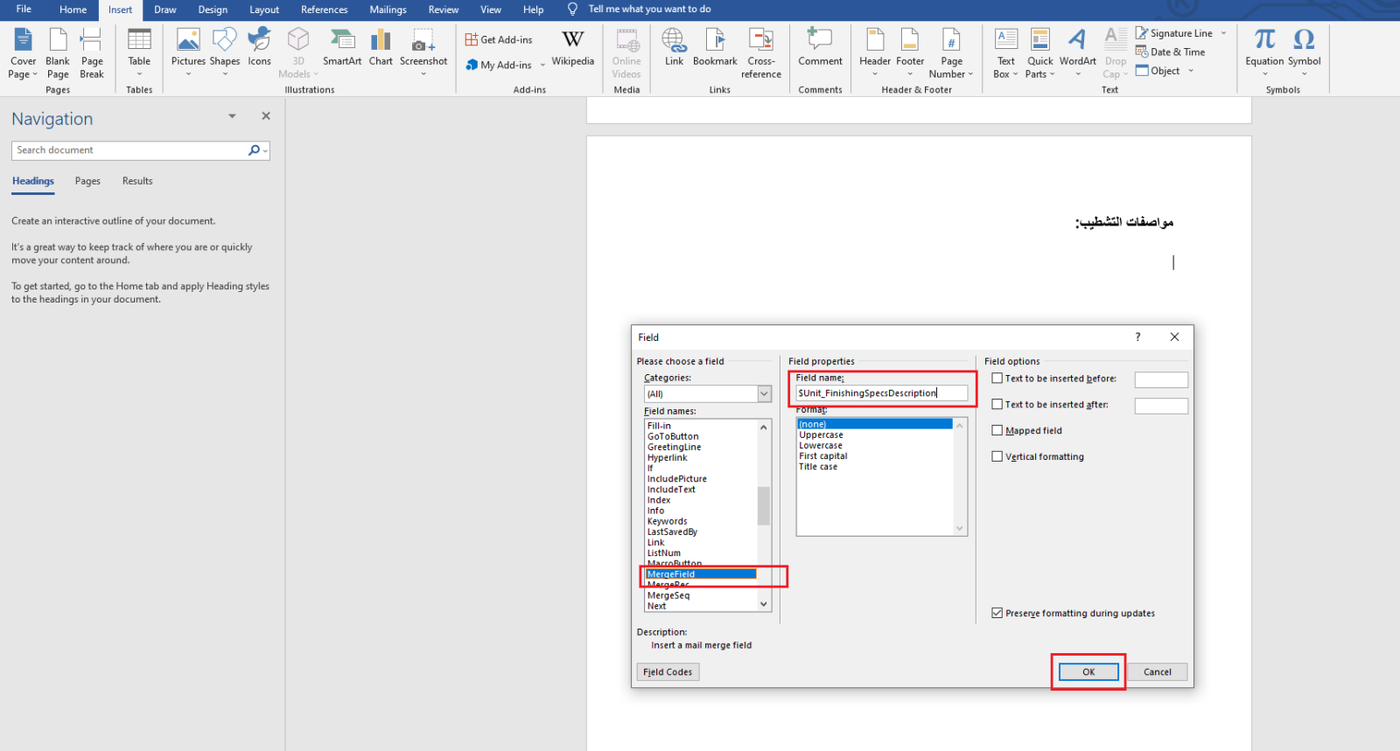
After selecting Field:
- Select the Field name 'Merge Field.'
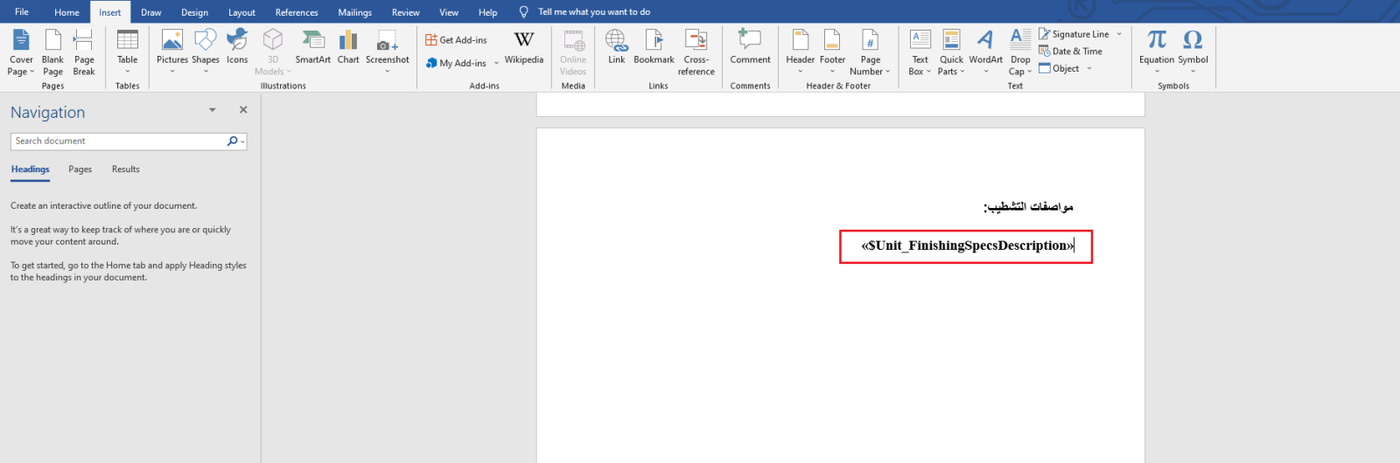
- Enter the name of the placeholder and add an mark '$' before it as an indicator for an rich text.
- Click 'OK.'
Contract Printing Standard Placeholders
Use these standard placeholders when creating a contract template.
|
Placeholder Name |
Description |
|
Today |
Referring to the current day |
|
Delivery Date |
Referring to the delivery date of the sold unit |
|
Currency |
Referring to the currency of any pricing, such as the Egyptian Pound |
|
Customer_Salutation |
Referring to the salutation, such as Mr. or Mrs |
|
Customer_Name |
Referring to the full name of the customer in Arabic |
|
Customer_NatIdOrPassId |
Referring to the customer's national Id or Passport number. |
|
Customer_Nationality |
Referring to the customer's nationality, such as Egyptian |
|
Customer_JobTitle |
Referring to the customer's job title |
|
Customer_Address |
Referring to the customer's address |
|
Customer_Phone |
Referring to the customer's home phone number |
|
Customer_Mobile |
Referring to the customer's mobile phone |
|
Customer_Email |
Referring to the customer's email address |
|
Customer_BusinessPhone |
Referring to the customer's business phone |
|
PricingStructure_Total |
Referring to the total price of the unit |
|
PricingSheet_RemainingAmount |
<<information not exist>> |
|
PricingSheet_RemainingAmountWords |
<<information not exist>> |
|
PricingStructure_TotalWords |
Referring to the total price of the unit in Arabic words |
|
PricingStructure_ClubAmount |
Referring to the price of the club subscription |
|
PricingStructure_ClubAmountWords |
Referring to the price of the club subscription in Arabic words |
|
PricingSheet_RemainingAmount |
Referring to the price of the remaining amount |
|
PricingSheet_RemainingAmountWords |
Referring to the price of the remaining amount in Arabic words |
|
PricingStructure_UnitTotalWithFinishing |
Referring to the price of the unit with half finishing and finishing cost |
|
PricingStructure_UnitTotalWithFinishingWords |
Referring to the price of the unit with half finishing and finishing cost in Arabic words |
|
PricingStructure_Premium |
Referring to the price of the premium |
|
PricingStructure_PremiumWords |
Referring to the price of the premium in Arabic words |
|
PricingStructure_Discount |
Referring to the price of the discount |
|
PricingStructure_GarageIsExist |
Referring to if garage is exist add Arabic text "كما يشمل البيع عدد واحد جراج ببدروم العمارة الكائنة بها الوحدة." |
|
PricingStructure_DiscountWords |
Referring to the price of the discount in Arabic words |
|
PricingStructure_GarageArea |
Referring to the garage area |
|
PricingStructure_OutdoorArea |
Referring to the outdoor area |
|
PricingStructure_RoofArea |
Referring to the roof area |
|
PricingStructure_LandArea |
Referring to the land area |
|
PricingStructure_BasementArea |
Referring to the basement area |
|
PricingStructure_UncoveredBasementArea |
Referring to the un-covered basement area |
|
PricingStructure_PenthouseArea |
Referring to the penthouse area |
|
PricingStructure_JaccuziArea |
Referring to the jaccuzi area |
|
PricingStructure_ExtralandArea |
Referring to the extra land area |
|
PricingStructure_ExtrabuiltupArea |
Referring to the extra built up area |
|
PricingStructure_SemicoveredRoofArea |
Referring to the semi-covered roof area |
|
PricingStructure_StorageArea |
Referring to the storage area |
|
PricingStructure_PergolaArea |
Referring to the pergola area |
|
PricingStructure_OtherPricem |
Referring to the other price |
|
Contract_FinishingAmount |
Referring to the total price of the finishing amount |
|
Contract_FinishingAmountWords |
Referring to the total price of the finishing amount in Arabic words |
|
Contract_ReservationAmount |
Referring to the price of the reservation amount |
|
Contract_ReservationAmountWords |
Referring to the price of the reservation amount in Arabic words |
|
Contract_ContractAmount |
Referring to the price of the contract amount |
|
Contract_ContractAmountWords |
Referring to the price of the contract amount in Arabic words |
|
Contract_MaintenanceAmount |
Referring to the price of the maintenance amount |
|
Contract_MaintenanceAmountWords |
Referring to the price of the maintenance amount in Arabic words |
|
ContractDate |
Referring to the Contract Date |
|
Unit_Number |
Referring to the unit number |
|
Unit_CashOrInstallment |
Referring to the unit payment is Cash or Installment in Arabic (نقدا, أقسـاط) |
|
Unit_Area |
Referring to the unit area |
|
Unit_BuildingNumber |
Referring to the building number of unit |
|
!Unit_MasterPlanImg@w=820;@h=1200; |
Referring to the URL of the Master Plan image |
|
!Unit_FloorPlanImg@w=820;@h=1200; |
Referring to the URL of the Floor Plan image |
|
$Unit_FinishingSpecsDescription |
Referring to the rich text of the finishing specifications description |