Contract Amendment
Contract Amendment
In this section, describe how to make a contract amendment when a client needs to amend the contract, like adding a 'Finished Unit' amendment.
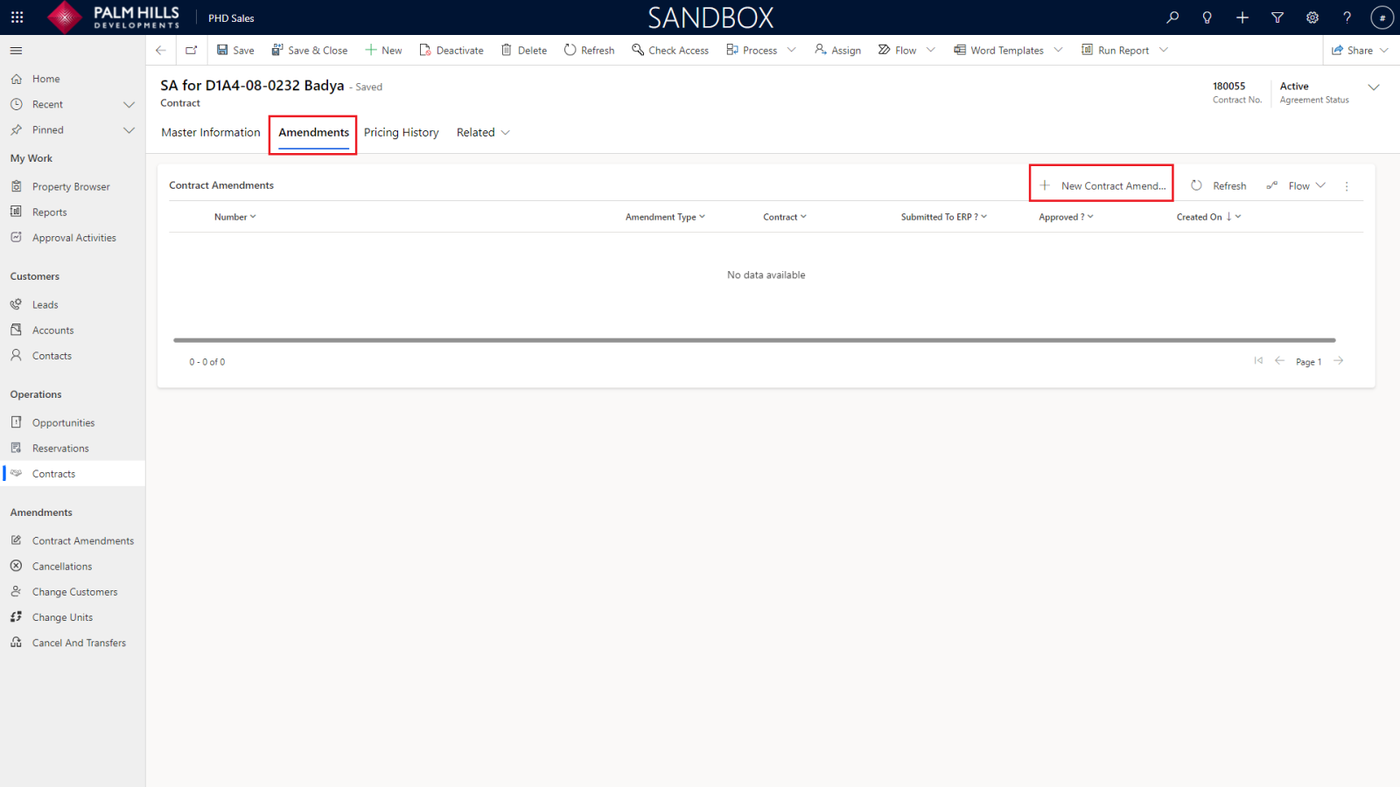
In a contract that has already been created, navigate to the 'Amendments' section and click on the 'New Contract Amendment' button.
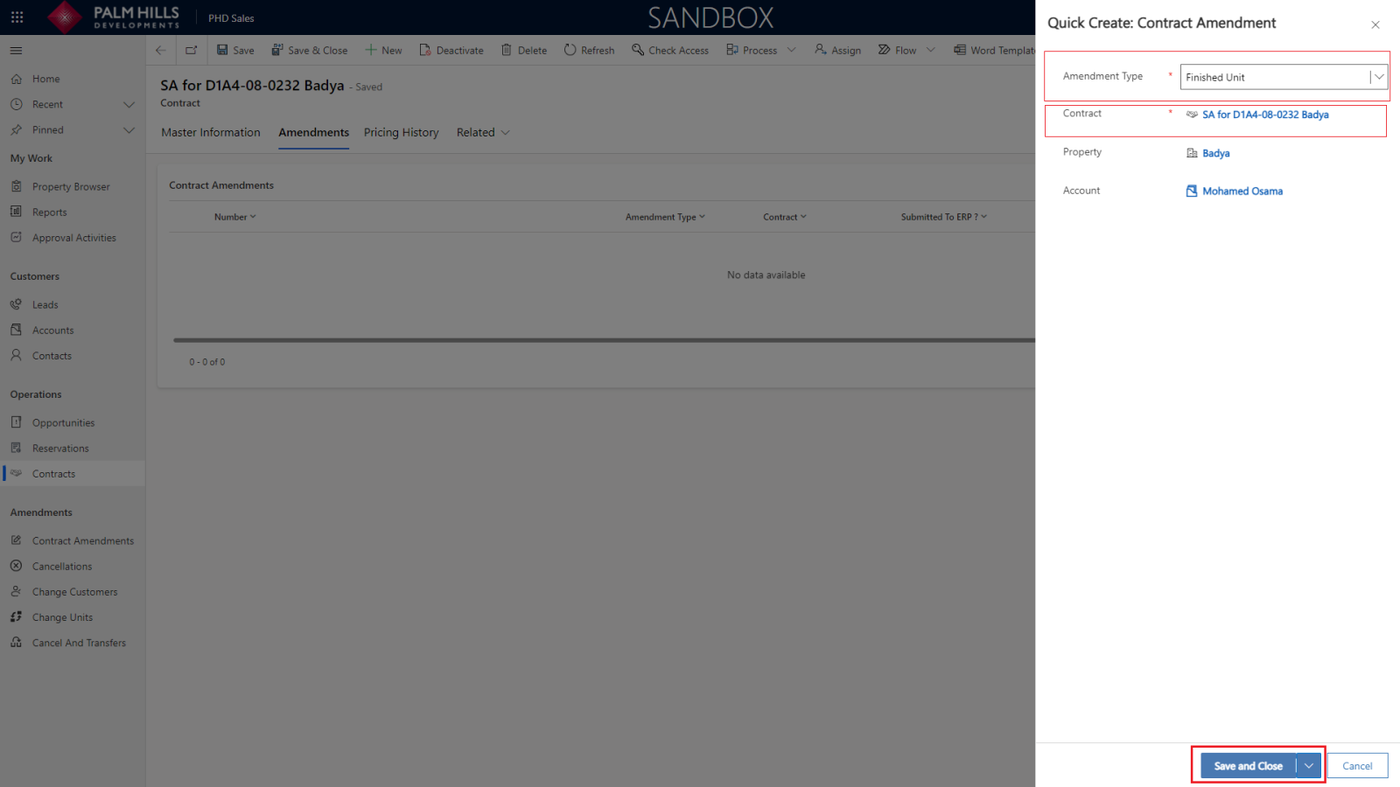
In the quick form to create an amendment, choose the type, such as 'Finished Unit,' select the contract related to this amendment, and then click on the 'Save and Close' button.
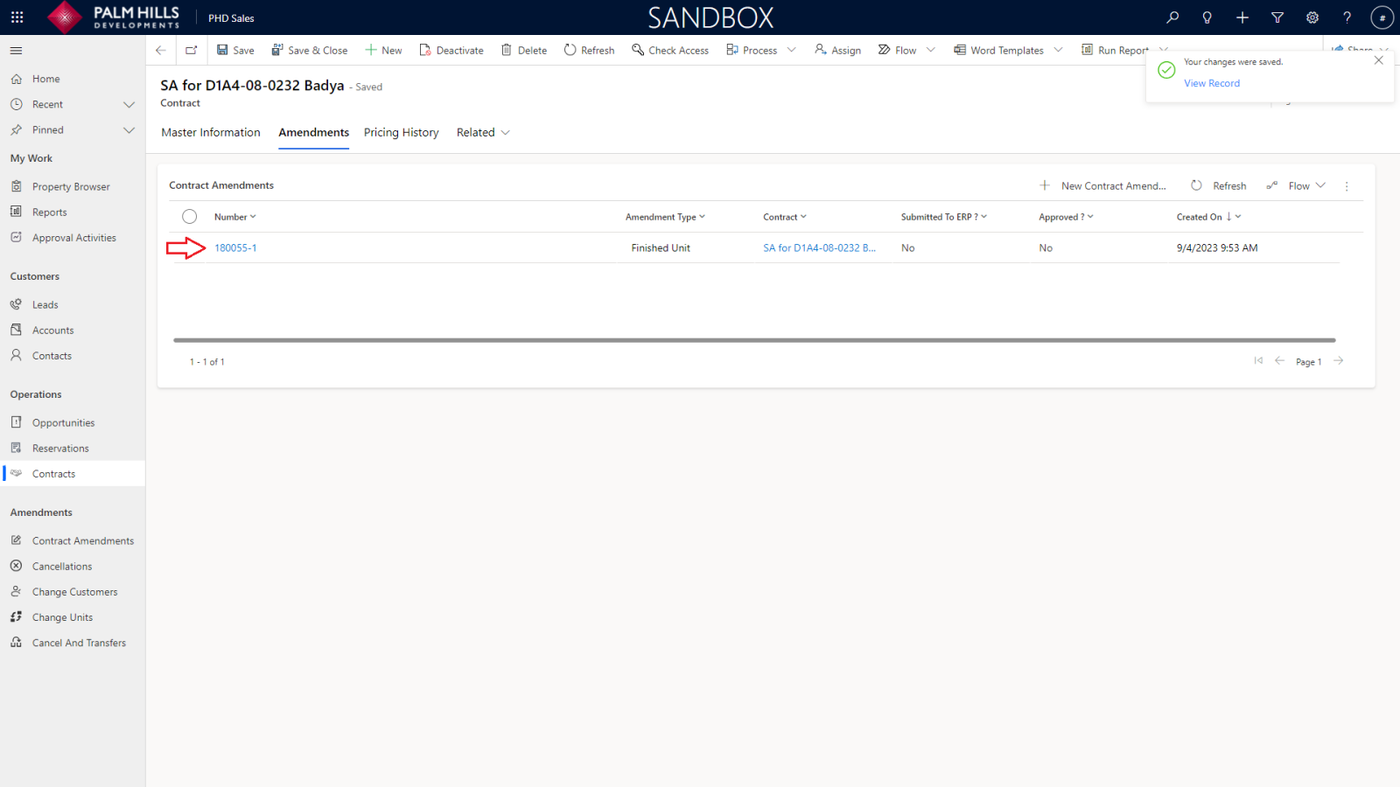
After the contract amendment is created, you can proceed to the next step.
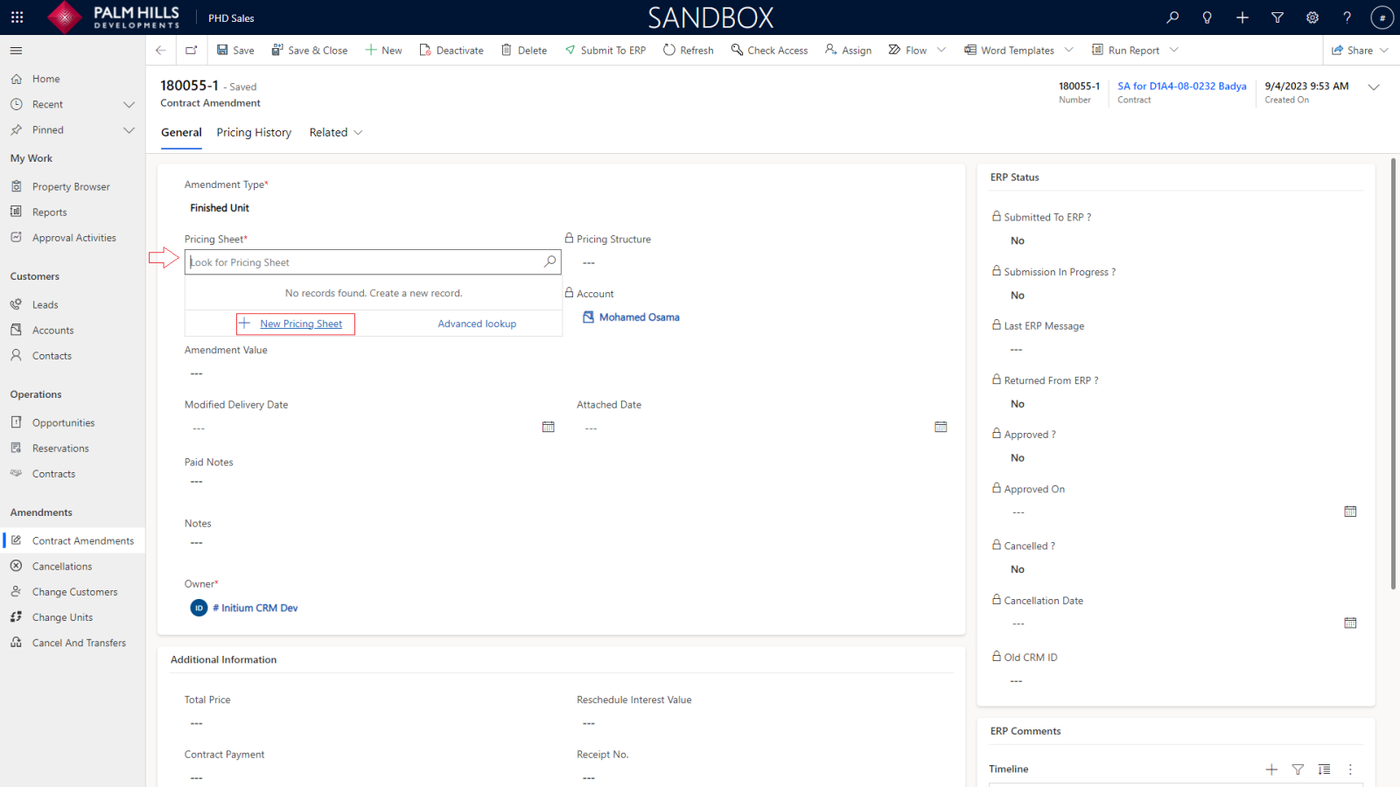
When navigating to the contract amendment, you must choose a 'Pricing Sheet.' If one has been created before, select it. If not, click on 'New Pricing Sheet' to create a new one.
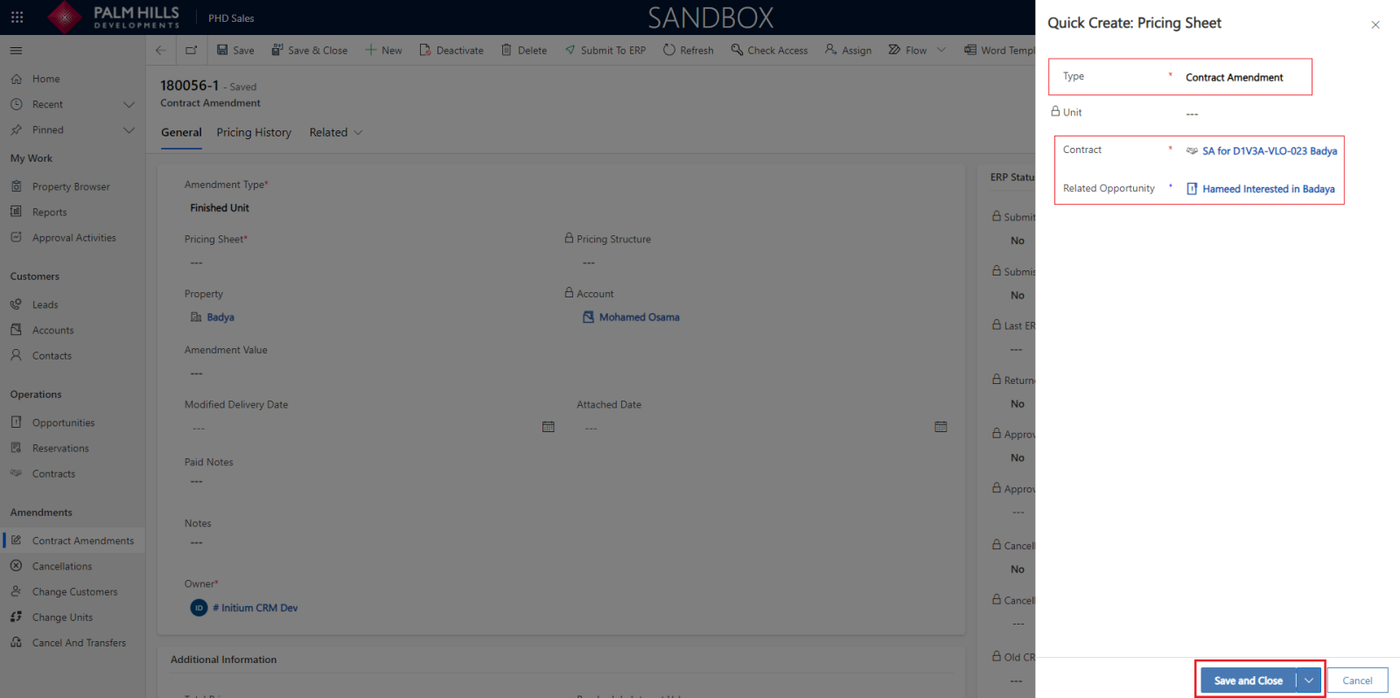
After clicking the button, a form will open to choose the type 'Contract Amendment' and the related contract.
Then, click on the 'Save and Close' button.
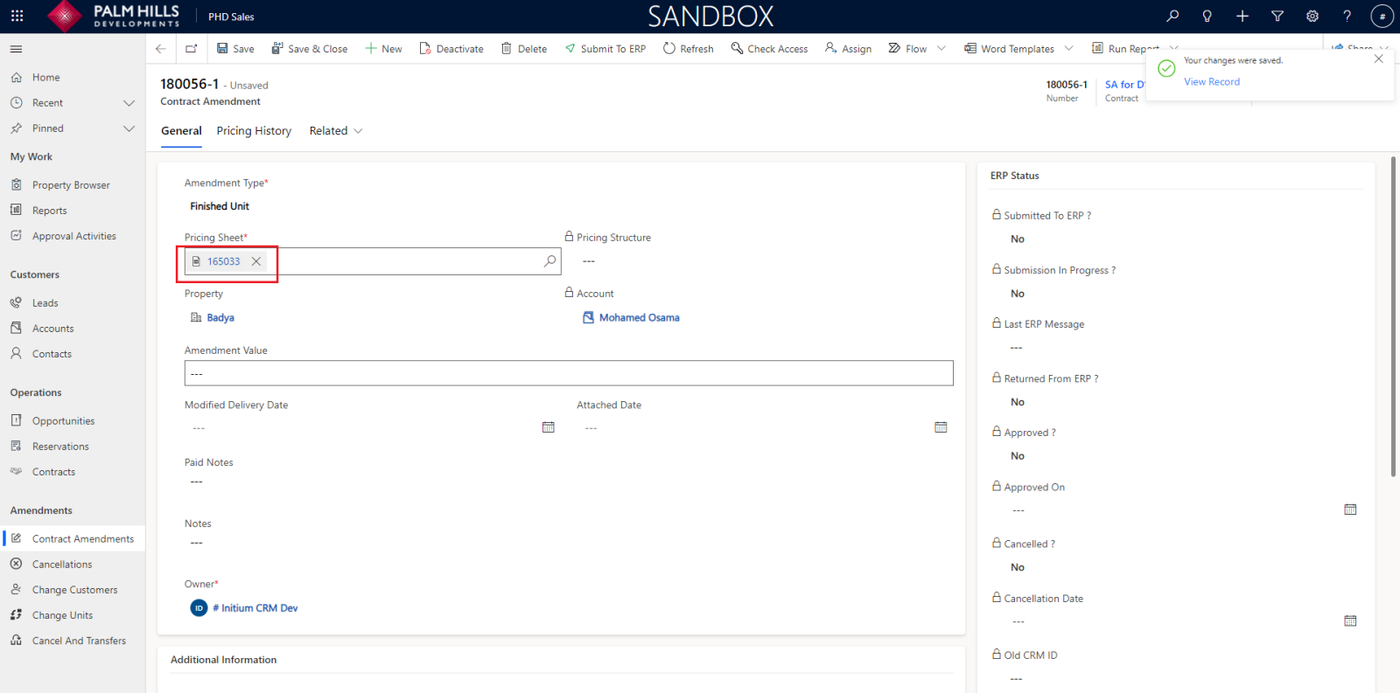
After saving the contract amendment, to fill out the pricing sheet, click on the pricing sheet as shown below.
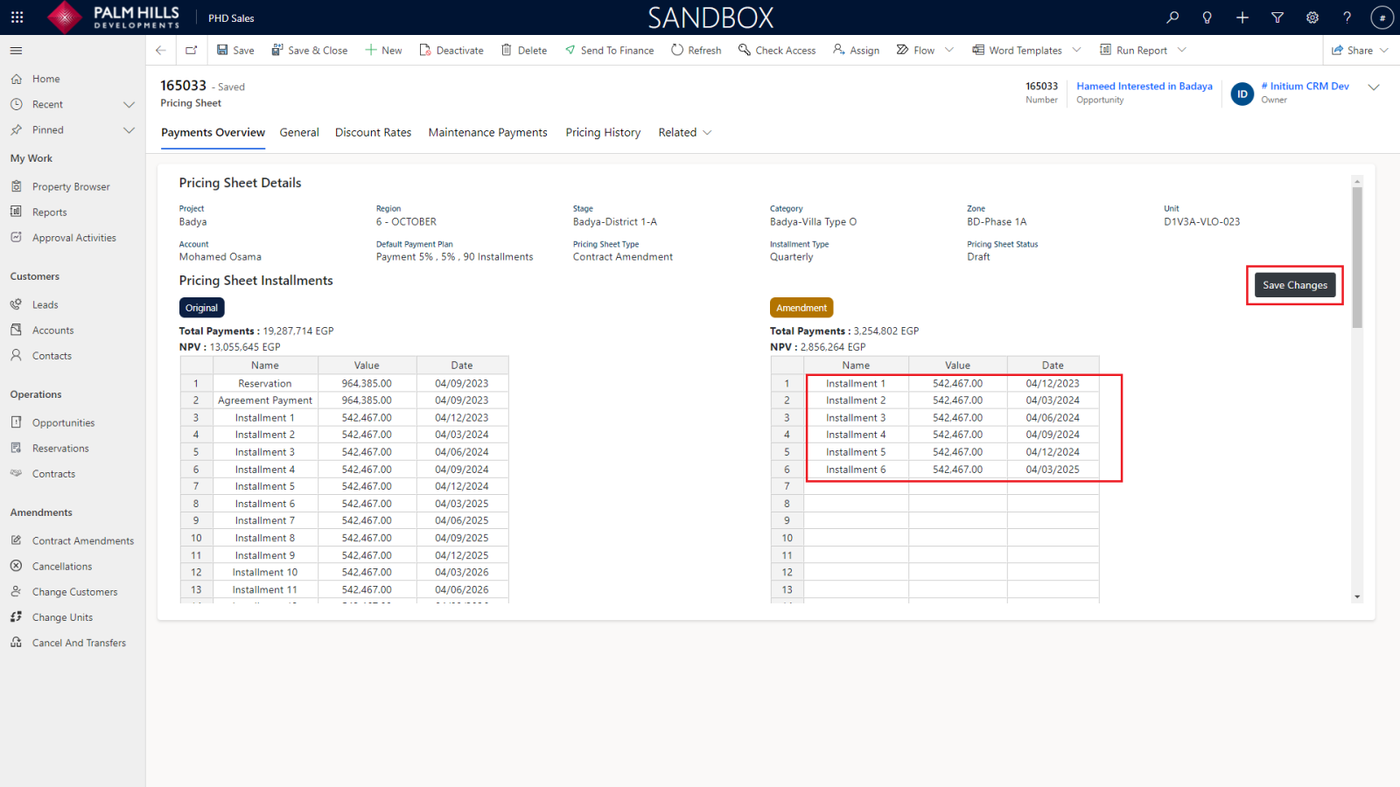
After navigating to the pricing sheet, start by adding the installment details for the Amendment Sheet.
Then, click on the 'Save Changes' button.
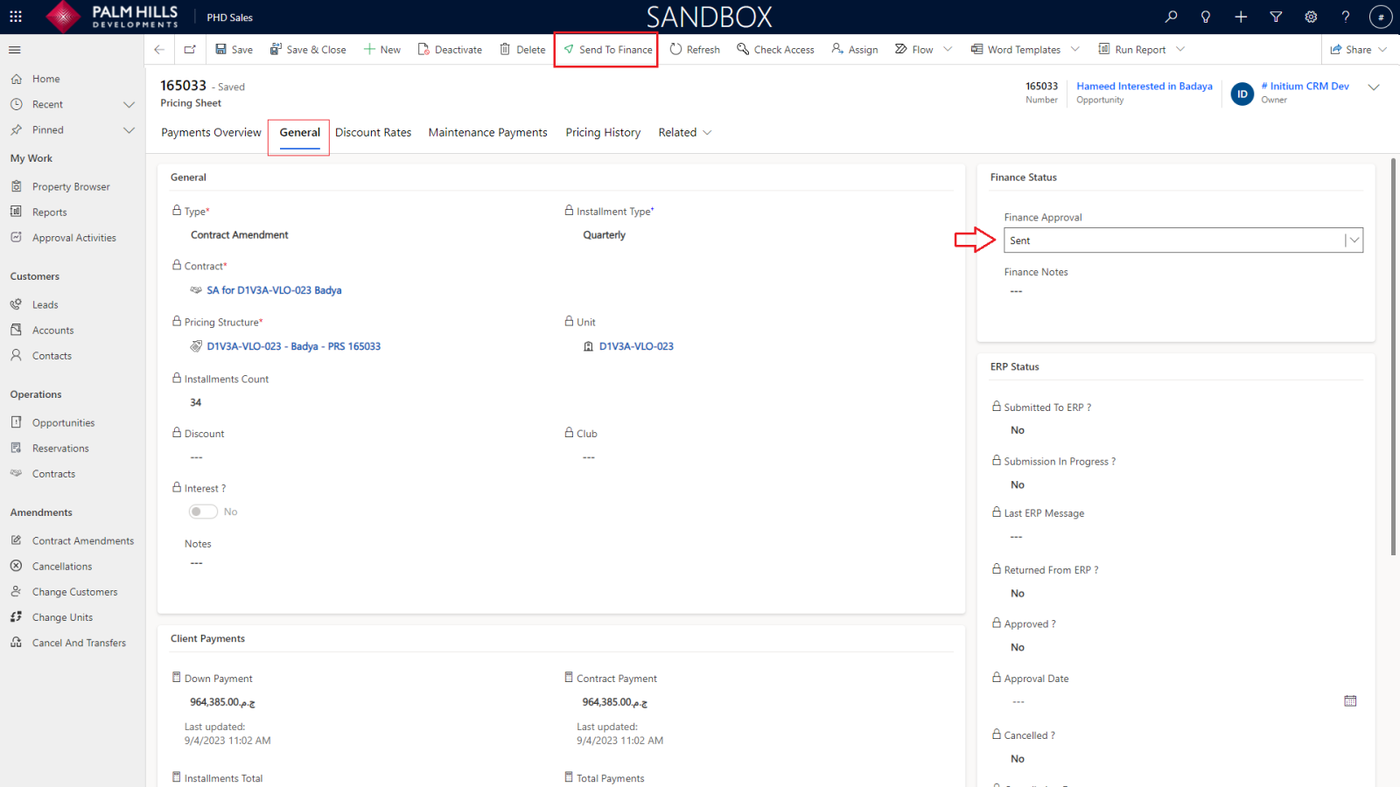
Now, go to the 'General' section, select 'Finance Approval' as 'Sent,' and click on the 'Send To Finance' button.
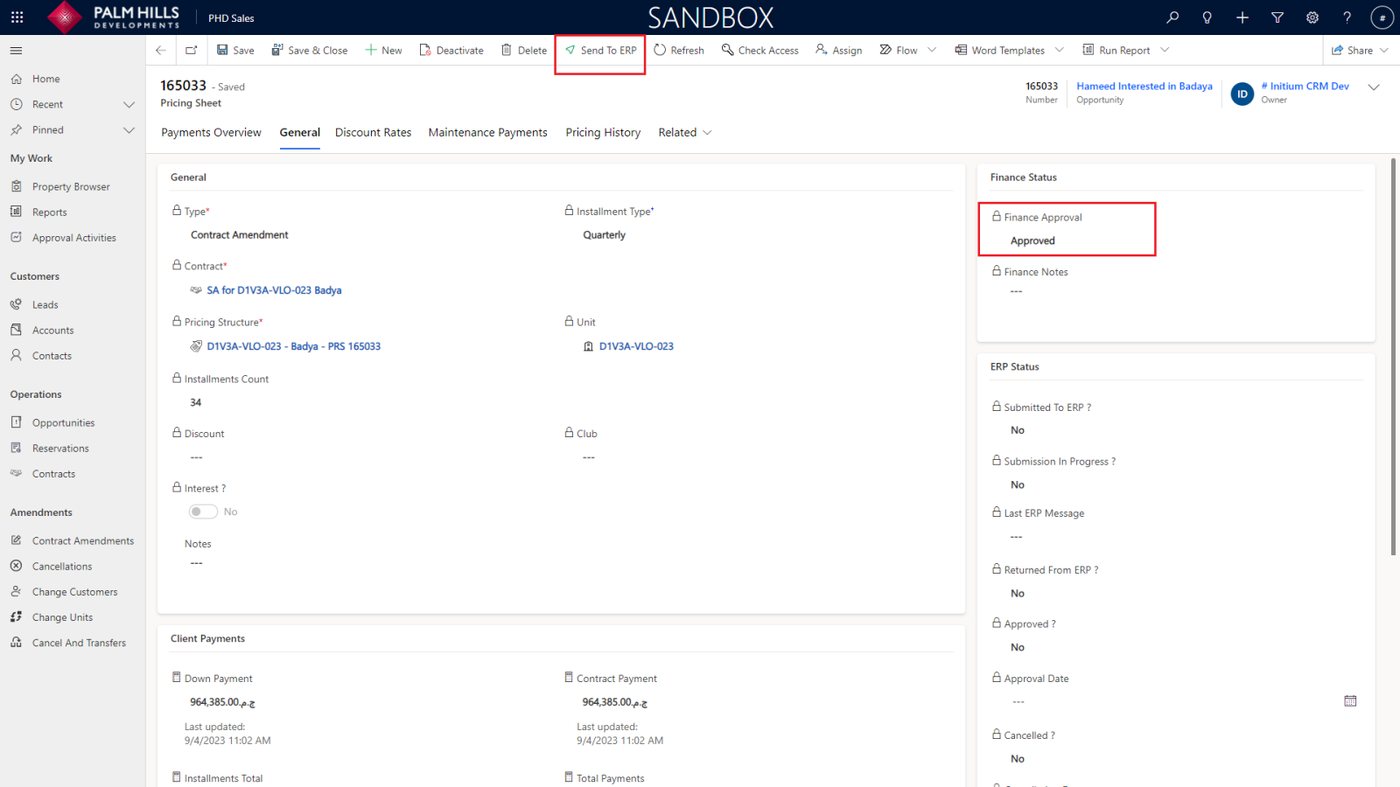
After approval from Finance, you can click on the 'Send To ERP' button.
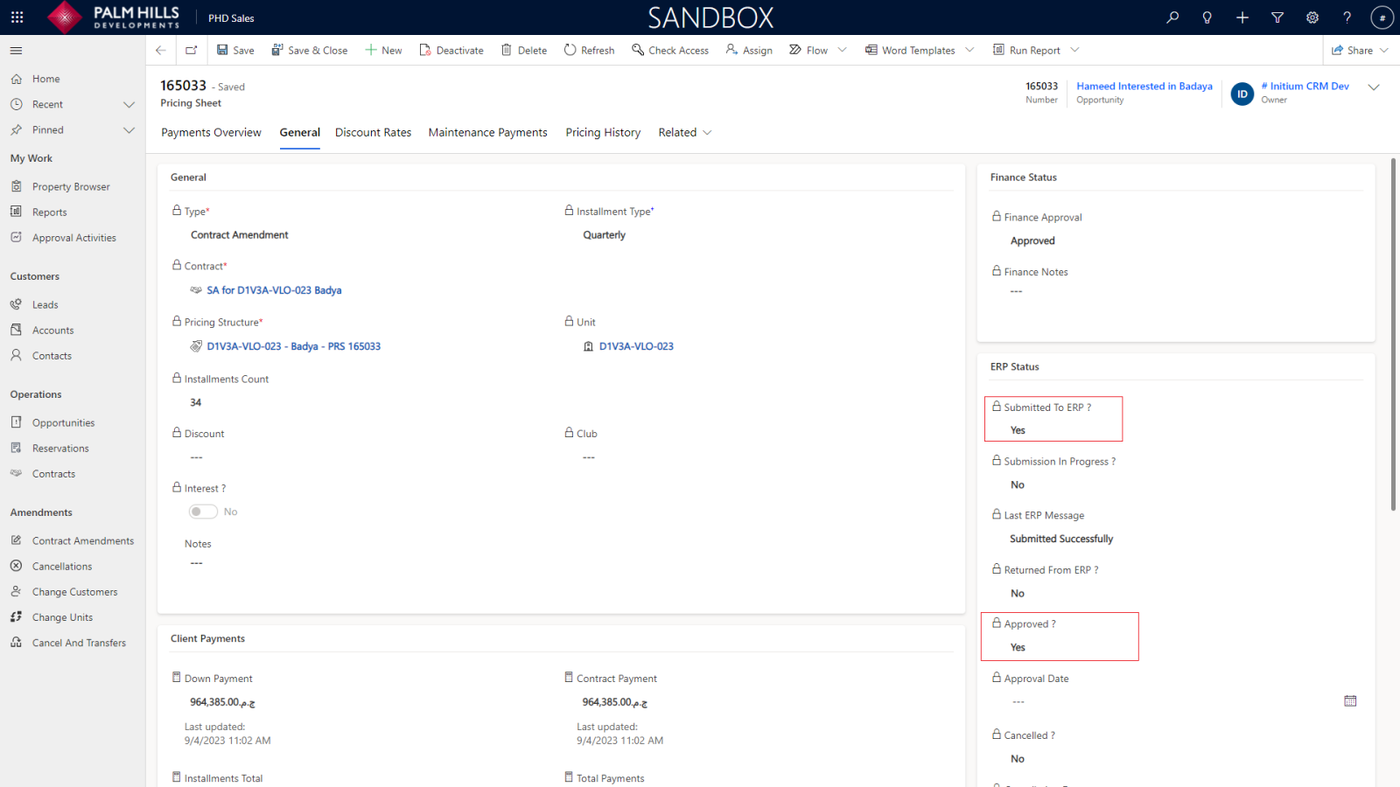
After ERP approval, the status is 'Approved: Yes'.
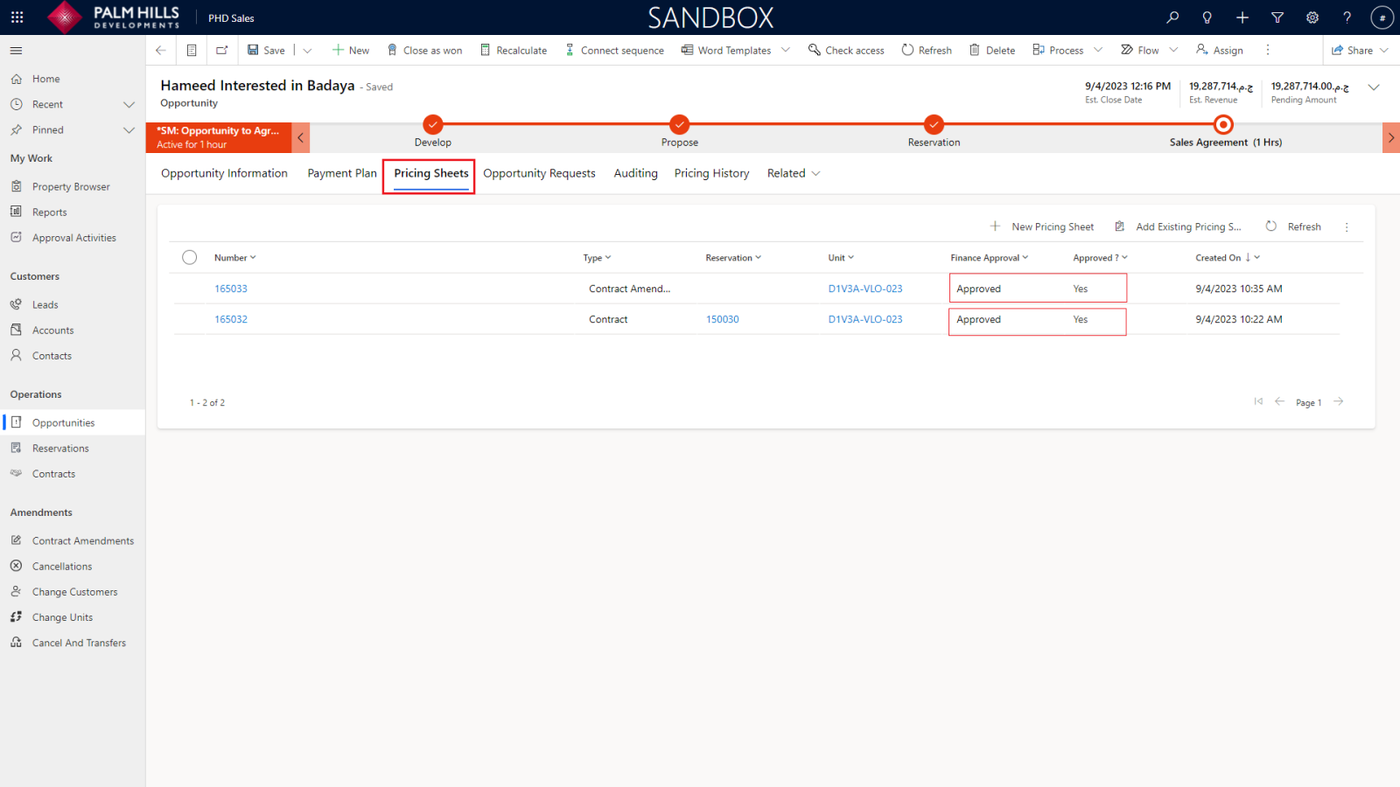
If you return to the opportunity and navigate to the 'Pricing Sheet' section, you will find the contract that was created before, as well as the contract amendment with approval from finance and ERP.