Contract
Contract
This section describes the next step after reserving the unit, which is to create a contract.
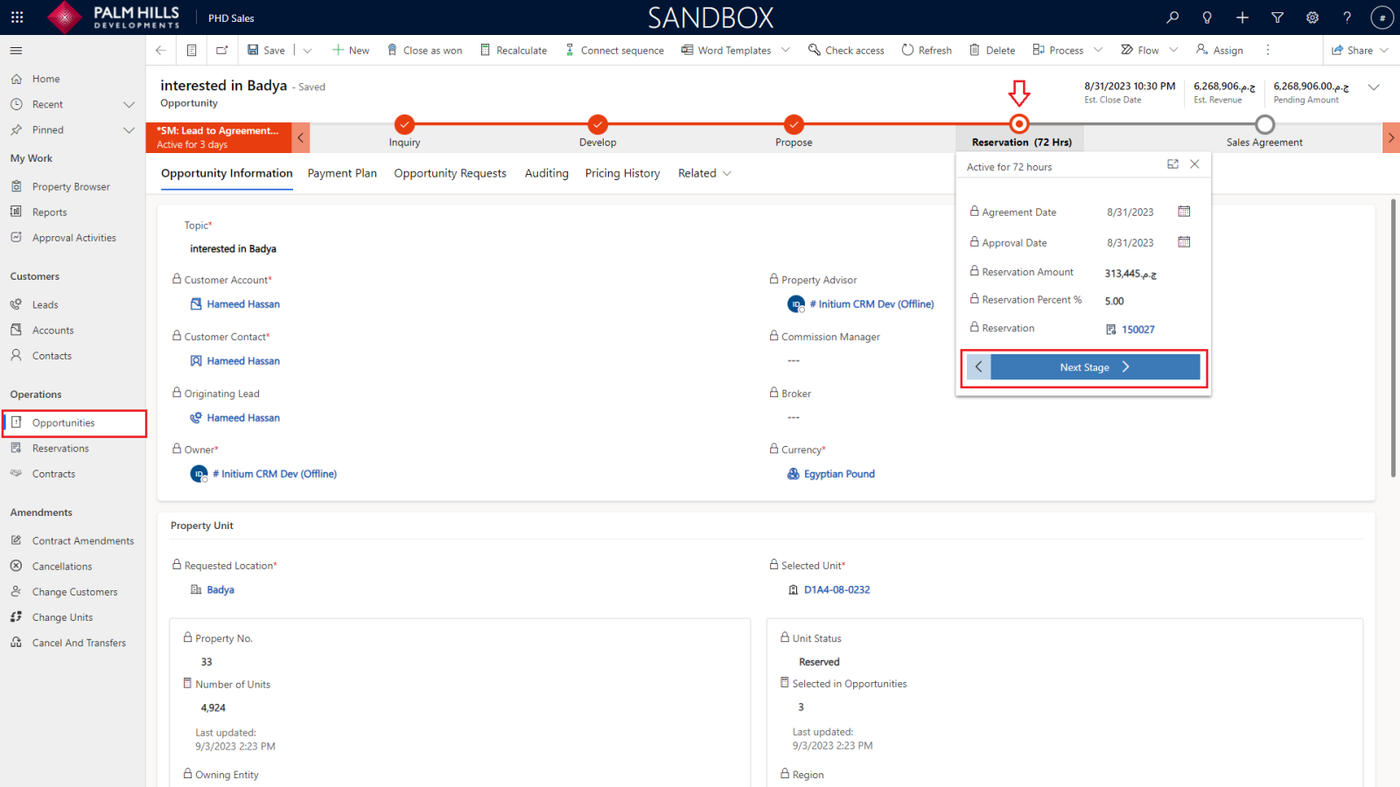
Navigate to 'Opportunities,' select your opportunity, click on 'Reservation,' and then click on the 'Next Stage' button.
Pricing Sheet
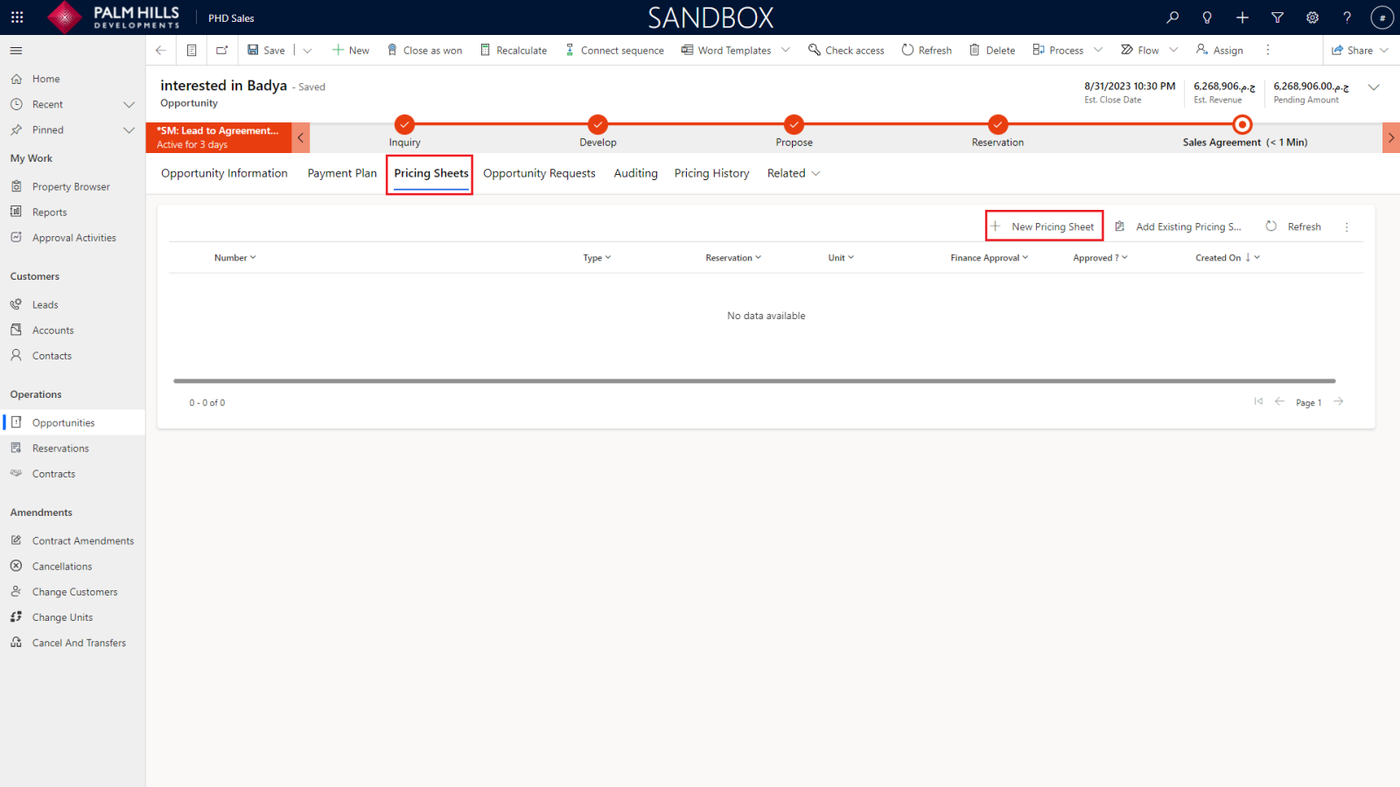
Now, the 'Pricing Sheet' section is displayed when you are at the 'Sales Agreement' step. To create a new pricing sheet, click on the 'New Pricing Sheet' button as shown below.
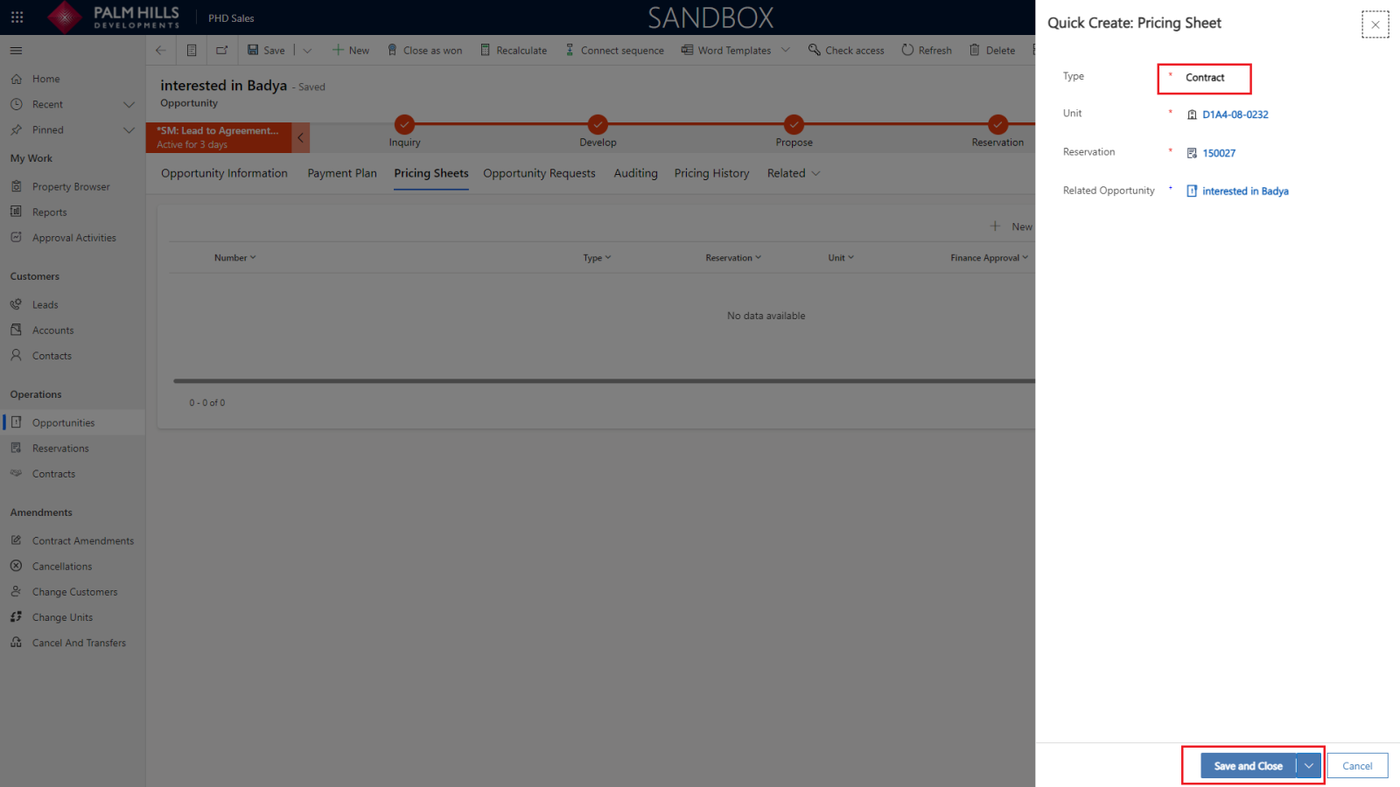
A quick Pricing Sheet form will be displayed with data so you can click on the 'Save and Close' button.
Now, click on the pricing sheet to view its details and complete data.
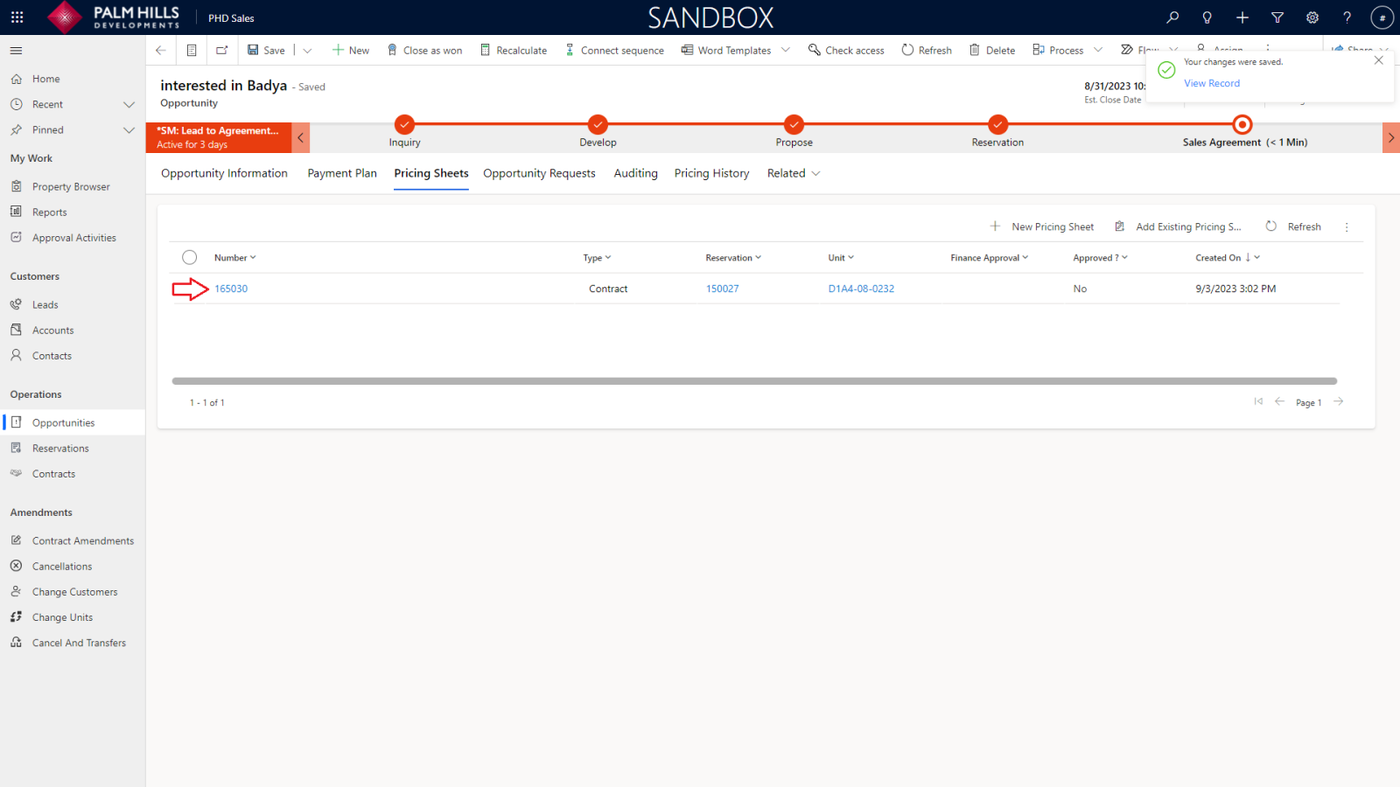
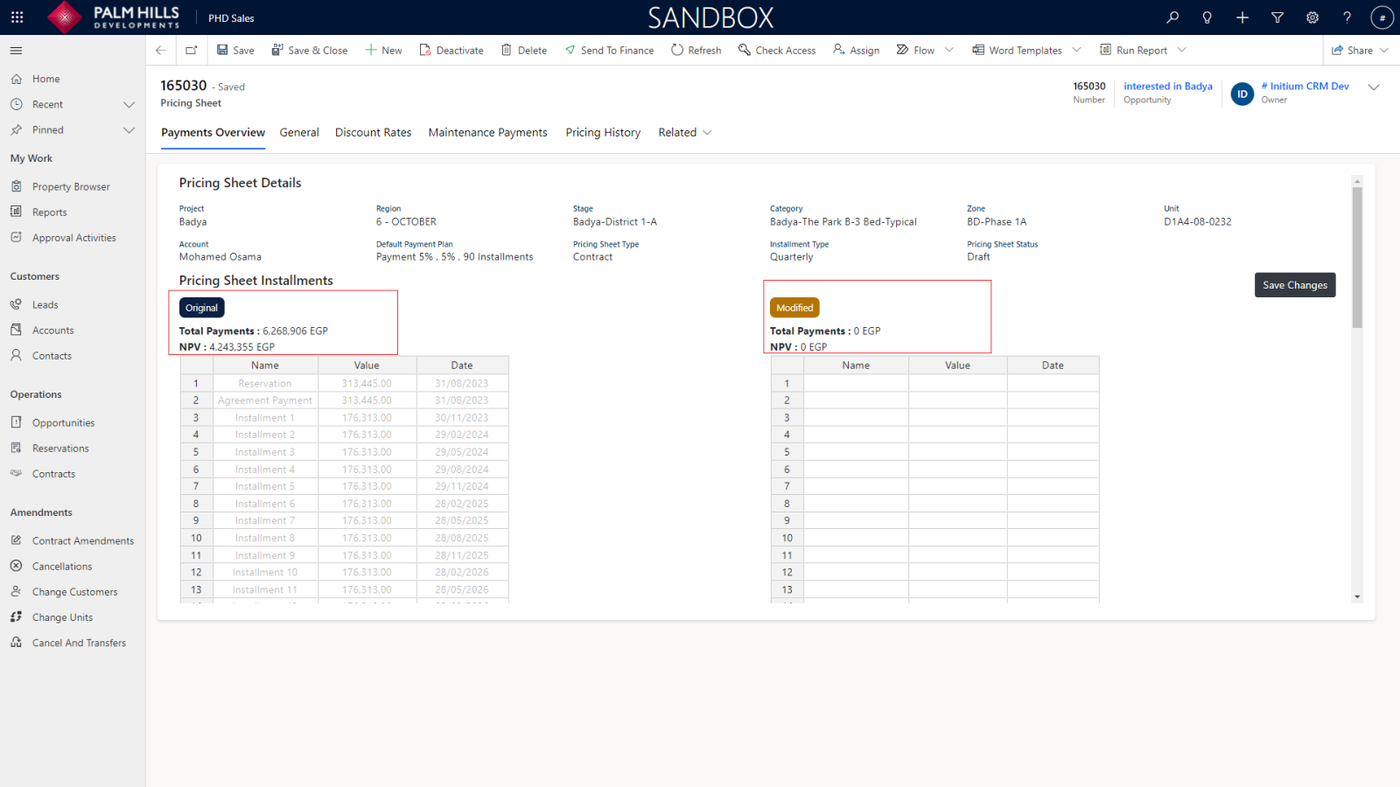
In the step after sales agent agreement with the customer about payment and installment, the sales agent needs to fill out the modified sheet with information, and there are constraints such as :
- Naming payments like 'Reservation,' 'Maintenance,' 'Installment,' etc. The NVP (Net Present Value).
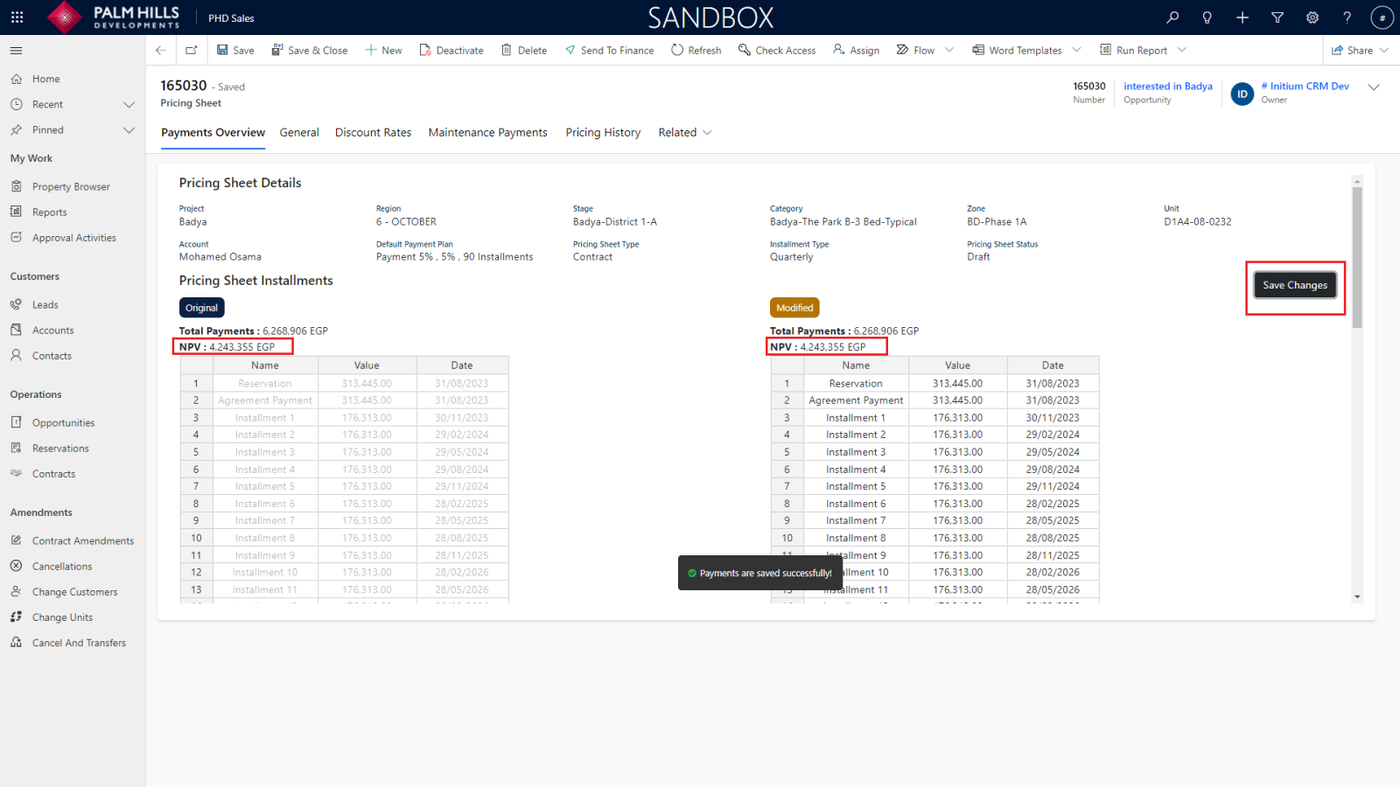
- The NVP (Net Present Value) amount in the modified sheet must be equal to the amount in the original sheet.
After copying the data into the modified sheet and ensuring that the modified amount matches the original amount, click on the 'Save Changes' button.
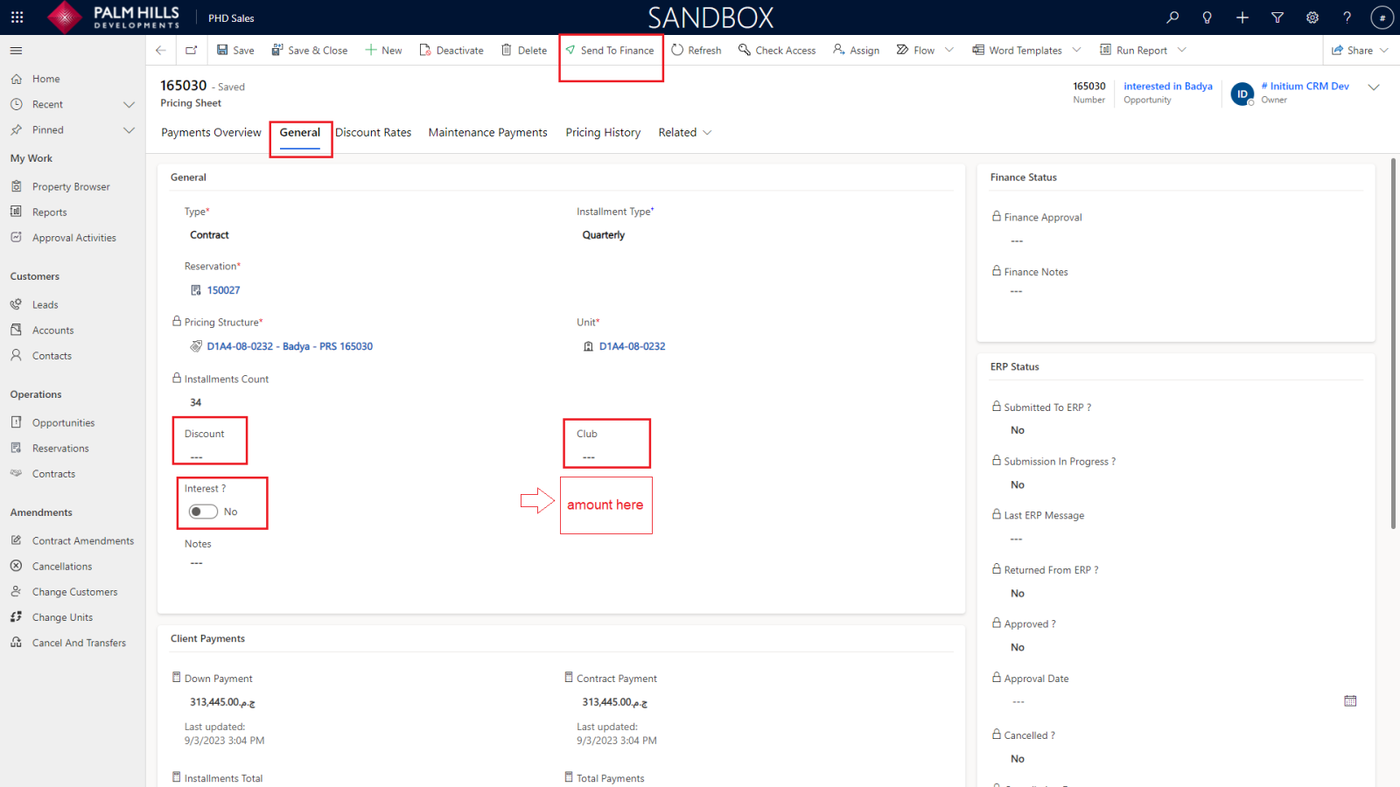
After filling out the modified sheet, navigate to the 'General' section. Here, you have the 'Discount' and 'Club' fields, and any value you add here will automatically reflect in the 'Pricing Structure' value.
Additionally, check the 'Interest' field, where the interest value will be displayed. Finally, the sales agent can click on the 'Save' button and then 'Send To Finance' button.
Finance
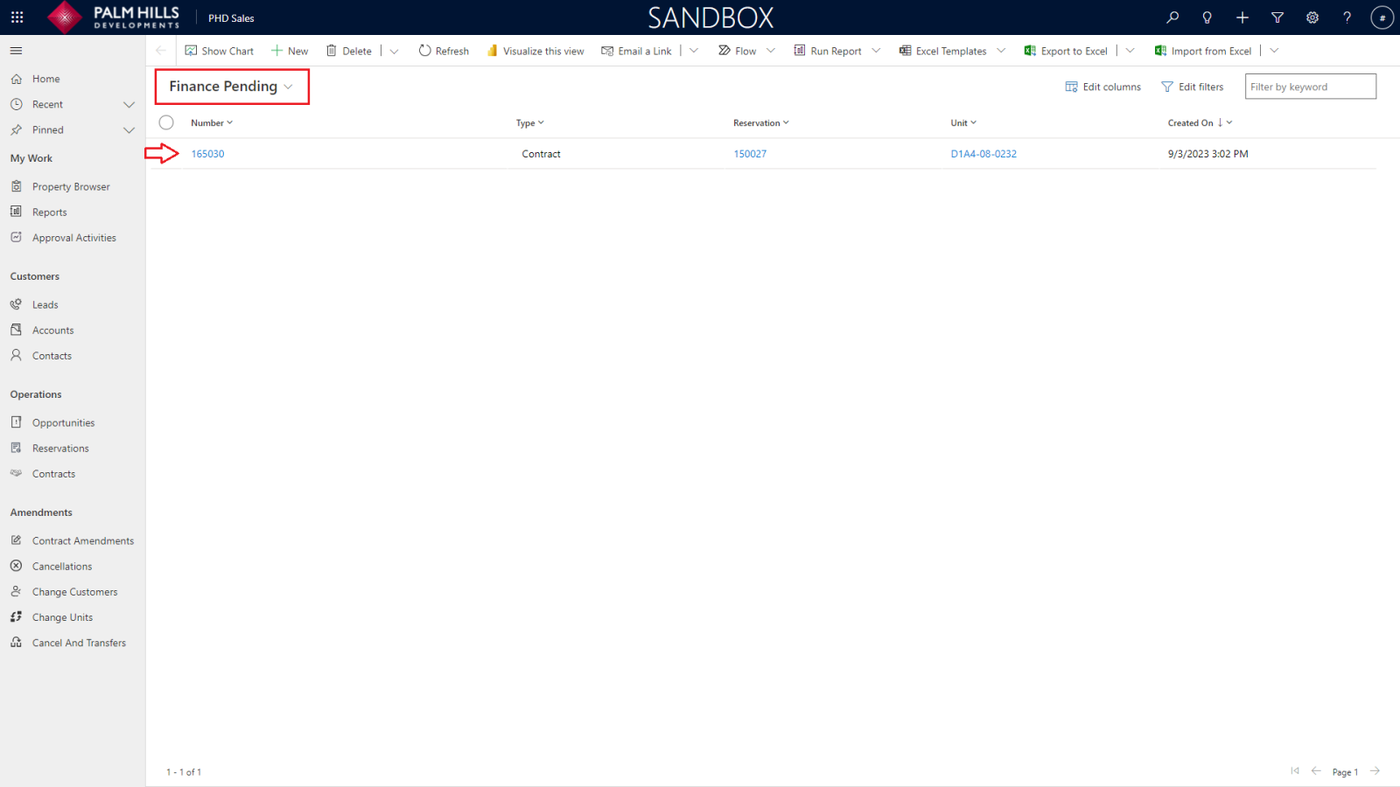
When navigating to the finance section, the default view is 'Finance Pending', which displays the pricing sheets that require approval.
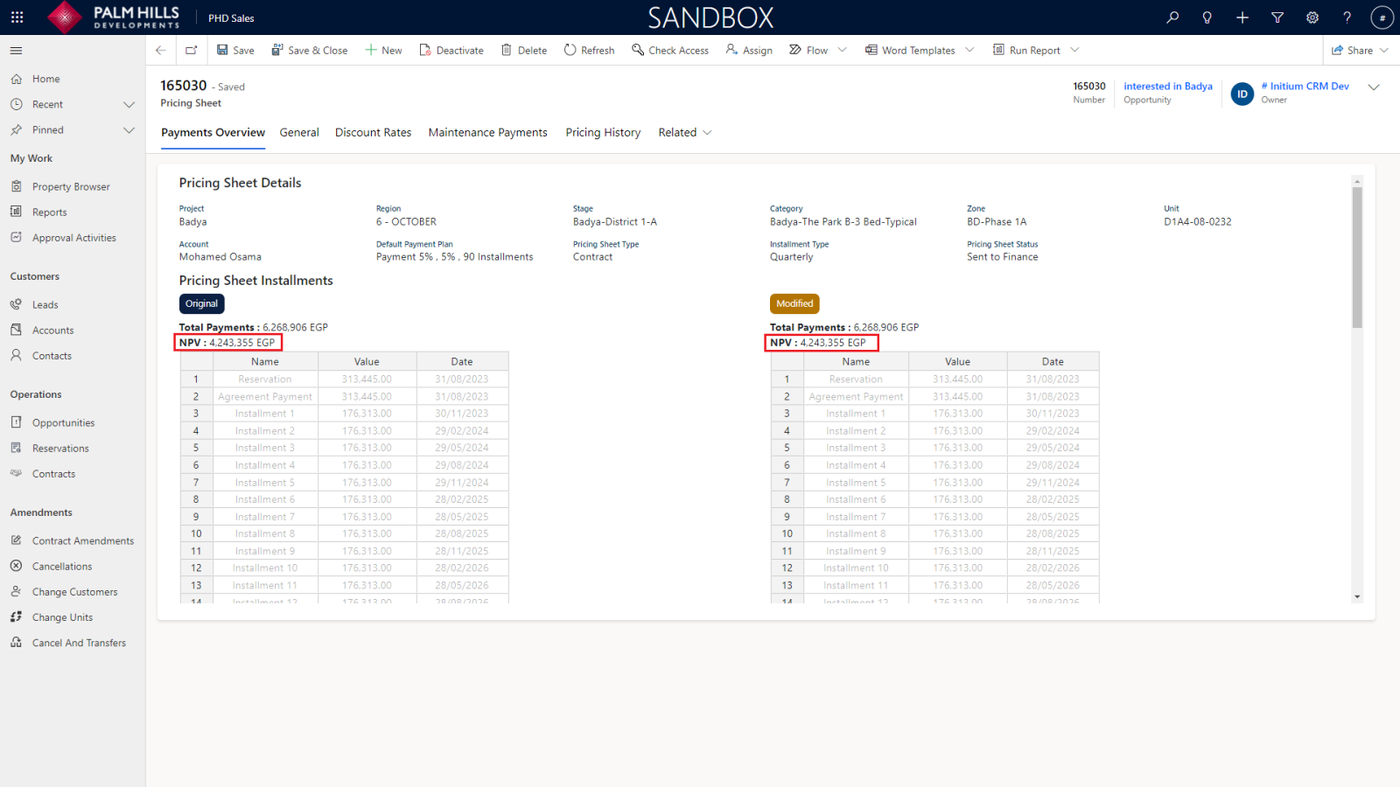
First, take an overview of the modified sheet and the NVP amount.
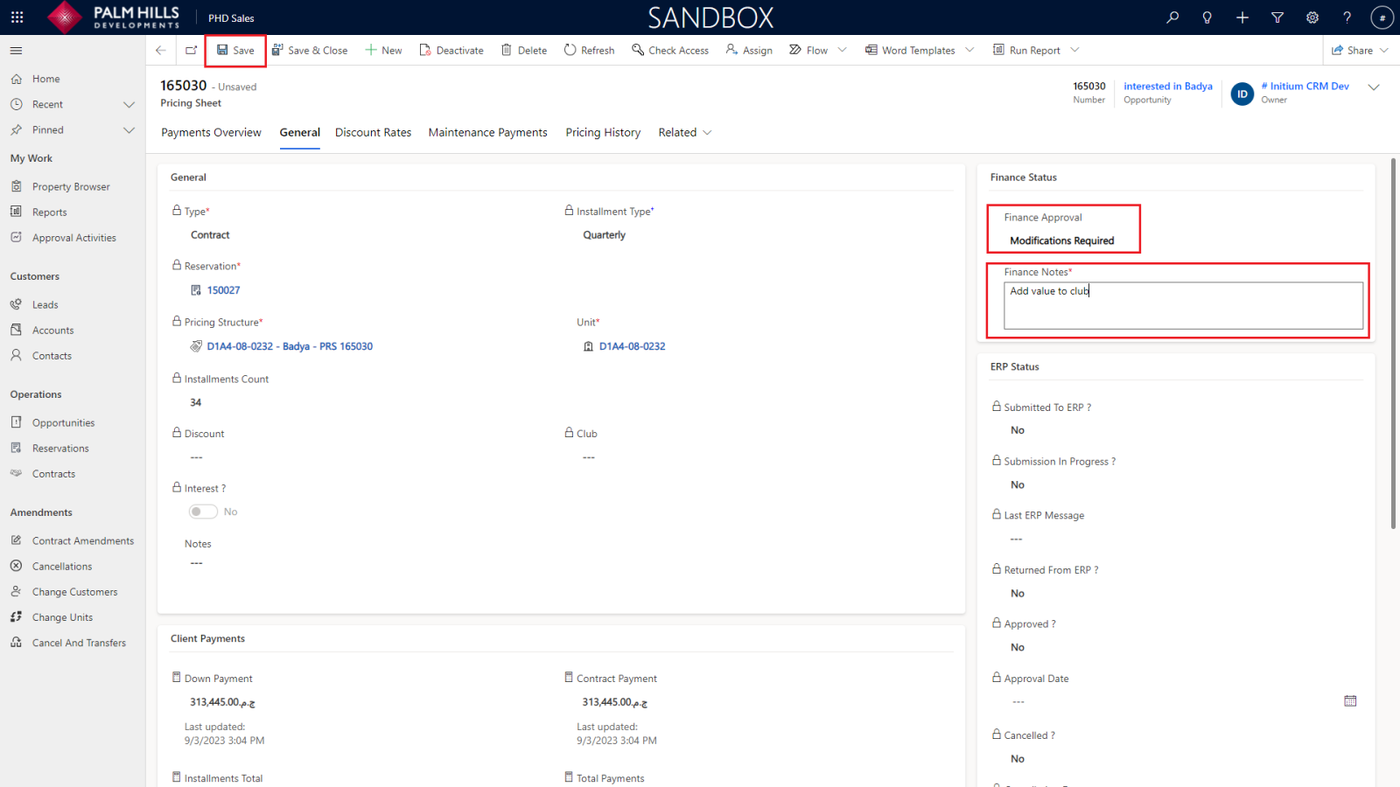
In the 'General' section, finance can take their approval actions, including 'Approve,' 'Reject,' or 'Modification Required,' and add Finance Notes. Afterward, they can click on the 'Save' button.
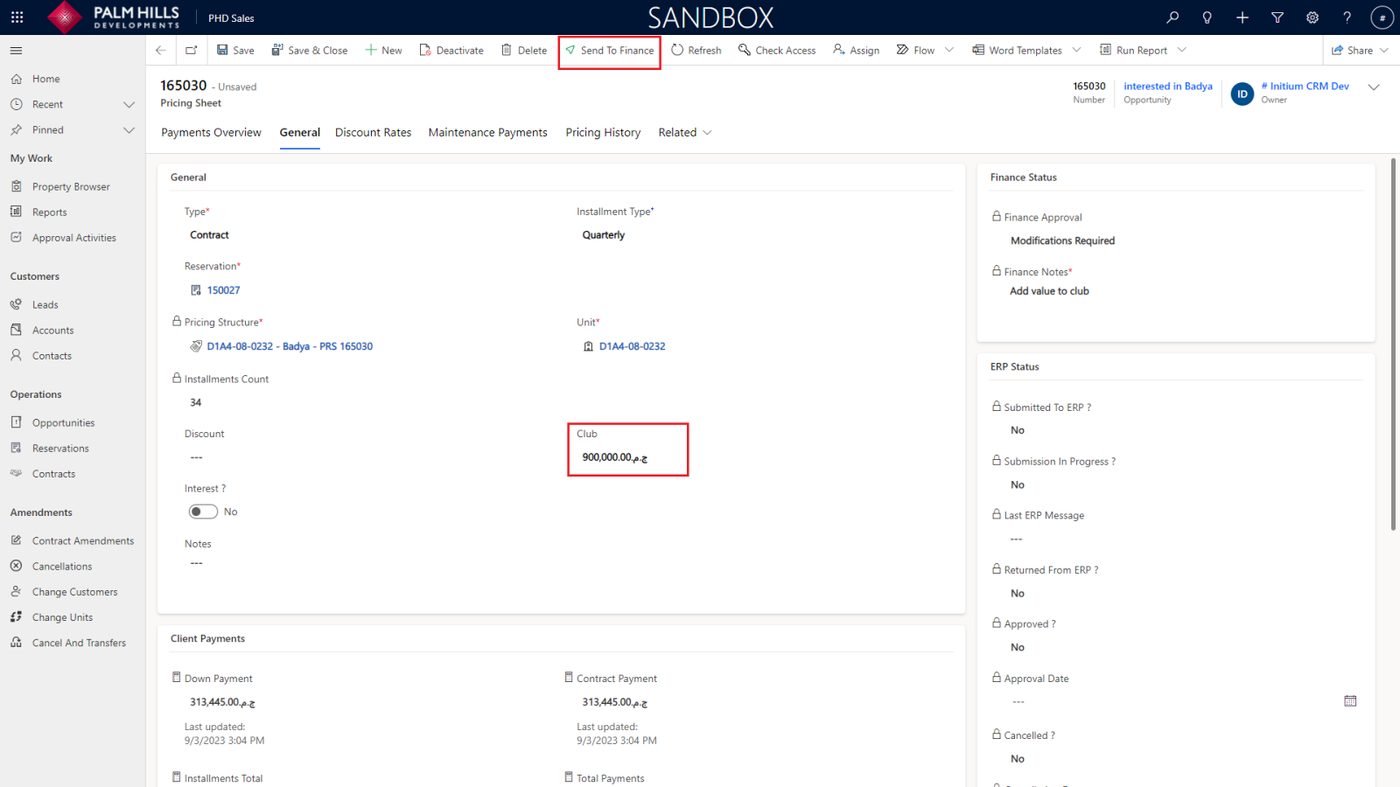
Now sales agent show the Finance Approval 'Modification Required', can change now 'Club' value and send again to finance.
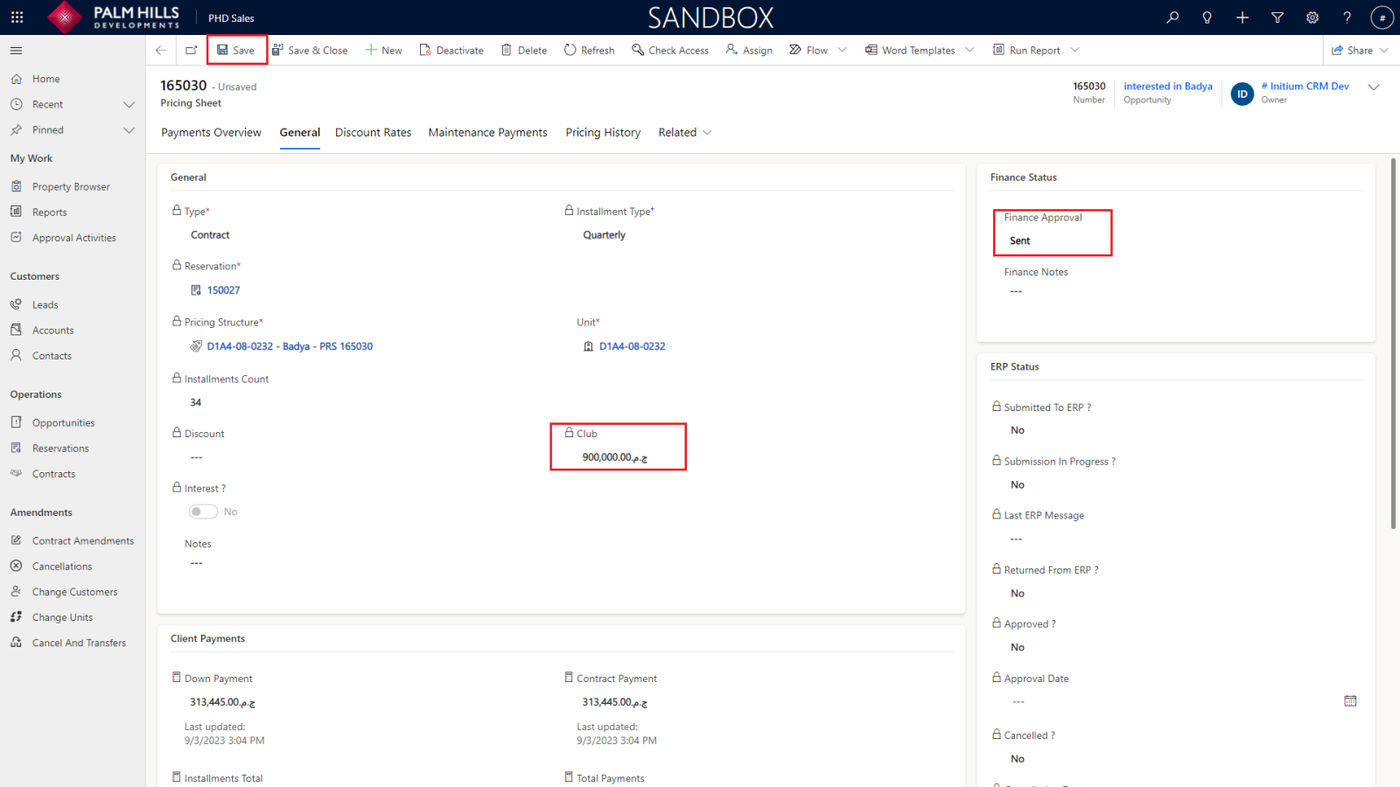
Now, finance can change the approval status from 'Sent' to 'Approved' and then click on the 'Save' button.
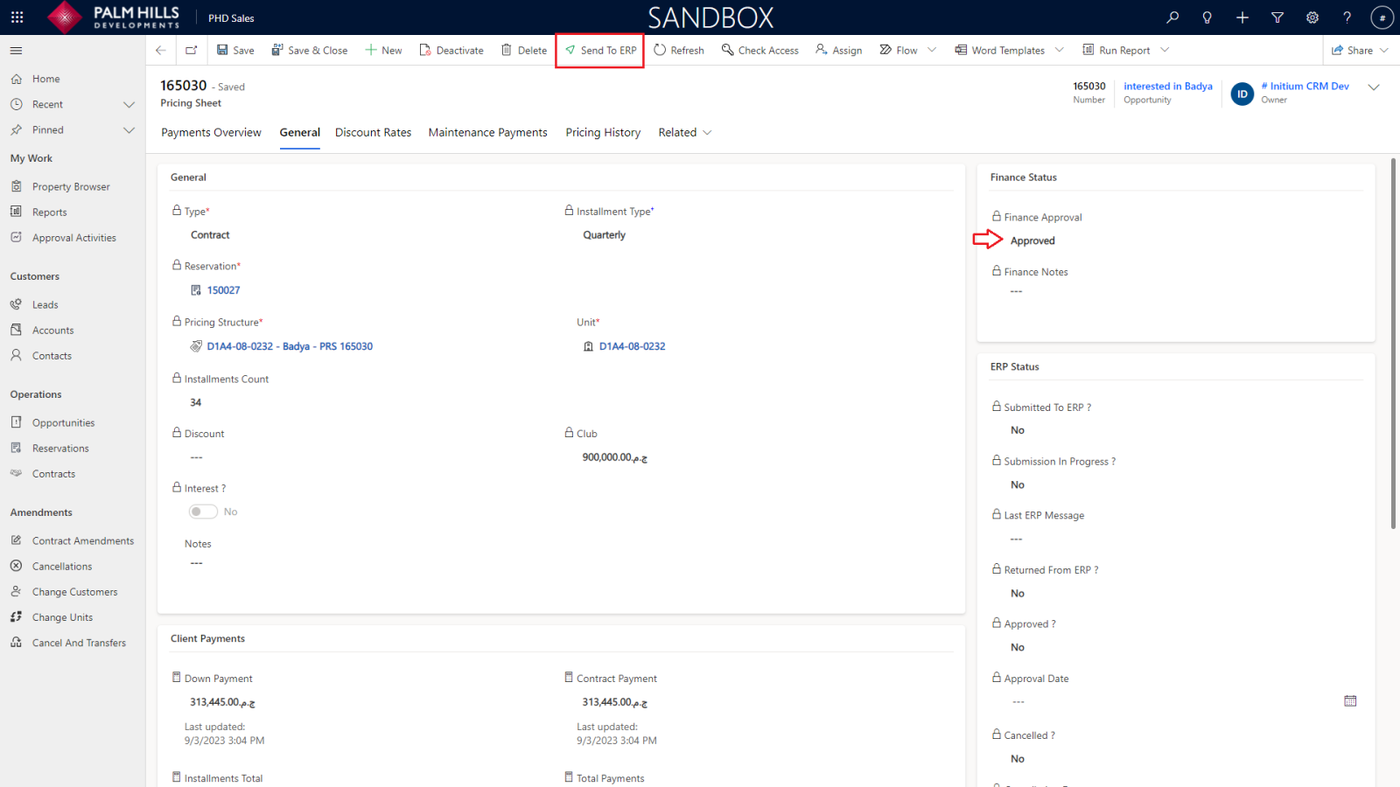
After finance approval, the sales agent can send the pricing sheet to ERP by clicking on the 'Send To ERP' button.
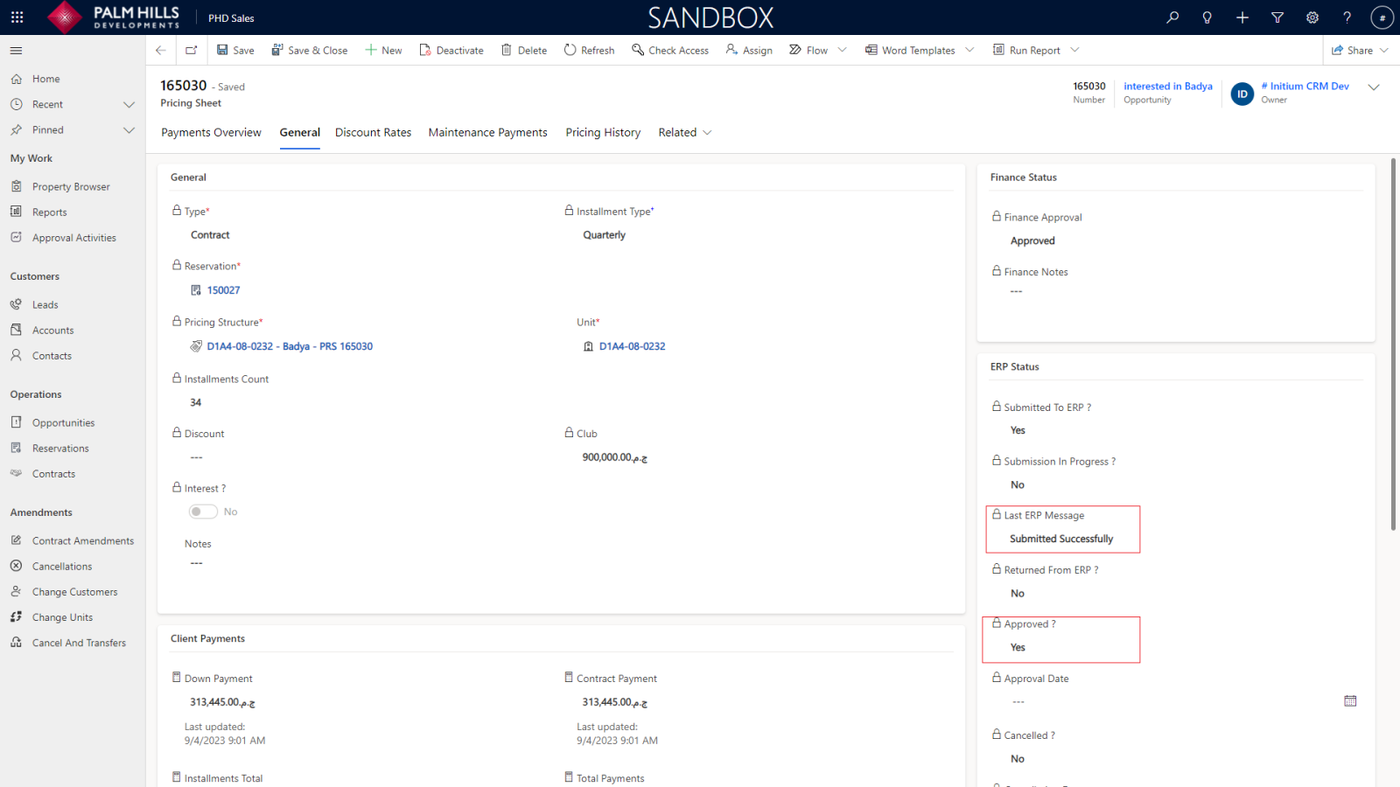
As shown, ERP has approved the pricing sheet .
Contract Sales
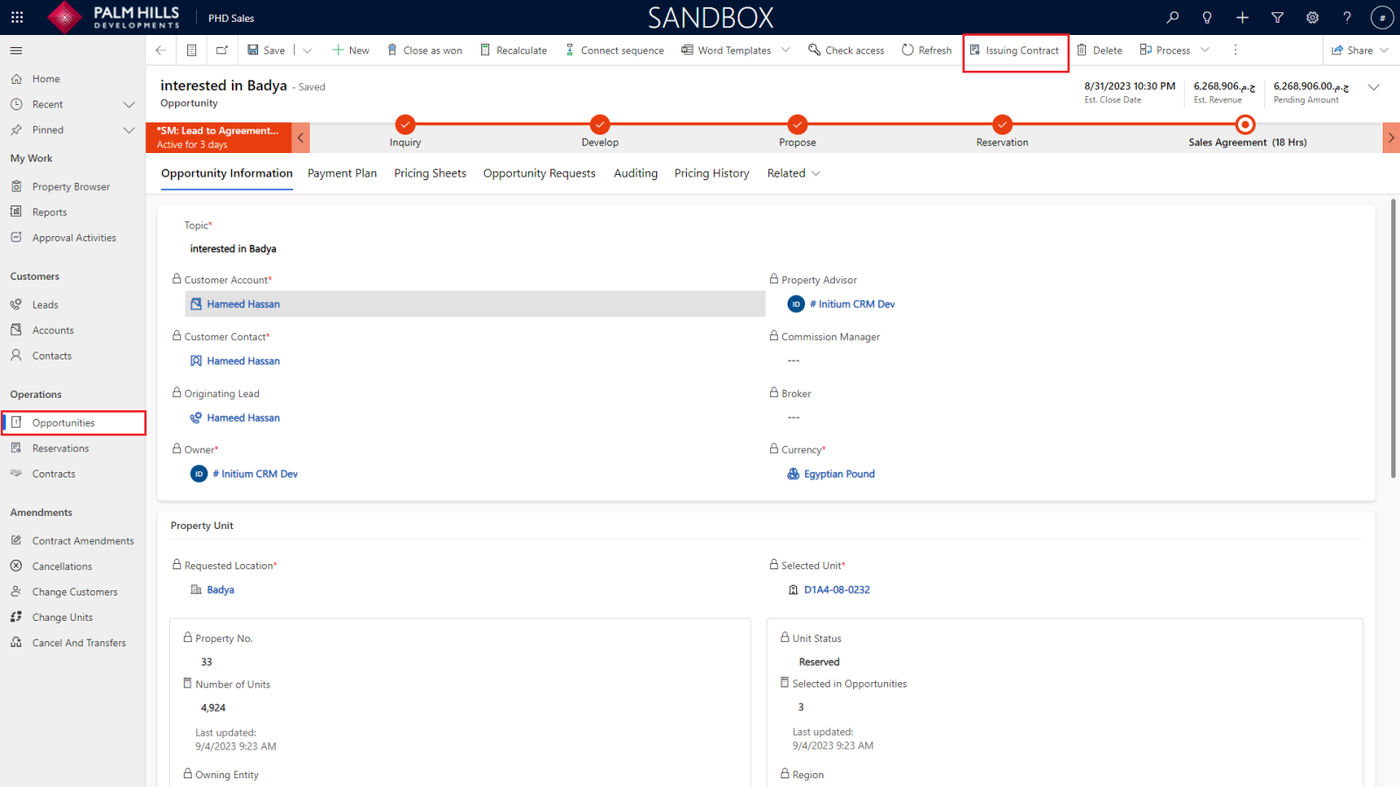
Returning to the opportunity, the contract sales can create a new contract by clicking on the 'Issuing Contract' button.
After creating the issuing contract, to view the contract, go to the 'Auditing' section. You will see the 'Is Contract Created' flag set to 'Yes,' and you can click on the contract to navigate to it.
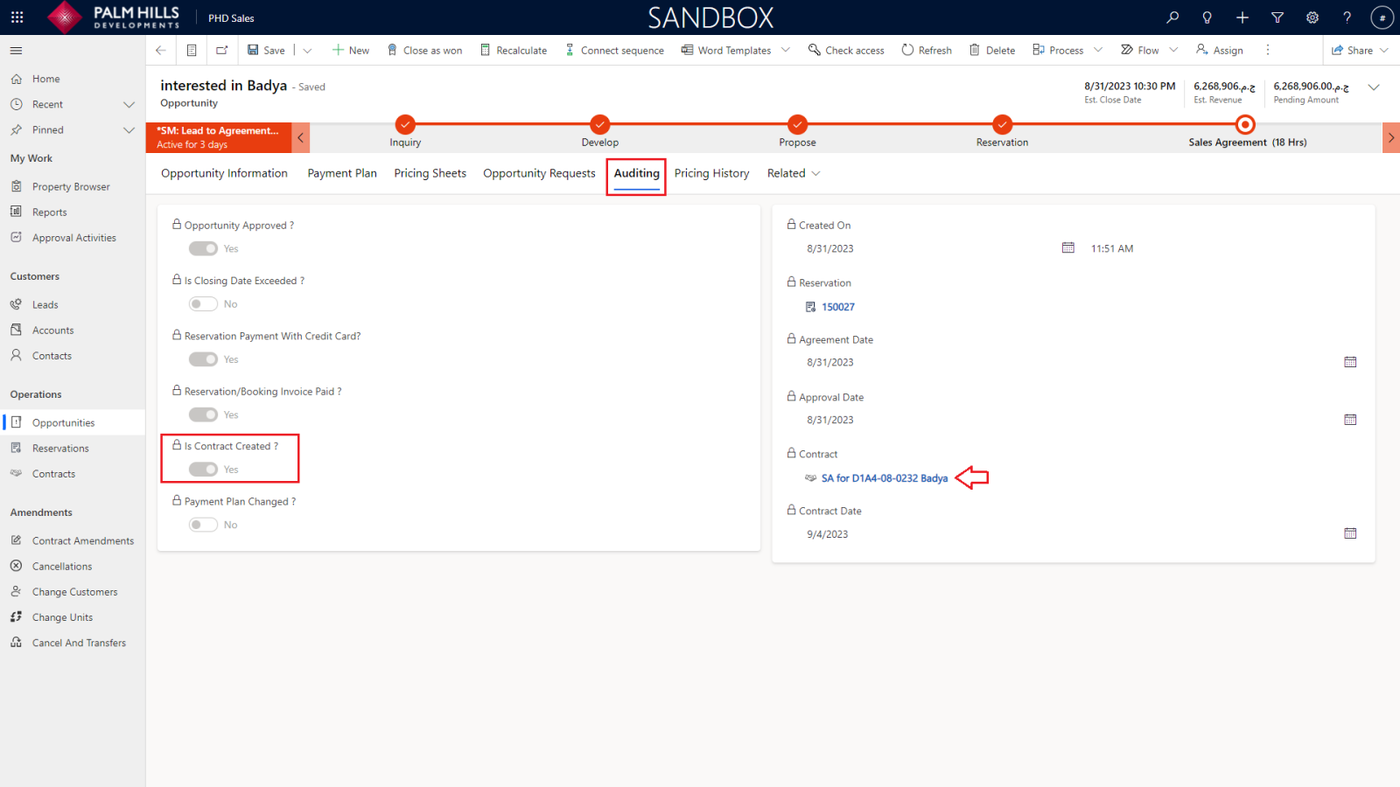
FYI, you can view the contract by navigating to 'Contracts' in the sidebar and selecting your contract from the list.
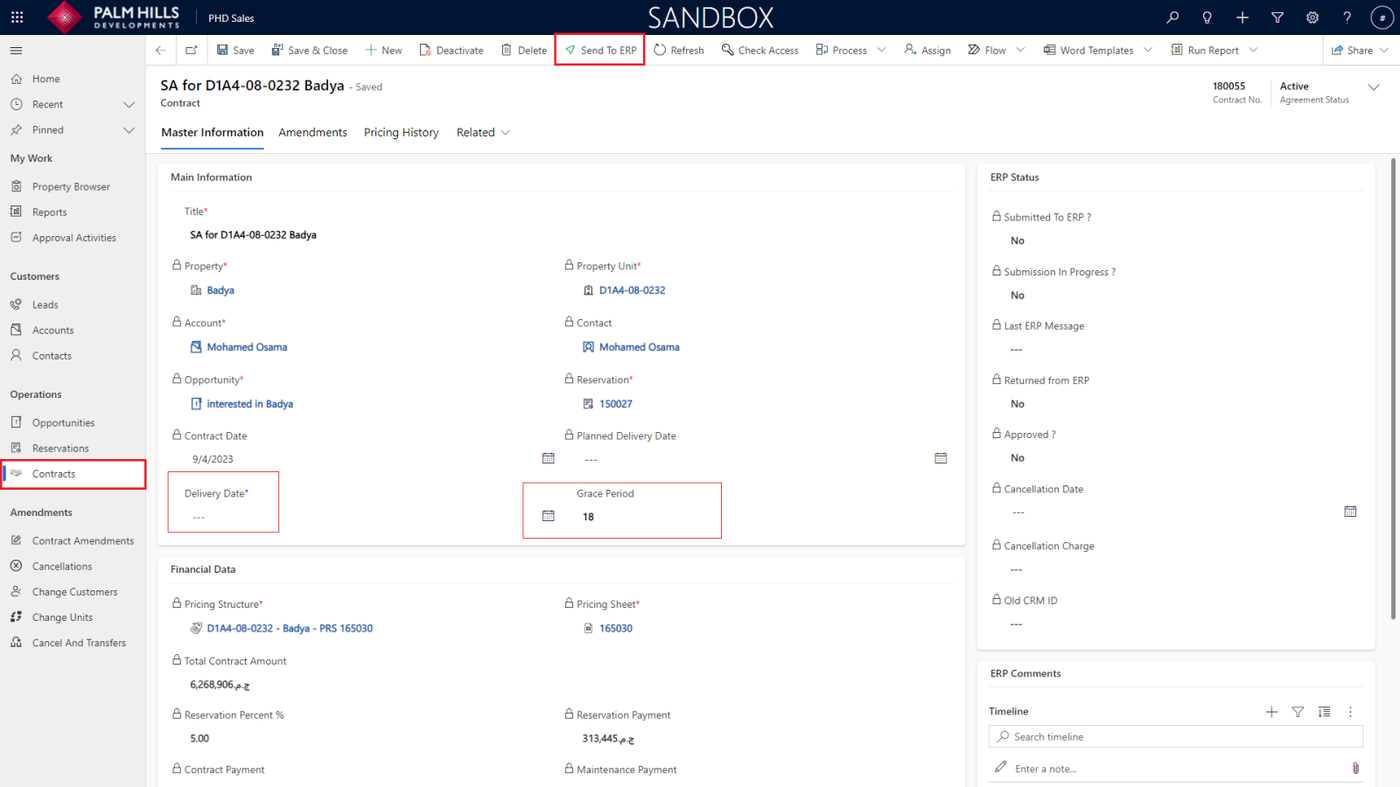
In the contract details, it's recommended to add a 'Delivery Date,' and if needed, you can change the 'Grace Period.' Finally, click on the 'Send To ERP' button.
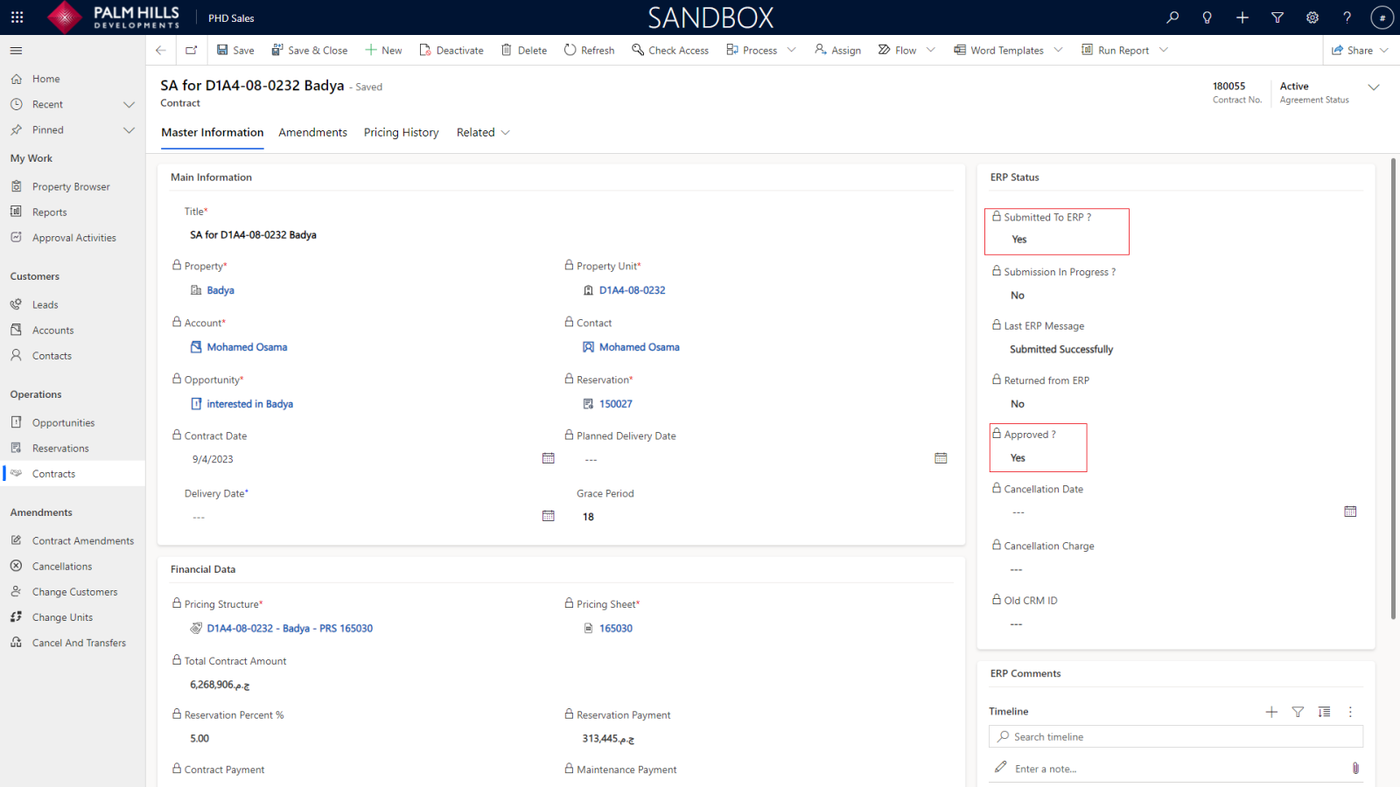
As shown, after ERP approval, the contract is approved.
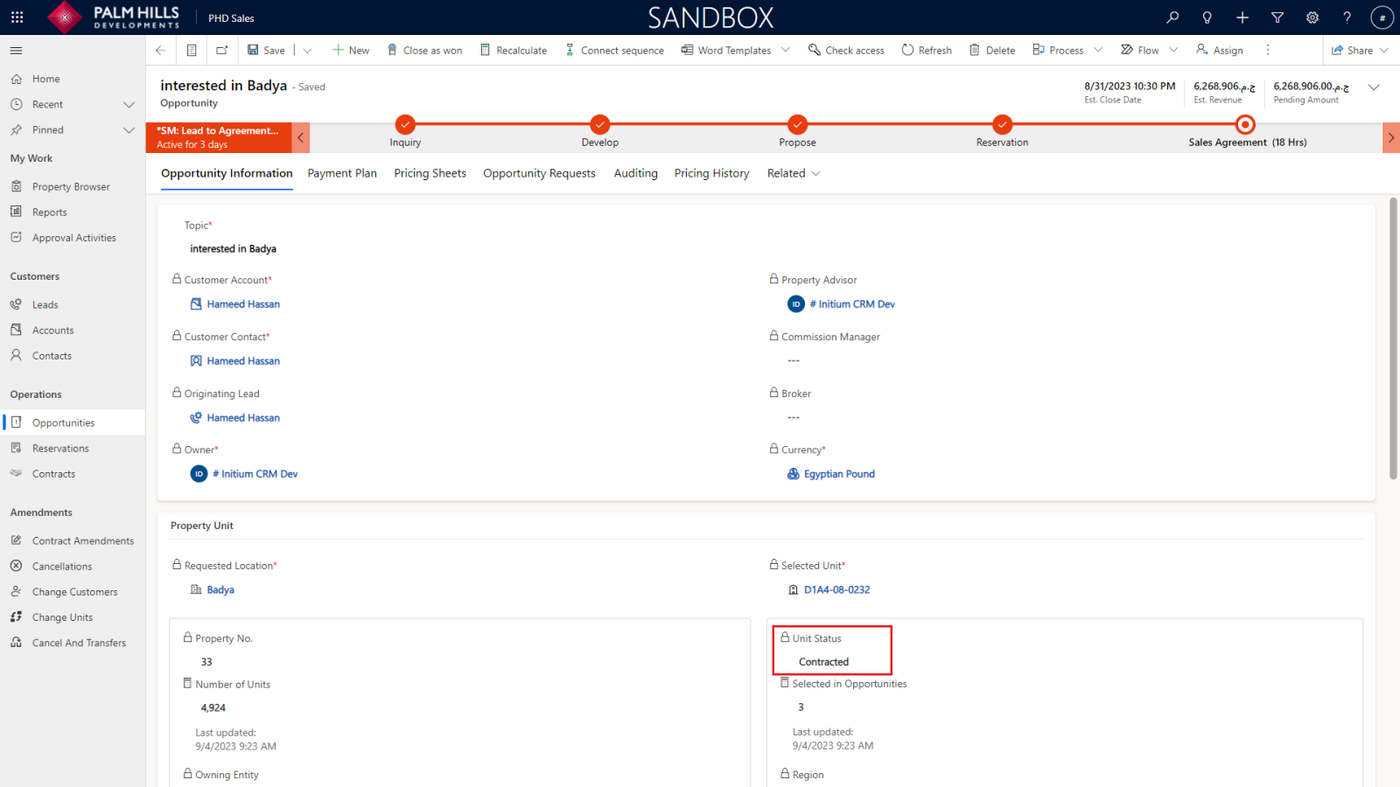
Now, if you return to the opportunity, you will find that the 'Unit Status' has changed to 'Contracted'.