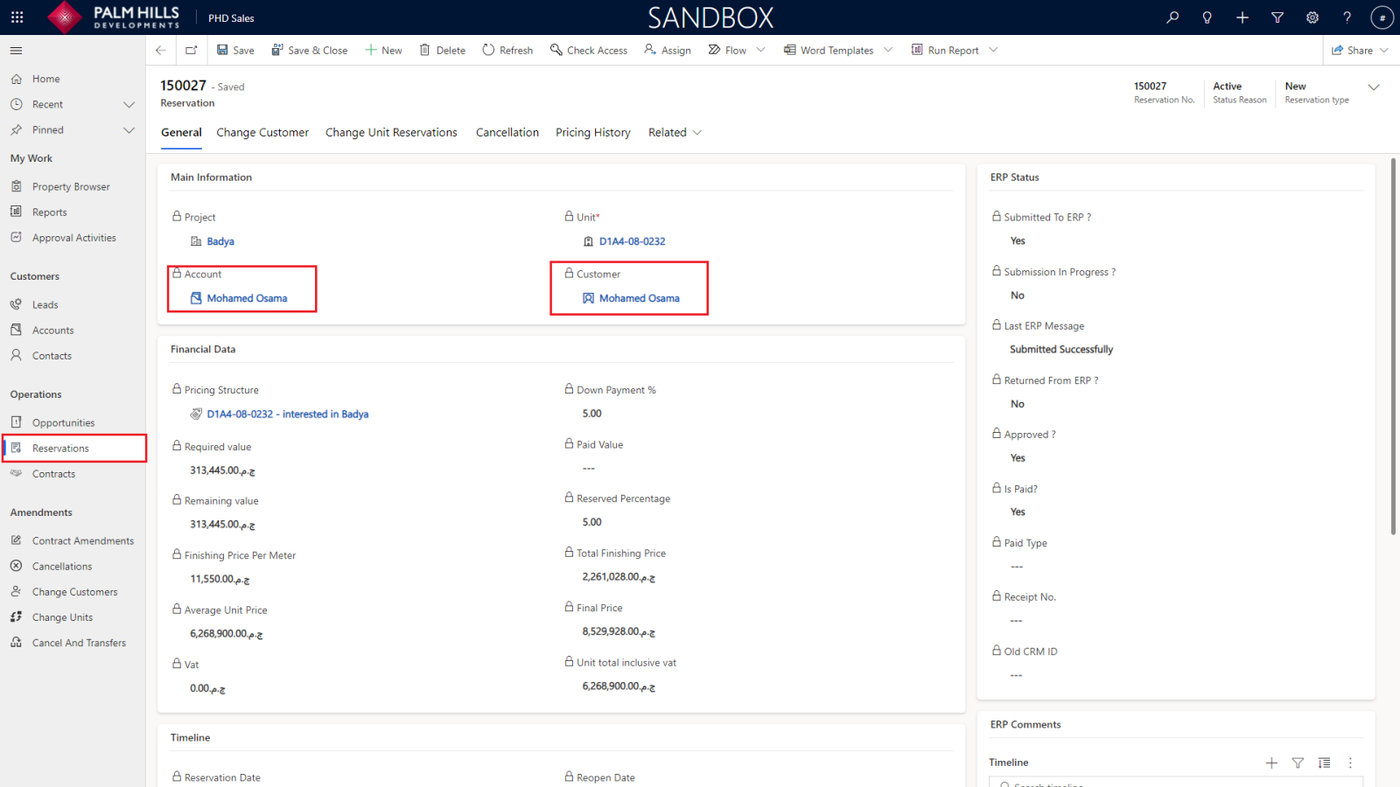
Change Customer
In this section, describe how to change the customer account, contact, or both if needed.
To change the customer, navigate to 'Reservations,' select your reservation number, then go to the 'Change Customer' section, and finally, click on the 'New Change Customer' button.
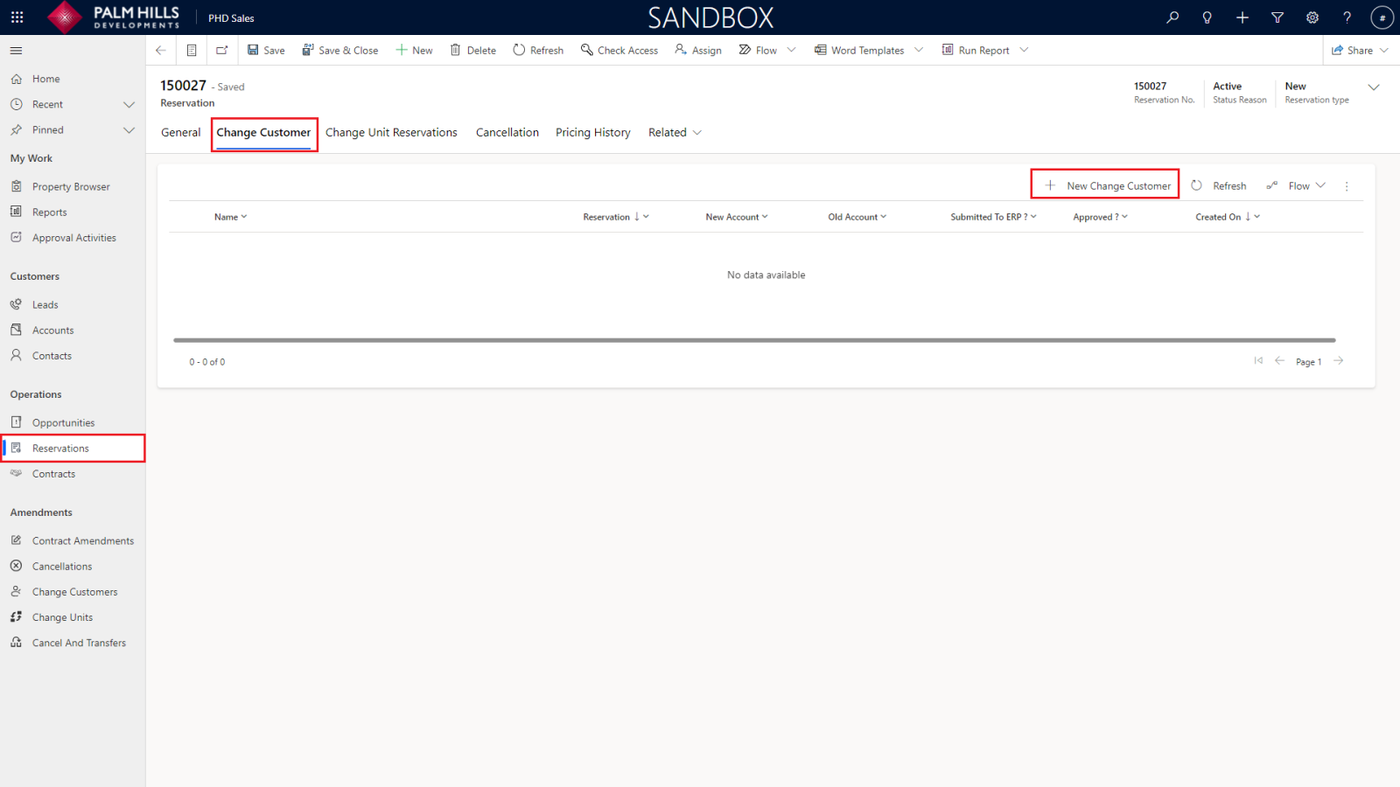
When the form is displayed, start by selecting the 'Change Type' from the dropdown list, such as 'Family Transfer'.
In the 'New Account' field, you have two options :
- Choose an account that has already been created before.
- Click on 'New Account' to create a new account immediately.
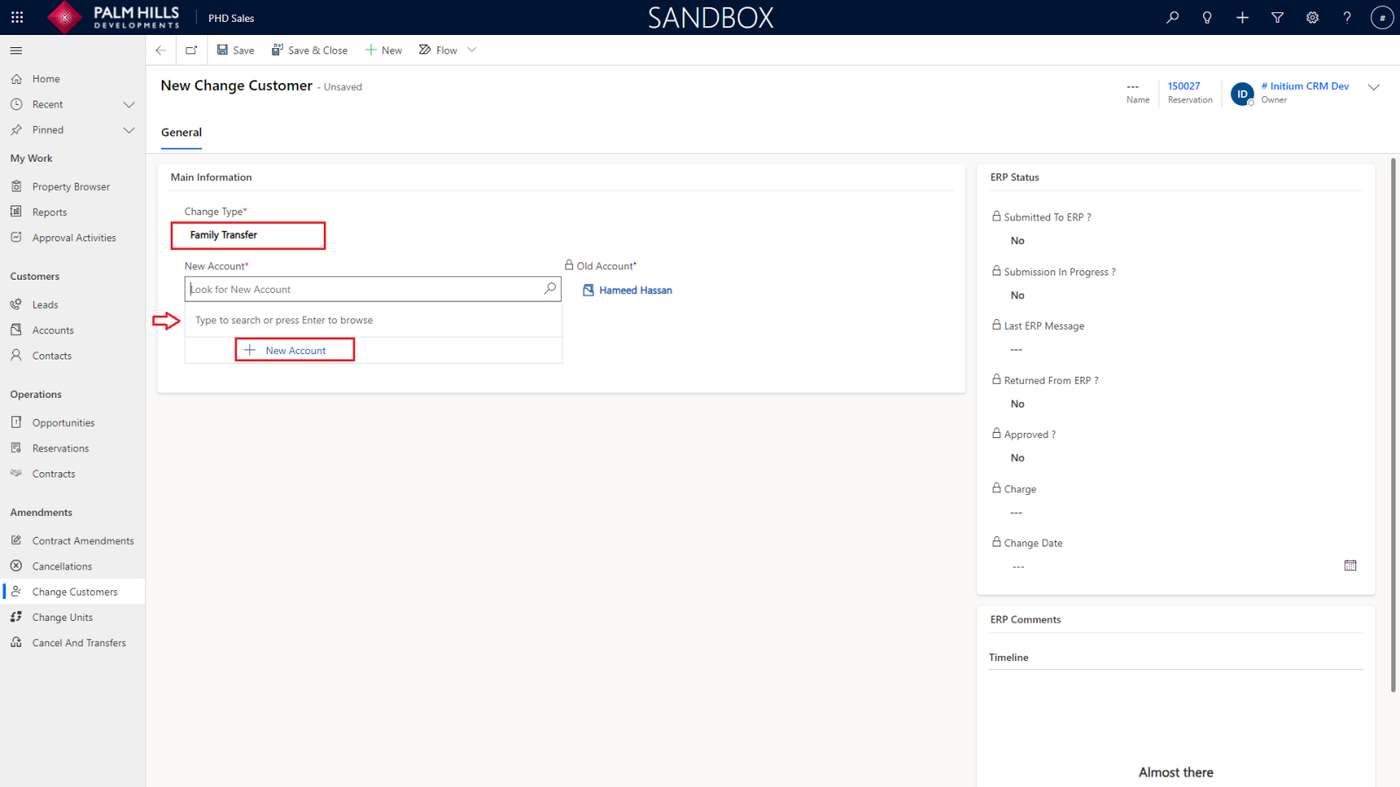
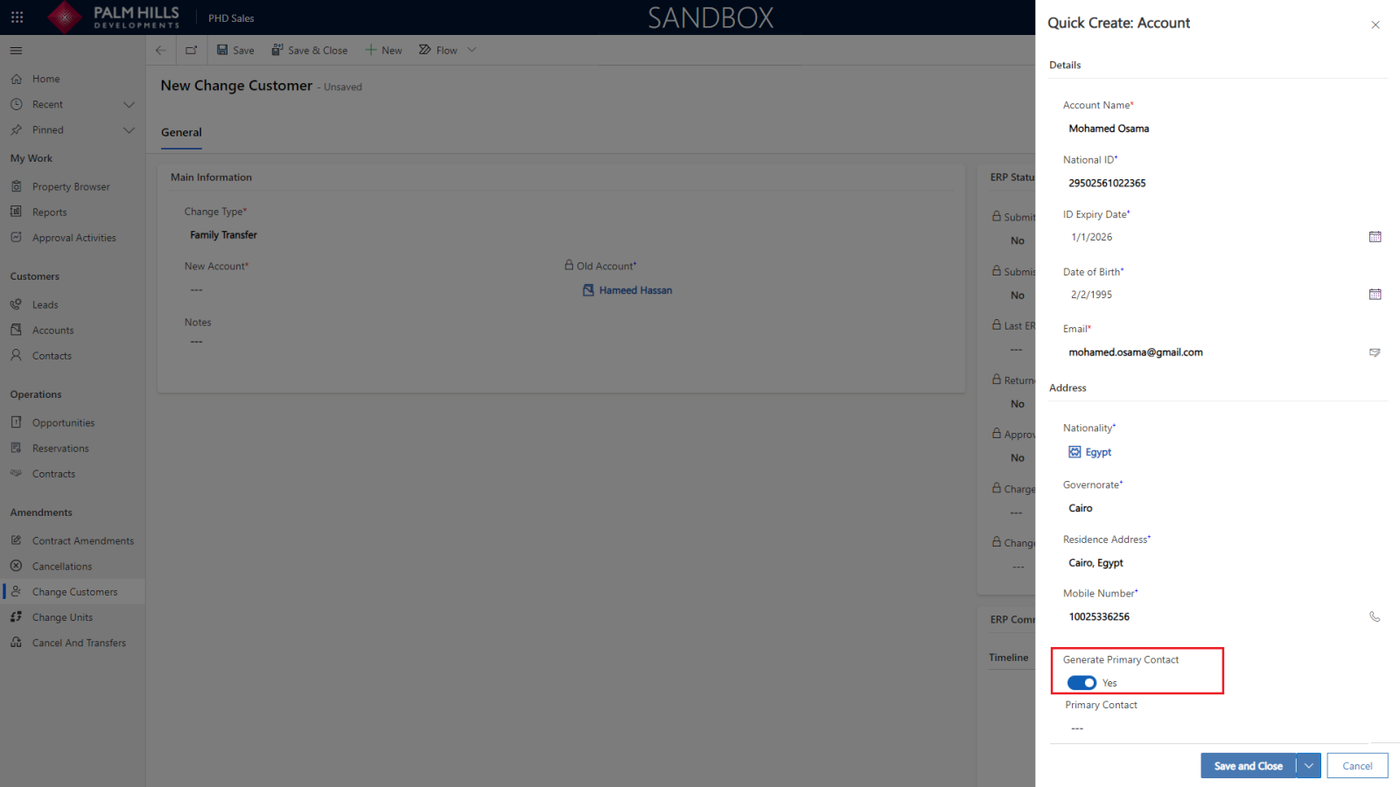
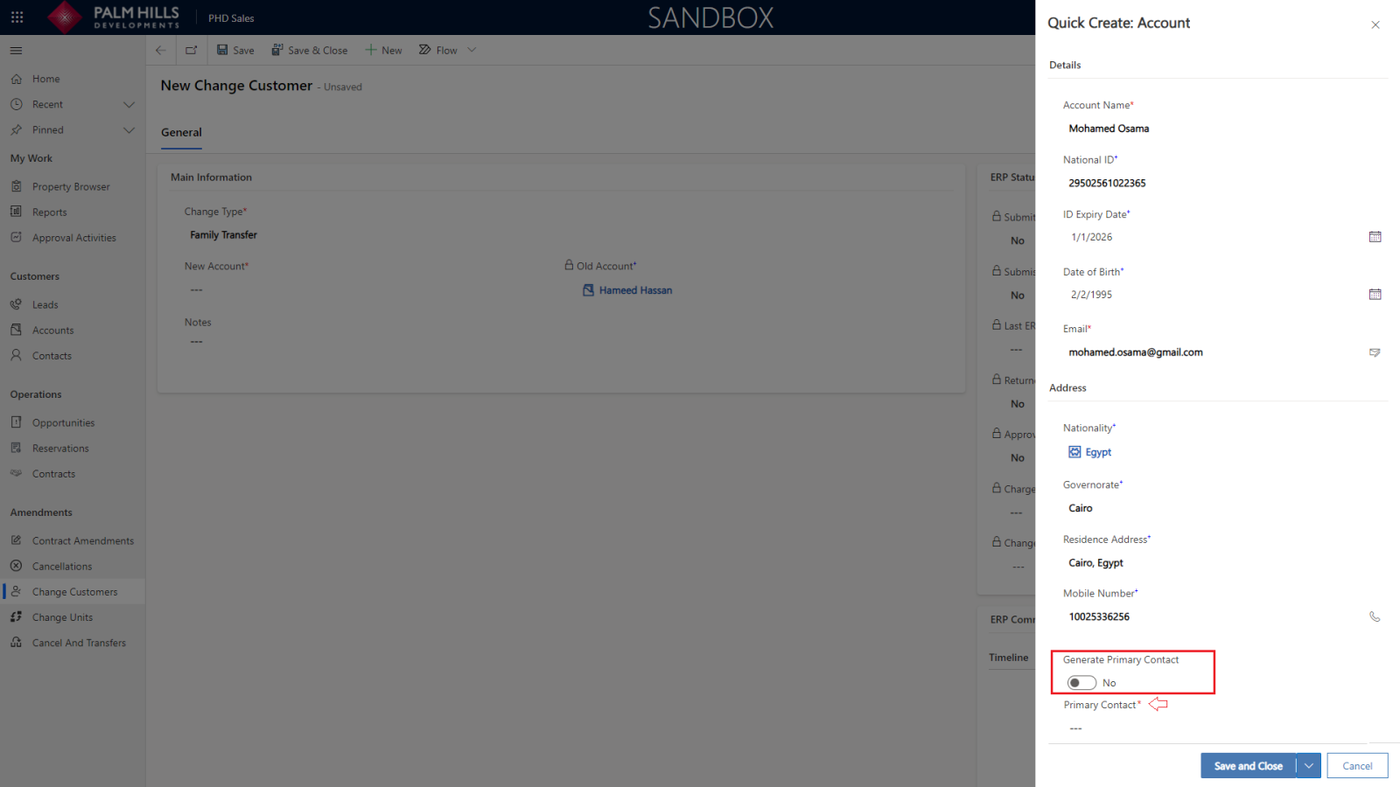
If you click on 'New Account,' a form will be displayed on the same page.
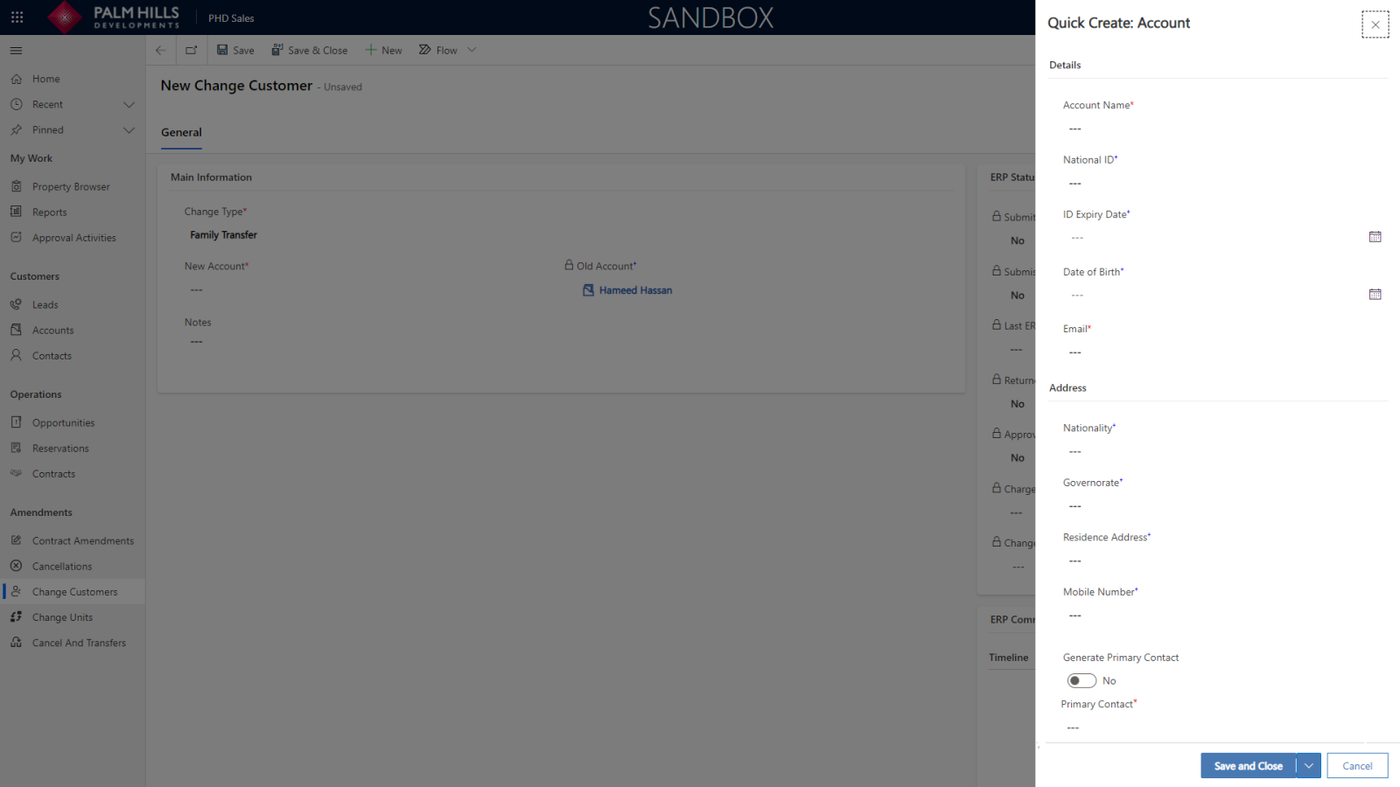
In the 'Create Account' form, after filling out the account details, you have two scenarios :
- Set 'Generate Primary Contact' to 'Yes' (indicating that it will be generated from the data you entered in the account details).
- Set 'Generate Primary Contact' to 'No', then you must choose a Primary Contact that has already been created before.
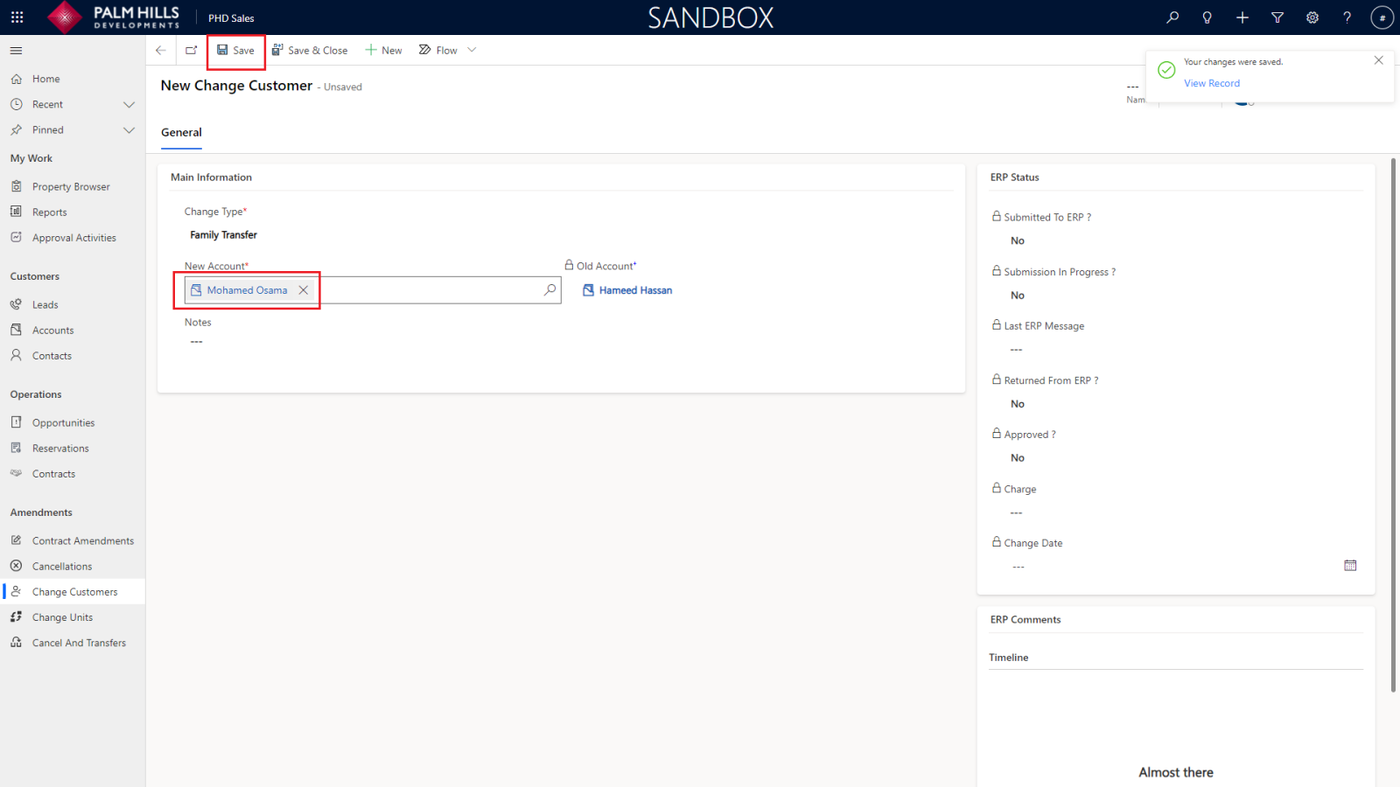
After either scenario, click on the 'Save and Close' button.
After clicking the 'Save and Close' button, you will find the new account added. Then, click on the 'Save' button.
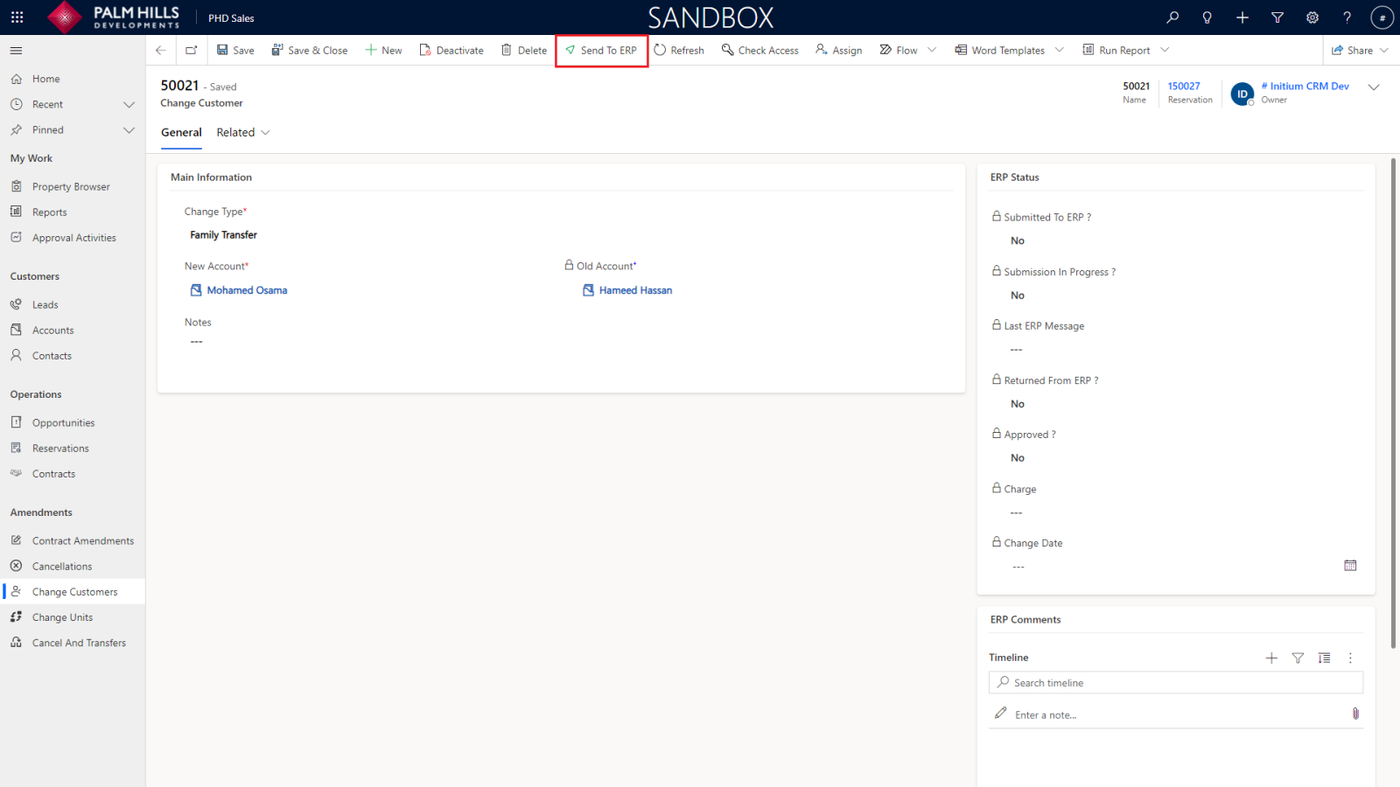
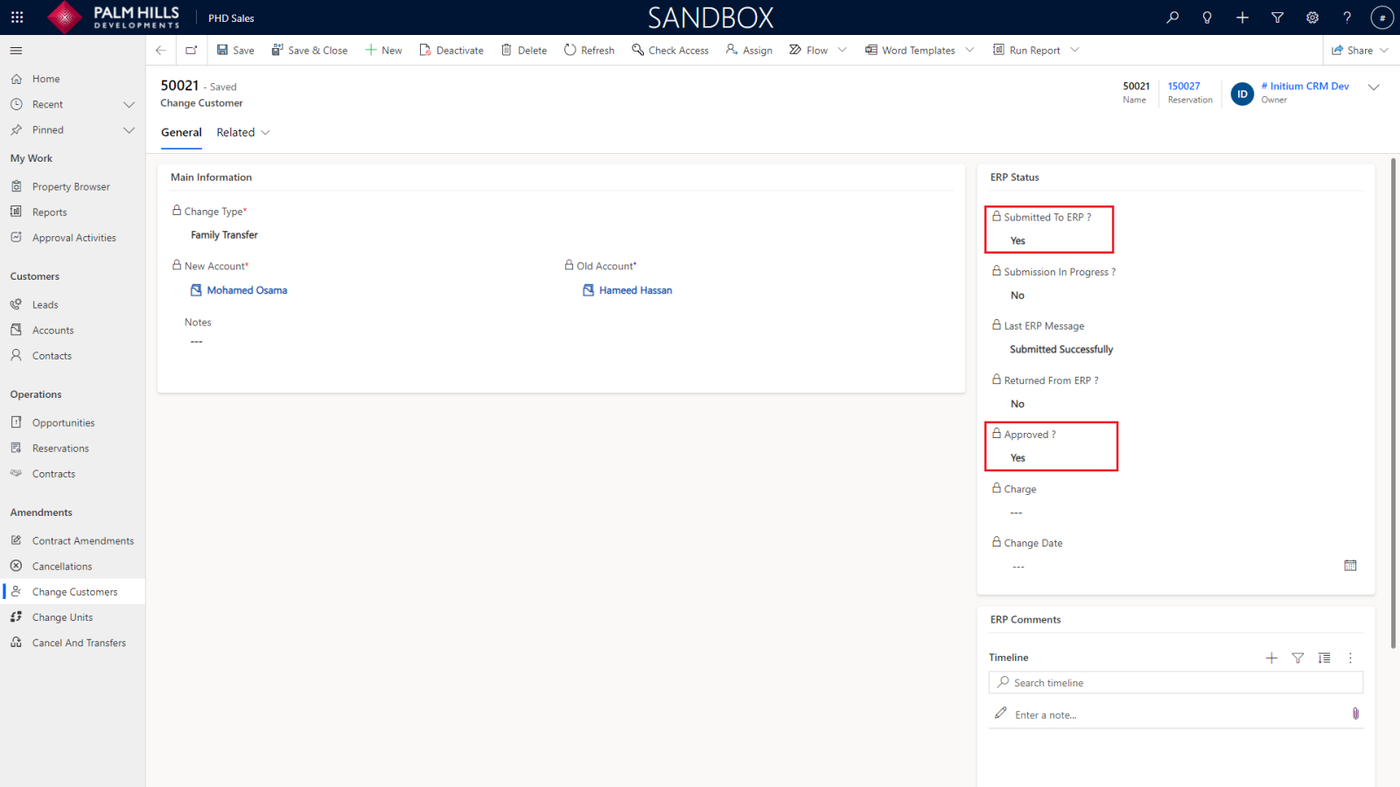
After saving the form, you can click on the 'Send To ERP' button.
After sending it to ERP, if they change the customer status to 'Approved: Yes'.
Now, if you go back to your 'Reservation,' you will notice that the 'Account' field and 'Customer' field have been updated with the new changes that have occurred.