Cancel And Transfer
Process Name :
Reservation Changes
Description :
Create a new reservation with a new unit under the old reservation.
Responsible Party :
Sales Agent
Result :
After creating a new reservation within the old reservation, you need to submit to the ERP team.
Flowchart :

Process Name :
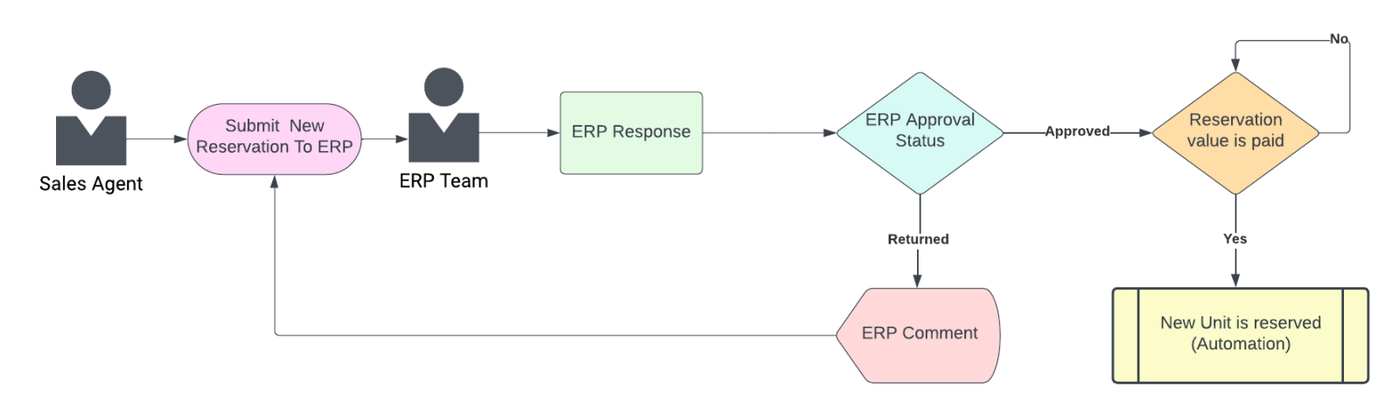
Submit To ERP
Description :
Send the new reservation request to ERP, and approval from the ERP team.
Responsible Party :
Sales Agent, ERP Team
Result :
In case ERP approves the unit will be reserved. If it is returned with a comment, the sales agent can make changes and resubmit it to ERP.
Flowchart :
Process Name :
New Cancel And Transfer
Description :
Create a new cancel and transfer between the old reservation and the new reservation.
Responsible Party :
Sales Agent
Result :
After creating the new cancel and transfer and selecting the new reservation under the old reservation, you should send it to the finance team for approval.
Flowchart :

Process Name :
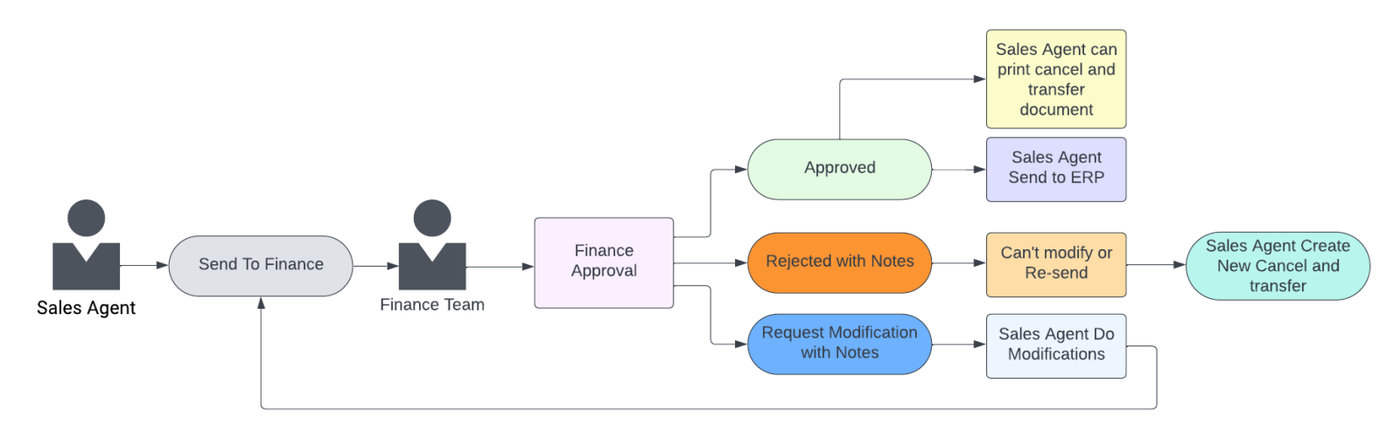
Send To Finance
Description :
Send the change unit request to Finance, and approval from the Finance team.
Responsible Party :
Sales Agent, Finance Team
Result :
- If the finance team approves the request, the sales agent can proceed to send it to ERP and print cancel and transfer document.
- In case of rejection with a note, the sales agent can't modify and create another cancel and transfer and resend it.
- If the request requires modifications, the sales agent will make the necessary changes and send it again.
Flowchart :
Process Name :
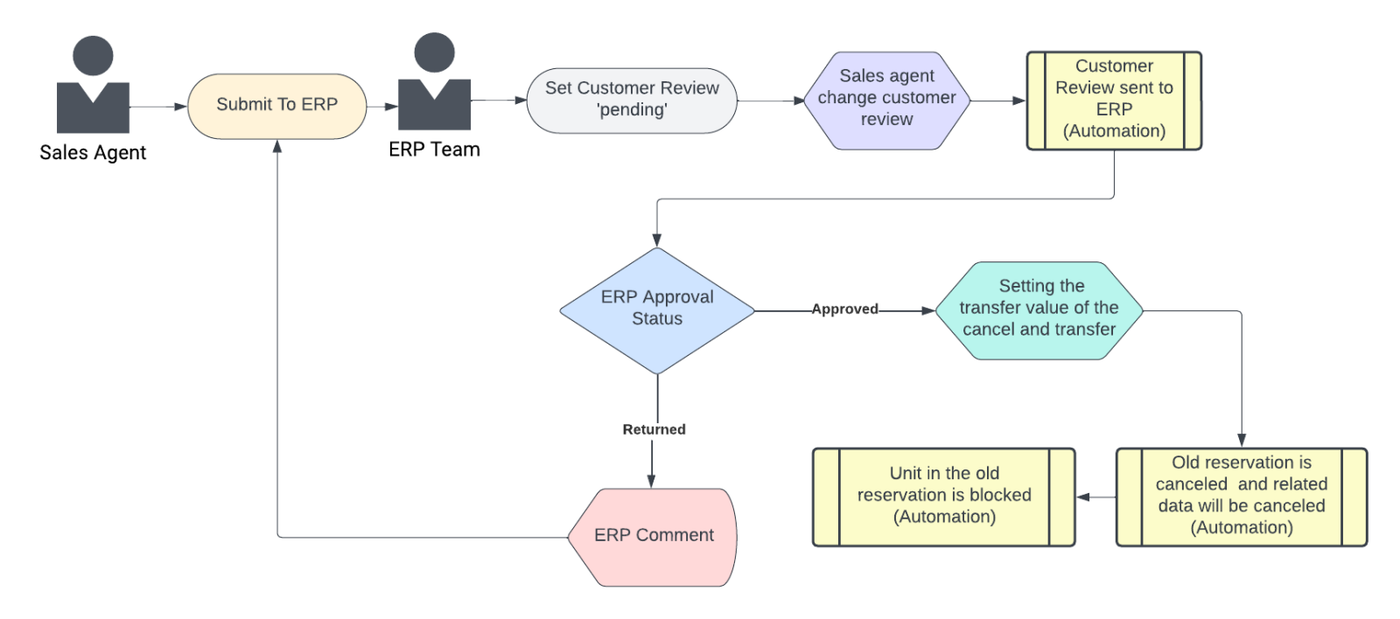
Submit To ERP
Description :
Send the cancel and transfer request to ERP, and approval from the ERP team.
Responsible Party :
Sales Agent, ERP Team
Result :
After the sales agent submits the customer review, it is set as pending until the sales agent updates the customer review. Then, ERP decides the reservation.
Flowchart :